Why did I do it?
At one point of time - it was enough. All kind of ring-folders, files, documents accumulated in some cabinets and on the desk. No more space and so much effort to find the documents again 🙂
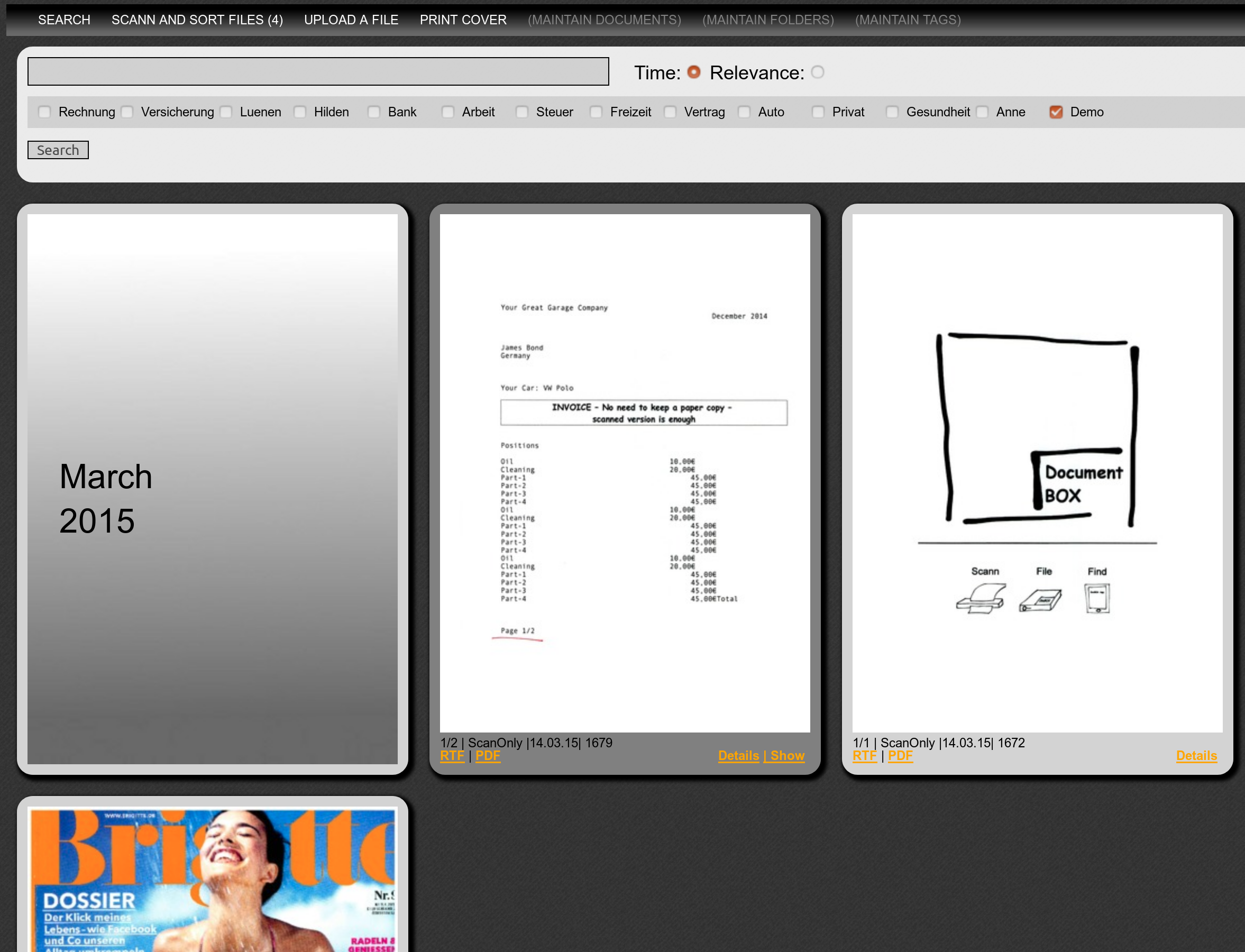
The result is DocBox. A smart solution that changes the way you handle your documents. It runs on a separate box (e.g. Raspberry PI) and allows to upload and access documents via Web & Android App - SECURE AND PRIVATE.
How did I to it?
DocBox is written in Ruby on Rails (RoR), an elegant Web Framework based on Ruby supporting the MCV concept (Model, Controller, View). Its running at home for me on a Cubietrack (ARM board) with Ubuntu Linux since 2 years without any problems.
As installation is quite complex on this board I made a 2nd version that is running on a Raspberry Pi and can be installed from Docker in some minutes. Installation details are at GitHub. If anybody want to try it out, let me know
>>> Lean more, read THIS– The Architecture – How to build a modular Document Management System?
3min – that can change the way you work with your document – WATCH IT
Latest News
- ZOTAC ZBOX CI620 NANO i3 – New Home Server with Ubuntu 20.04 LTS (07.05.2020)
Intro
This will be my new “HomeServer” running https://44-2.de/docbox/ and Openhabian..and more. Its a passive cooled mini PC with Intel i3-8130U, for my needs its equipped with 8GB RAM and a 8GB (2x4GB) Crucial DDR4-2400 CL17 SO-DI RAM and a Samsung SSD 860 EVO Series 1TB.
Installing the Hardware
https://www.youtube.com/watch?v=SizIpEPl378Installing Ubuntu 20.04 LTS on ZOTAC ZBOX + The Bacis
Very simple and straight forward
- Create Bootable USB Stick with Etcher
- Connect with Keyboard , HDMI Monitor and Ethernet (optional)
- PlugIn USB Stick in the front USB
- Power on the box + press F8 on the keyboard (every 1-2 seconds)
- Boot Menu: Enable UEFI – Boot (if you like) + Reboot
- Again press F8 and select USB as boot-device
- Follow the standard Ubuntu Setup (goes really fast), reboot
- Install WIFI: Install wpa tools:
sudo apt-get install wpasupplicant - Follow https://linuxconfig.org/ubuntu-20-04-connect-to-wifi-from-command-line to set-up the interface using netplan, my config file for WiFi located in //etc/netplan see below. To use the local name service (e.g. by your router, e.g. AVM Fritzbox) you need to add the section “search”.
- I got error messages in dmesg about Active Power State management, to fix follow https://www.thomas-krenn.com/de/wiki/PCIe_Bus_Error_Status_00001100_beheben. This will deativate a power-status in the PCI, from short research I think its not to bad for power consumption
- Some other error messages came from multipath tool, used on server to manage LVM devices – not needed, we only have one SSD, so I removed it with
sudo apt-get remove multipath-tools
# //etc/netplan config code for wifi interface (check the name of the interface, here its wlp3s0) network: ethernets: enp1s0: dhcp4: true version: 2 wifis: wlp3s0: optional: true access-points: "YOUR SSID": password: "YOUR PWD" dhcp4: no addresses: [YOUR IP/24] gateway4: 192.168.1.1 nameservers: search: [fritz.box] addresses: [192.168.1.1]Install openHAB Smart Home on Ubuntu 20.04 Server
There are two ways to install Openhab, one as a normal package or the other one as from the “openhabian” project. That starts with a config-tool, from here you will install Openhab. I can really recommend using this options. Instructions can be found here:https://www.openhab.org/docs/installation/openhabian.html#other-linux-systems-add-openhabian-just-like-any-other-software.
Small Tips
OpenHABian configuration tool also allows to add additional components, I went with “Log Viewer” and “MQTT Mosquitto”.
I had to migrate from an existing openHAB installation, and used this trick: https://community.openhab.org/t/how-to-transfer-configuration-from-one-openhab-to-another/92784 that basically create a backup and restore via
#on source: sudo openhab-cli backup --full - Mobile Application Development is easy! Really? (08.12.2019)
We are all using Mobile Apps we download from Google Play - and use them every day.
But -do we ever think about the developers?
I do - especially since I developed a Mobile App on my own 🙂
What did I build?
I love my little document management system "DocBox" (read more here: DocBox) - that I wrote some time ago in RubyOnRails and that is running on a Raspberry Pi (BigPi – a Raspberry Pi 4 with SSD as HomeServer).
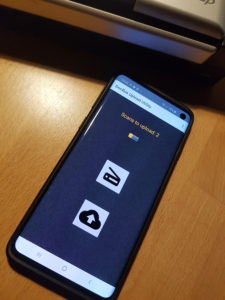
The Mobile-App is used to take pictures from documents that I want to keep or archive, especially when I am away and I don't have access to my scanner. Back at home, I upload these documents directly to my DocBox. So my Mobile App does:
- Scan (take a photo) and edit the picture
- Store Picture on the phone until back at home
- Back at home - upload all saved pictures to the DocBox server
- Only upload data to DocBox, when we are in a verified Wi-Fi network and when a DocBox server is available.
- Allow maintenance of a list of allowed Wi-Fi network and DocBox server via setting
- Do *not* upload anything to Google, Facebook and do *not* store my data anywhere else!!!
Doesn't sound to complicated...maybe a rainy Sunday?
How did I do it?
Its best to start by using the IDE/ tool-chain called "Android Studio", that can be downloaded here.
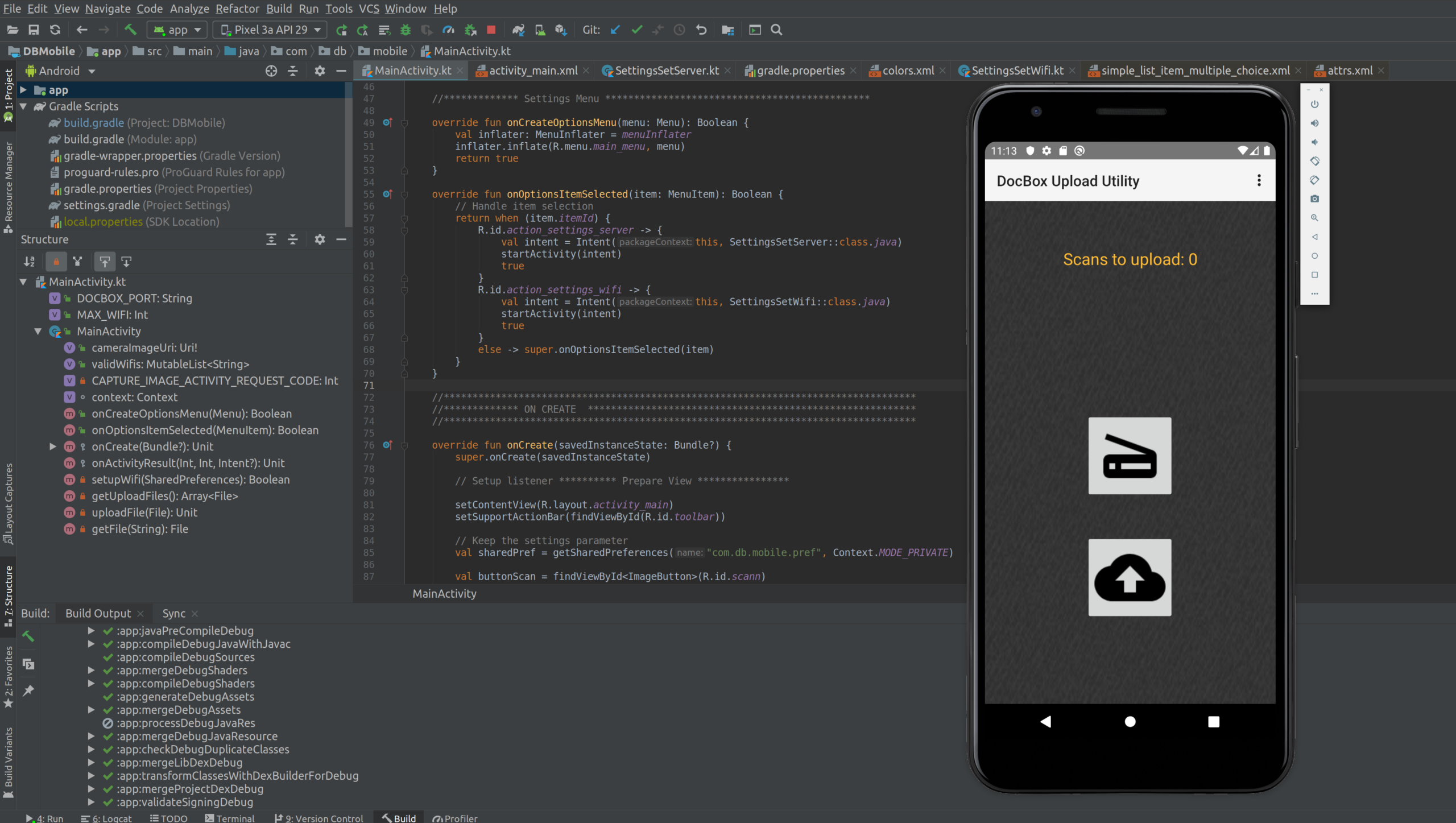
Android Studio is provided by Google and is developed by JetBrains. Its an Integrated Development Environment and handles everything (Coding, Code-Completion, Refactoring, Debugging, Testing, Resource Management). Once you installed it, you can start with an empty template app or example app.
To try the mobile app you just have developed, you can use a simulator that's running on your PC (you can even select the model of phone you want to simulate) or you connect a normal mobile phone with USB-Debugging enabled. Voila....
You can choose between 2 different programming languages, JAVA or Kotlin. Kotlin is a "new programming language" developed by JetBrains. Its object oriented, cross-plattform and statically typed. Personally I think that programs written in Kotlin are much better readable. At the end the Kotlin program is also compiled to run in to a JVM, not much of a difference to Java. So I learned Kotlin.
To give you some impression, I picked one simple activity - see below some Kotlin code (its for Android 10) - it does a lot:
- It creates the setting screen for the servers IP address in the "onCreate" activity
- It gets all the ID of the graphical elements, so you can access them from the program
- It opens a preference key-value database to store the IP address permanently on the phone (only accessible from the app)
- It set's up a listener, that is waiting for a button, when this button is clicked it:
- It calls the DocBox server and checks if it is available
- Finally it update the correct IP address in the database and returns to the main menue
I think, the APIs provided by Google, together with the Kotlin language do a great job to allow clear and structured coding:
class SettingsSetServer : AppCompatActivity() { internal val context: Context = this override fun onCreate(savedInstanceState: Bundle?) { super.onCreate(savedInstanceState) setContentView(R.layout.activity_settings_set_server) setSupportActionBar(toolbar) supportActionBar?.setDisplayHomeAsUpEnabled(true) val ipAddress = findViewById(R.id.ip_address) val serverStatus = findViewById (R.id.server_status) serverStatus.text="" // Read current IP address from Preferences and update on GUI val sharedPref = getSharedPreferences("com.db.mobile.pref", Context.MODE_PRIVATE) val oldIpAddress = sharedPref.getString("docboxserver","") ipAddress.setText(oldIpAddress) // ************************************************************************** // Update IP address if changed with new IP address ipAddress.setOnClickListener { val newIpAddress =ipAddress.text var error=false runBlocking { try { Fuel.get("http://$newIpAddress:$DOCBOX_PORT/cd_server_status_for_mobile").awaitStringResponse() } catch (exception: Exception) { serverStatus.text="No connection to Server" error=true } } // if no error, update new IP address in preferences if (!error) { with (sharedPref.edit()) { putString("docboxserver", newIpAddress.toString()) commit() } finish() } } } } How did it go?
Lets start with the good news:
- Kotlin was new to me, so I had to get used to the specialities of this language - but its very consistent - good exercise.
- I have used other IDEs from JetBrains, so I knew the concept and had a quick start
- To get the first app running takes only some minutes
- Google is your friend, 90% of all questions have been already solved!
Here comes the bad:
- You need to decide for which Android version the app should run, each version Google comes up with new features - but also depreciates old ones. Its a nightmare to find out -what you need to do. Upgrading and keep an app recent for sure is HARD WORK.
- Android is separating programming logic and views and resources very strict. Its using Activities to control different screens. Each Activity has a live-cycle. Its core to understand this underlying principles. That takes time.
- Many configuration files (manifest.xml, gradle) can be adjusted, and everything can be configured. It just should be correct.
- All is multi-threading, threads communicate and impact each other - can be quite confusing at the beginning - for me that was the biggest challenger!
- The 10% of the questions, that are not solved via Google-Search - are really a problem. You can get really, really stuck!
- .....
Conclusion
In total it took me much longer then expected, I got into one problem where was no solution in the Internet - and that took time to solve. Also at the end the solution was so easy, just one line of code 🙁
I have my full respect for people writing apps for free, putting them in the play-store and keep them even up-to-date. THANK YOU!!!
But on the other hand - mobile app development is not a miracle - if someone starts charging you 100k€ for an app like mine - start thinking.
By the way, my DocBox-Mobile is not in GooglePlay - but you find it on GitHub:
https://github.com/happychriss/DocumentBox-Mobile
If you want to see it all, check out the full project: DocBox

- DocBox – The Architecture – How to build a modular Document Management System? (22.06.2019)
How to build a modular Document Management System?
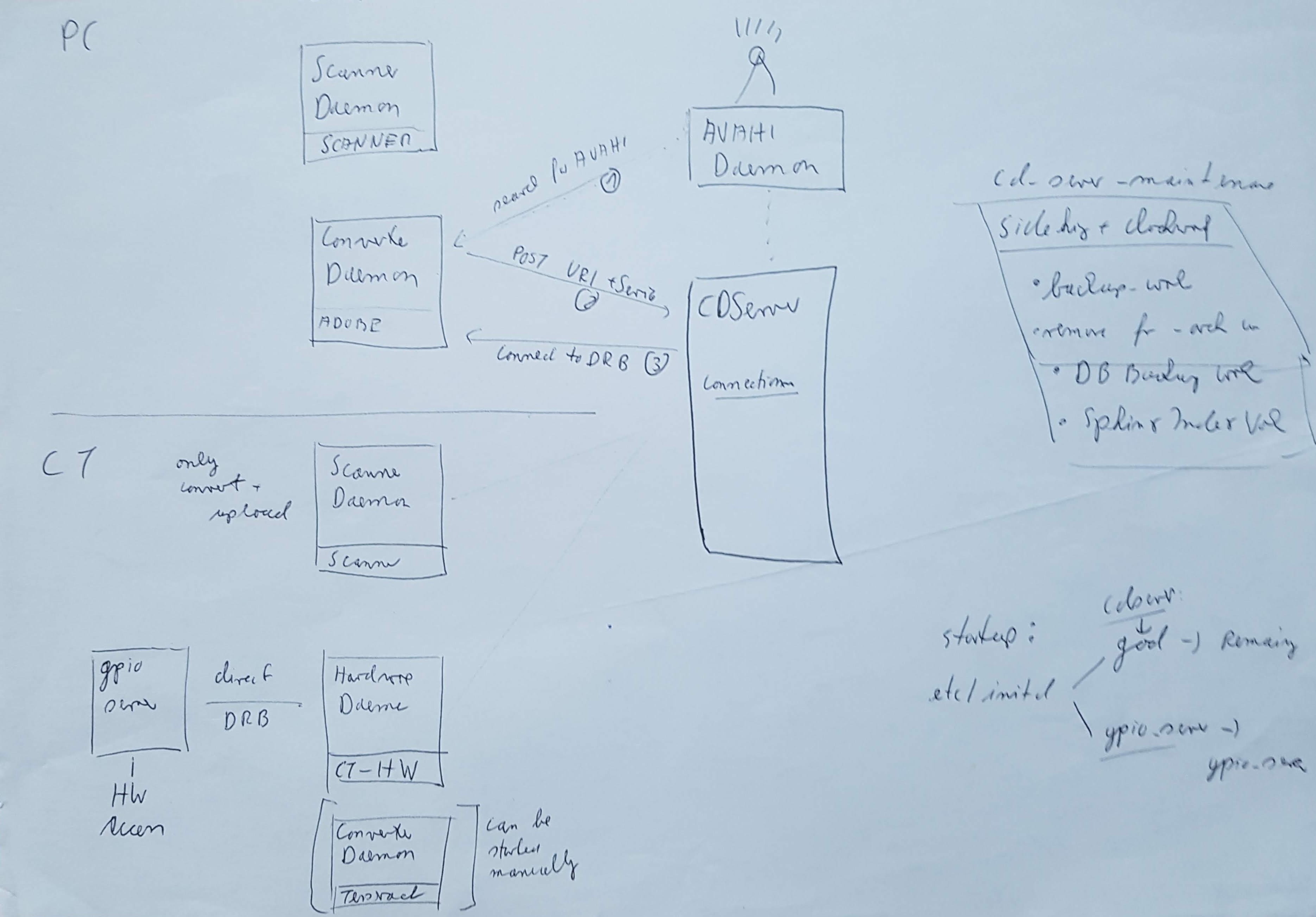
Of course the answer: The DocBox Software is build modular, and can therefore work in different constellations.
Server: This is the central WebServer running in on ROR, connecting with the database.
Scanner-Daemon: This process must be adapted per scanner, in my example using a Fujitso ScanSnap S1300 (described here in GitHub).
Converter-Daemon: This guy does all the work of processing the scanned images he received from the Scanner-Daemon, including OCR processing. For OCR on my local Cubietrack I am using ADOPE PDF, but it also supports tesseract (also pretty good results). I have the Convert-Daemon currently running on my PC and put it into auto-start. So when I boot my PC it automatically starts converting the images and does the OCR. Alternatively the Converter-Daemon could run a Raspberry PI - would just take longer 🙂
Hardware-Daemon: This is currently only implemented for my Cubietrack, you can see the wonderful GREEN button, that triggers the scanning of the document. Its an additional abstraction layer, so the SW can be more easily adjusted to new hardware.
Why is this useful?
This allows scaling and using multiple scanners in different locations, e.g. with one central converter and web-server daemon. Using the AVAHI-daemon, there is no need to configure IP-addresses, as the components register themself.
How do all this Daemons communicate?
This took my quite a while to get running in a reliable way. But it works, the complete constellation runs for months without any issue.
3 Steps..ONLY
- On the same system as the WebServer an AVAHI-Daemon is running, that allows the other modules to use avahi-discover to find the DoxBox-Server in the network.
- Using the IP - Address and Port announced bay the AVAHI-Daemon, the external modules connect with the DocBox-Server and register its service by calling a specific URL (there is some need for additional security, but the assumption is, that we are running on a local network - but I think more security can be easily added). The information that is registered at the server is the IP-address of the Daemon and its port.
- Now the server has IP-Address and Port and is using DRB - Distributed Object System for Ruby.
Because I think DRB is so nice, look at this code - so easy to have all the logic in an object available from a remote system.
# Server ************************************ require 'drb/drb' # The URI for the server to connect to URI="druby://localhost:8787" class TimeServer def get_current_time return Time.now end end # The object that handles requests on the server FRONT_OBJECT=TimeServer.new $SAFE = 1 # disable eval() and friends DRb.start_service(URI, FRONT_OBJECT) # Wait for the drb server thread to finish before exiting. DRb.thread.join # Client ************************************ require 'drb/drb' # The URI to connect to (that was sent from the daemon) SERVER_URI="druby://localhost:8787" DRb.start_service timeserver = DRbObject.new_with_uri(SERVER_URI) puts timeserver.get_current_time - DocBox (26.05.2019)
Why did I do it?
At one point of time – it was enough. All kind of ring-folders, files, documents accumulated in some cabinets and on the desk. No more space and so much effort to find the documents again 🙂
The result is DocBox. A smart solution that changes the way you handle your documents. It runs on a separate box (e.g. Raspberry PI) and allows to upload and access documents via Web & Android App – SECURE AND PRIVATE.
How did I to it?
DocBox is written in Ruby on Rails (RoR), an elegant Web Framework based on Ruby supporting the MCV concept (Model, Controller, View). Its running at home for me on a Cubietrack (ARM board) with Ubuntu Linux since 2 years without any problems.
As installation is quite complex on this board I made a 2nd version that is running on a Raspberry Pi and can be installed from Docker in some minutes. Installation details are at GitHub. If anybody want to try it out, let me know
>>> Lean more, read THIS– The Architecture – How to build a modular Document Management System?
- LoRa and RPI
- Davids great hack of the STM32 on the Waveshare eInk
- Waveshare - 4.3inch e-Paper UART Module (eInk)
- Layout - connecting ESP8266 and eInk Display
- Repaper - additional information about Embeddedartists e-paer displays
- MyCode@Github - Most Complicated Watch (MCW) - Atmega (Arduino Mini)
- MyCode@Github - Most Complicated Watch (MCW) - PIC16 (Microship MCU)
- MyCode@GitHub - DocumentBox (Server) for manual PI3 installation
- MyCode@GitHub - DocumentBox (Daemon) for manual PI3 installation
- MyCode@GitHub - Blockchain Certifier
- MyCode@GitHub - DocumentBox (Docker on Raspberry PI3) - Simple Installation
- Randomnerd - ESP8266 and RFM95
- LoRaWan GitHub
- LoRaNow - Simple LoRa Library (less complex than LoRaWan)
- Lora Radio Node - GitHub
- LoRa Radio Node v1.0 - Tutorial
- Lora Node V1.0 Layout Schema
- MyCode@GitHub - Waveshare eInk Display on STM32
- Arduino LoRa Library on GitHub
- MyCode@GitHub - ESP8266 Code (Wifi connection, encryption)
- Layout - Programming STM32 of eInk display with JTAG
Latest News
- ZOTAC ZBOX CI620 NANO i3 – New Home Server with Ubuntu 20.04 LTS (07.05.2020)
Intro
This will be my new “HomeServer” running https://44-2.de/docbox/ and Openhabian..and more. Its a passive cooled mini PC with Intel i3-8130U, for my needs its equipped with 8GB RAM and a 8GB (2x4GB) Crucial DDR4-2400 CL17 SO-DI RAM and a Samsung SSD 860 EVO Series 1TB.
Installing the Hardware
https://www.youtube.com/watch?v=SizIpEPl378Installing Ubuntu 20.04 LTS on ZOTAC ZBOX + The Bacis
Very simple and straight forward
- Create Bootable USB Stick with Etcher
- Connect with Keyboard , HDMI Monitor and Ethernet (optional)
- PlugIn USB Stick in the front USB
- Power on the box + press F8 on the keyboard (every 1-2 seconds)
- Boot Menu: Enable UEFI – Boot (if you like) + Reboot
- Again press F8 and select USB as boot-device
- Follow the standard Ubuntu Setup (goes really fast), reboot
- Install WIFI: Install wpa tools:
sudo apt-get install wpasupplicant - Follow https://linuxconfig.org/ubuntu-20-04-connect-to-wifi-from-command-line to set-up the interface using netplan, my config file for WiFi located in //etc/netplan see below. To use the local name service (e.g. by your router, e.g. AVM Fritzbox) you need to add the section “search”.
- I got error messages in dmesg about Active Power State management, to fix follow https://www.thomas-krenn.com/de/wiki/PCIe_Bus_Error_Status_00001100_beheben. This will deativate a power-status in the PCI, from short research I think its not to bad for power consumption
- Some other error messages came from multipath tool, used on server to manage LVM devices – not needed, we only have one SSD, so I removed it with
sudo apt-get remove multipath-tools
# //etc/netplan config code for wifi interface (check the name of the interface, here its wlp3s0) network: ethernets: enp1s0: dhcp4: true version: 2 wifis: wlp3s0: optional: true access-points: "YOUR SSID": password: "YOUR PWD" dhcp4: no addresses: [YOUR IP/24] gateway4: 192.168.1.1 nameservers: search: [fritz.box] addresses: [192.168.1.1]Install openHAB Smart Home on Ubuntu 20.04 Server
There are two ways to install Openhab, one as a normal package or the other one as from the “openhabian” project. That starts with a config-tool, from here you will install Openhab. I can really recommend using this options. Instructions can be found here:https://www.openhab.org/docs/installation/openhabian.html#other-linux-systems-add-openhabian-just-like-any-other-software.
Small Tips
OpenHABian configuration tool also allows to add additional components, I went with “Log Viewer” and “MQTT Mosquitto”.
I had to migrate from an existing openHAB installation, and used this trick: https://community.openhab.org/t/how-to-transfer-configuration-from-one-openhab-to-another/92784 that basically create a backup and restore via
#on source: sudo openhab-cli backup --full - Mobile Application Development is easy! Really? (08.12.2019)
We are all using Mobile Apps we download from Google Play – and use them every day.
But -do we ever think about the developers?
I do – especially since I developed a Mobile App on my own 🙂
What did I build?
I love my little document management system “DocBox” (read more here: DocBox) – that I wrote some time ago in RubyOnRails and that is running on a Raspberry Pi (BigPi – a Raspberry Pi 4 with SSD as HomeServer).
The Mobile-App is used to take pictures from documents that I want to keep or archive, especially when I am away and I don’t have access to my scanner. Back at home, I upload these documents directly to my DocBox. So my Mobile App does:
- Scan (take a photo) and edit the picture
- Store Picture on the phone until back at home
- Back at home – upload all saved pictures to the DocBox server
- Only upload data to DocBox, when we are in a verified Wi-Fi network and when a DocBox server is available.
- Allow maintenance of a list of allowed Wi-Fi network and DocBox server via setting
- Do *not* upload anything to Google, Facebook and do *not* store my data anywhere else!!!
Doesn’t sound to complicated…maybe a rainy Sunday?
How did I do it?
Its best to start by using the IDE/ tool-chain called “Android Studio”, that can be downloaded here.
Android Studio is provided by Google and is developed by JetBrains. Its an Integrated Development Environment and handles everything (Coding, Code-Completion, Refactoring, Debugging, Testing, Resource Management). Once you installed it, you can start with an empty template app or example app.
To try the mobile app you just have developed, you can use a simulator that’s running on your PC (you can even select the model of phone you want to simulate) or you connect a normal mobile phone with USB-Debugging enabled. Voila….
You can choose between 2 different programming languages, JAVA or Kotlin. Kotlin is a “new programming language” developed by JetBrains. Its object oriented, cross-plattform and statically typed. Personally I think that programs written in Kotlin are much better readable. At the end the Kotlin program is also compiled to run in to a JVM, not much of a difference to Java. So I learned Kotlin.
To give you some impression, I picked one simple activity – see below some Kotlin code (its for Android 10) – it does a lot:
- It creates the setting screen for the servers IP address in the “onCreate” activity
- It gets all the ID of the graphical elements, so you can access them from the program
- It opens a preference key-value database to store the IP address permanently on the phone (only accessible from the app)
- It set’s up a listener, that is waiting for a button, when this button is clicked it:
- It calls the DocBox server and checks if it is available
- Finally it update the correct IP address in the database and returns to the main menue
I think, the APIs provided by Google, together with the Kotlin language do a great job to allow clear and structured coding:
class SettingsSetServer : AppCompatActivity() { internal val context: Context = this override fun onCreate(savedInstanceState: Bundle?) { super.onCreate(savedInstanceState) setContentView(R.layout.activity_settings_set_server) setSupportActionBar(toolbar) supportActionBar?.setDisplayHomeAsUpEnabled(true) val ipAddress = findViewById<edittext>(R.id.ip_address) val serverStatus = findViewById<textview>(R.id.server_status) serverStatus.text="" // Read current IP address from Preferences and update on GUI val sharedPref = getSharedPreferences("com.db.mobile.pref", Context.MODE_PRIVATE) val oldIpAddress = sharedPref.getString("docboxserver","") ipAddress.setText(oldIpAddress) // ************************************************************************** // Update IP address if changed with new IP address ipAddress.setOnClickListener { val newIpAddress =ipAddress.text var error=false runBlocking { try { Fuel.get("http://$newIpAddress:$DOCBOX_PORT/cd_server_status_for_mobile").awaitStringResponse() } catch (exception: Exception) { serverStatus.text="No connection to Server" error=true } } // if no error, update new IP address in preferences if (!error) { with (sharedPref.edit()) { putString("docboxserver", newIpAddress.toString()) commit() } finish() } } } }</textview></edittext>How did it go?
Lets start with the good news:
- Kotlin was new to me, so I had to get used to the specialities of this language – but its very consistent – good exercise.
- I have used other IDEs from JetBrains, so I knew the concept and had a quick start
- To get the first app running takes only some minutes
- Google is your friend, 90% of all questions have been already solved!
Here comes the bad:
- You need to decide for which Android version the app should run, each version Google comes up with new features – but also depreciates old ones. Its a nightmare to find out -what you need to do. Upgrading and keep an app recent for sure is HARD WORK.
- Android is separating programming logic and views and resources very strict. Its using Activities to control different screens. Each Activity has a live-cycle. Its core to understand this underlying principles. That takes time.
- Many configuration files (manifest.xml, gradle) can be adjusted, and everything can be configured. It just should be correct.
- All is multi-threading, threads communicate and impact each other – can be quite confusing at the beginning – for me that was the biggest challenger!
- The 10% of the questions, that are not solved via Google-Search – are really a problem. You can get really, really stuck!
- …..
Conclusion
In total it took me much longer then expected, I got into one problem where was no solution in the Internet – and that took time to solve. Also at the end the solution was so easy, just one line of code 🙁
I have my full respect for people writing apps for free, putting them in the play-store and keep them even up-to-date. THANK YOU!!!
But on the other hand – mobile app development is not a miracle – if someone starts charging you 100k€ for an app like mine – start thinking.
By the way, my DocBox-Mobile is not in GooglePlay – but you find it on GitHub:
https://github.com/happychriss/DocumentBox-Mobile
If you want to see it all, check out the full project: DocBox
- DocBox – The Architecture – How to build a modular Document Management System? (22.06.2019)
How to build a modular Document Management System?
Of course the answer: The DocBox Software is build modular, and can therefore work in different constellations.
Server: This is the central WebServer running in on ROR, connecting with the database.
Scanner-Daemon: This process must be adapted per scanner, in my example using a Fujitso ScanSnap S1300 (described here in GitHub).
Converter-Daemon: This guy does all the work of processing the scanned images he received from the Scanner-Daemon, including OCR processing. For OCR on my local Cubietrack I am using ADOPE PDF, but it also supports tesseract (also pretty good results). I have the Convert-Daemon currently running on my PC and put it into auto-start. So when I boot my PC it automatically starts converting the images and does the OCR. Alternatively the Converter-Daemon could run a Raspberry PI – would just take longer 🙂
Hardware-Daemon: This is currently only implemented for my Cubietrack, you can see the wonderful GREEN button, that triggers the scanning of the document. Its an additional abstraction layer, so the SW can be more easily adjusted to new hardware.
Why is this useful?
This allows scaling and using multiple scanners in different locations, e.g. with one central converter and web-server daemon. Using the AVAHI-daemon, there is no need to configure IP-addresses, as the components register themself.
How do all this Daemons communicate?
This took my quite a while to get running in a reliable way. But it works, the complete constellation runs for months without any issue.
3 Steps..ONLY
- On the same system as the WebServer an AVAHI-Daemon is running, that allows the other modules to use avahi-discover to find the DoxBox-Server in the network.
- Using the IP – Address and Port announced bay the AVAHI-Daemon, the external modules connect with the DocBox-Server and register its service by calling a specific URL (there is some need for additional security, but the assumption is, that we are running on a local network – but I think more security can be easily added). The information that is registered at the server is the IP-address of the Daemon and its port.
- Now the server has IP-Address and Port and is using DRB – Distributed Object System for Ruby.
Because I think DRB is so nice, look at this code – so easy to have all the logic in an object available from a remote system.
<pre><code class="lang-ruby">
# Server ************************************
require 'drb/drb'# The URI for the server to connect to
URI="druby://localhost:8787"class TimeServer
def get_current_time
return Time.now
endend
# The object that handles requests on the server
FRONT_OBJECT=TimeServer.new$SAFE = 1 # disable eval() and friends
DRb.start_service(URI, FRONT_OBJECT)
# Wait for the drb server thread to finish before exiting.
DRb.thread.join# Client ************************************
require 'drb/drb'# The URI to connect to (that was sent from the daemon)
SERVER_URI="druby://localhost:8787"DRb.start_service
timeserver = DRbObject.new_with_uri(SERVER_URI)
puts timeserver.get_current_time</code></pre>
- DocBox (26.05.2019)
Why did I do it?
At one point of time – it was enough. All kind of ring-folders, files, documents accumulated in some cabinets and on the desk. No more space and so much effort to find the documents again 🙂
The result is DocBox. A smart solution that changes the way you handle your documents. It runs on a separate box (e.g. Raspberry PI) and allows to upload and access documents via Web & Android App – SECURE AND PRIVATE.
How did I to it?
DocBox is written in Ruby on Rails (RoR), an elegant Web Framework based on Ruby supporting the MCV concept (Model, Controller, View). Its running at home for me on a Cubietrack (ARM board) with Ubuntu Linux since 2 years without any problems.
As installation is quite complex on this board I made a 2nd version that is running on a Raspberry Pi and can be installed from Docker in some minutes. Installation details are at GitHub. If anybody want to try it out, let me know
>>> Lean more, read THIS– The Architecture – How to build a modular Document Management System?
3min – that can change the way you work with your document – WATCH IT
Latest News