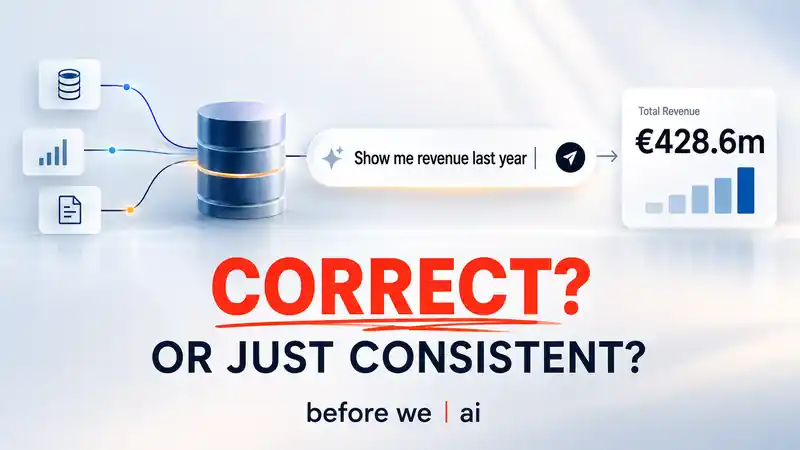
Working around finance, reporting, data and large transformation projects, I have seen technology move a long way.
AI now promises the next step: instead of building another report, people can simply ask questions of company data and get an answer.
The demos are impressive.
But there is one thing I keep coming back to:
Can we trust the numbers?
Not because the AI cannot calculate.
Because many of the decisions behind a business number were never really part of the data in the first place.
Which of three systems counts when they disagree?
Is that export in Controlling the source of truth or simply a copy somebody kept?
At what level do we eliminate intercompany?
What exactly does “last year” mean in this company?
And yet a system can produce a number without having explicit answers to any of those questions.
That is what bothers me.
It worked without those answers. So somebody — or something — supplied them. Not you.
And that can be surprisingly difficult to detect.
If the wrong table is selected, you do not get an error. You get a number.
The SQL is correct. The arithmetic is correct. The result looks completely normal.
Your fiscal year runs May to April, but “last year” is interpreted as January to December? You still get twelve perfectly valid months.
Just not the twelve months you meant.
And this can easily survive testing. A test may confirm that the system computes what it was told to compute — without establishing that the underlying business interpretation was the right one.
That is the problem I started working on with before-we-ai.
The idea is to put a control point in front of the AI answer.
For a business question such as “show me revenue by entity and month”, before-we-ai makes visible:
- what that answer depends on;
- which sources and business rules are being used;
- what can actually be verified against the data;
- what somebody in the business still needs to confirm.
Where something can be tested, it is tested against the data.
Where it is a business decision — for example which source is authoritative — somebody has to own that decision, with a defined scope.
And unresolved points stay unresolved.
The result is deliberately simple:
Ready.
Ready with limitations.
Blocked.
And if it is blocked, you see why.
That is what I would want to know before putting an AI-generated number into a management report, a board pack or another business-critical decision.
The idea behind before-we-ai
The important part is not another semantic model or another layer of metadata.
It is making the reasoning behind a business answer visible.

Suppose the system believes:
This table is the general ledger used for the revenue calculation.
In before-we-ai, that statement is not silently treated as fact.
It starts as a claim.
And a claim can have very different kinds of support.
The AI may have proposed it because the table name, columns and relationships look plausible.
A policy document may contain a relevant definition.
A deterministic test may show that the table balances correctly.
A finance expert may confirm that this is in fact the ledger used for this reporting purpose.
These are different things, and before-we-ai keeps them separate.
That distinction is the core of the project.
From a claim back to the evidence
Instead of starting with a number and explaining it afterwards, the system works backwards through what must be true.
For example:
Revenue by entity and month depends on the correct ledger.
That becomes:
Which source represents the ledger?
There may be several candidates.
One could be the actual ERP journal.
Another could be a reporting export that looks almost identical.
A third may be an old copy.
The AI is useful here. It can inspect the available structure and propose likely candidates.
But it is not allowed to decide that its own proposal is correct.
The candidates are tested where testing is possible.
If a supposed journal does not balance, that is strong evidence against it.
The query that ran, the population tested and the exceptions remain attached to that result.
If two candidates both survive, the system does not simply choose the one with the nicer table name.
It leaves the question open.
Someone has to decide.
That is deliberately different from asking an LLM:
Which of these tables is probably the journal?
The model can help find the candidates.
It cannot create the authority.
Not every business rule lives in the data
Some questions cannot be settled by SQL at all.
Which price should be used for expected costing?
Which system is authoritative when two systems disagree?
Which customers count as intercompany?
What constitutes revenue for this management report?
These are not properties waiting to be discovered in a table.
They are organisational decisions.
A document may provide the answer. If it does, before-we-ai keeps the connection to the source and the relevant passage.
If a person has to decide, the confirmation should have a scope.
Not simply:
Revenue definition approved.
But something closer to:
This definition applies to these entities, for this reporting purpose.
The idea is to make business knowledge traceable in the same way we already expect technical lineage to be traceable.
Technical lineage tells us where the data came from.
This adds another question:
Why are we entitled to interpret it this way?
The AI has a deliberately limited role
I am not trying to solve this by using less AI.
Quite the opposite.
AI is very useful for reading documentation, inspecting unfamiliar data, finding relationships, proposing mappings and identifying what should be checked.
That work can save a huge amount of manual investigation.
But there is one boundary in before-we-ai:
The AI can propose. It cannot promote its own proposal into a trusted fact.
Something that came from the model stays a proposal.
A deterministic check can provide test evidence.
A human can confirm organisational meaning.
A document can provide a traceable source.
And if none of those settles the point, it remains unresolved.
The model cannot make the red light disappear by producing a more convincing explanation.
What the user should see
Most of this should not look like an AI architecture to the person using it.
The intended experience is much simpler.
You ask a business question.
For example:
Show me actual P&L by entity and month.
The system then shows the few things that matter for that answer:
Ledger of record
One candidate survives the accounting checks.
Entity
Two possible fields remain. Needs confirmation.
Reporting period
Confirmed from the reporting policy.
Revenue definition
Documented and confirmed.
Intercompany treatment
Required, but currently unsupported.
And at the top:
Blocked
Reason:
Intercompany treatment has not yet been established for this scope.
Upload another document, answer the question or correct the underlying data, run again, and the status changes.
If a source changes later, evidence based on the old version becomes stale rather than quietly remaining valid.
That is the kind of loop I want before-we-ai to provide:
ask → inspect → resolve → rerun → see what changed
Not another black box that immediately returns a number.
Why I think this matters
The interesting risk with AI in enterprise data is not only hallucination.
A much quieter problem is a system making a perfectly reasonable interpretation that nobody in the organisation consciously made.
A semantic layer can make the result consistent.
A knowledge graph can make relationships easier to navigate.
A more capable model can produce better SQL.
All of these are useful.
But none of them automatically answers:
Who decided that this interpretation is the one our business intends?
And consistency can actually make mistakes harder to notice.
If several teams calculate revenue differently, the disagreement itself creates a reason to investigate.
If every answer now uses the same hidden assumption, everything may suddenly agree.
Consistency is valuable.
It is not the same thing as correctness.
What before-we-ai looks like today
before-we-ai is currently a Python project, deliberately kept small.
It runs locally and works with data and documents such as databases, Excel, CSV and PDF sources.
The current engine can already:
- inspect and profile the available data;
- propose possible relationships and mappings;
- run deterministic checks;
- retain the SQL and exceptions behind those checks;
- attach evidence from documents;
- record human clarification;
- determine which parts of a business question are supported or unresolved;
- detect when underlying data or evidence has changed;
- derive a final readiness status.
The current test environment is a synthetic finance company built with deliberately seeded traps: plausible duplicate sources, ambiguous mappings, document-only rules and accounting inconsistencies.
That is useful for testing the mechanism.
It is not yet a claim that the approach has been proven across real enterprise landscapes.
What is still missing
The engine is ahead of the product experience.
The next major step is the consumer-facing interface.
The intention is that somebody can run a simple Python application locally, point it at a set of sources, state a question and work through the unresolved points without seeing internal claim IDs or YAML files.
There is also remaining work around automatically building the initial business knowledge from existing documentation and presenting document tables reliably.
And there is one deliberate boundary in the current roadmap:
before-we-ai does not yet compute the final business answer.
Today the system answers the preceding question:
Do the data, business rules and organisational decisions currently support this answer?
Generating and executing the final business query comes later.
I actually like that separation.
It forces the project to prove the control layer before turning it into another answering machine.
Try it, challenge it
before-we-ai is open source and still early.
The repository contains the current engine, the test landscape, the design documentation and the roadmap.
👉 https://github.com/happychriss/before-we-ai
What I am particularly interested in now are cases that challenge the idea:
- business questions where the required knowledge is difficult to make explicit;
- situations where data evidence and organisational authority conflict;
- examples where the readiness model would give the wrong conclusion;
- real-world data landscapes that break the assumptions behind the current prototype.
Before asking whether AI can answer the question, I think we should first know whether we have earned the right to trust the answer.