
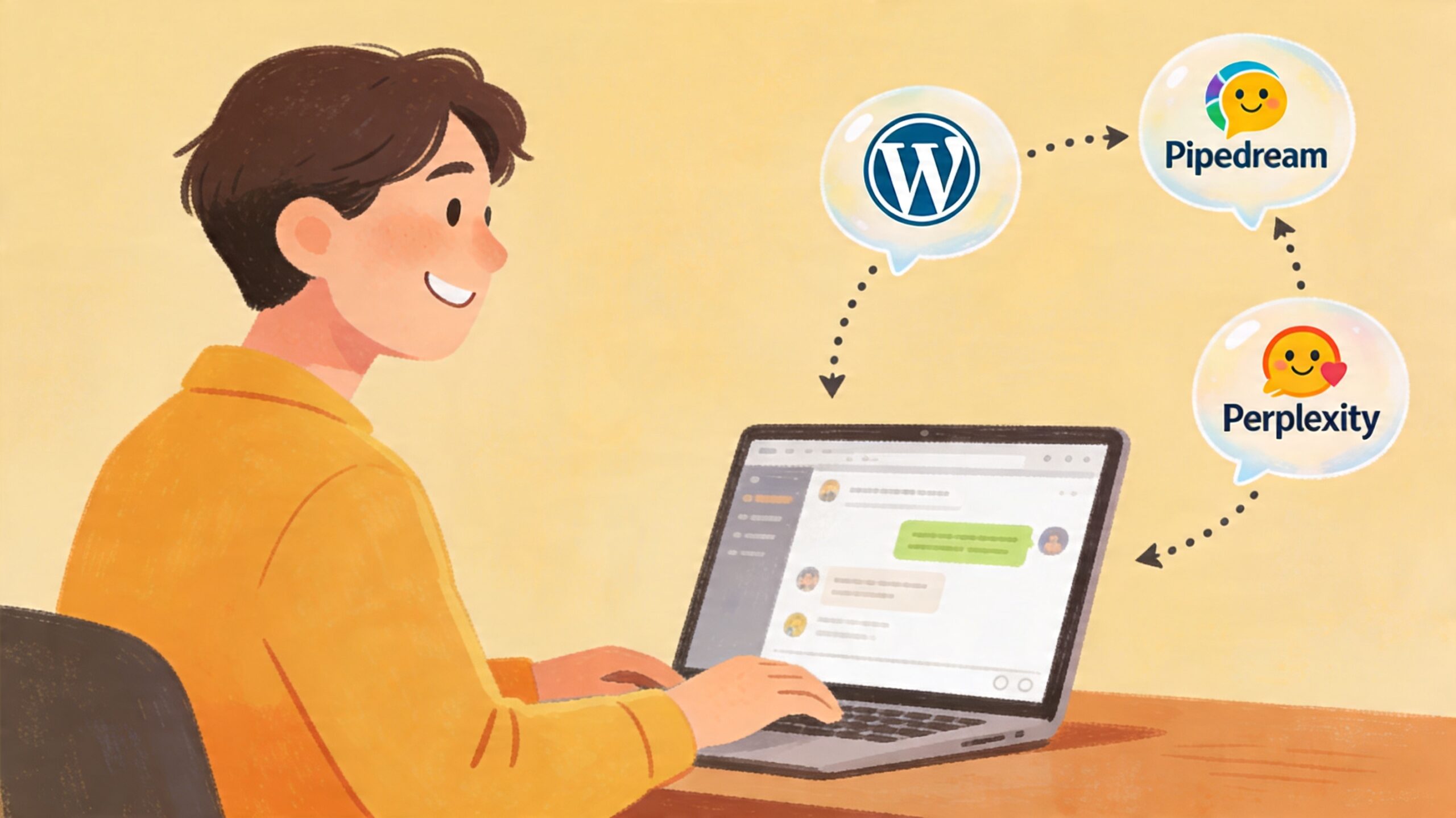
Tonight I connected Perplexity directly to my self-hosted WordPress site at 44-2.de — using the WordPress.org MCP connector via Pipedream. The idea: talk to an AI, end up with a published post. No copy-pasting, no switching tabs.
How to set it up
- In WordPress admin, go to Users → Add New. Create a user with the role Editor. Don’t use your admin account.
- Open the new user’s profile, scroll down to Application Passwords. Enter a name (e.g. “Perplexity MCP”) and click Add New Application Password.
- WordPress shows you the password once. Copy it immediately — you won’t see it again. The name is just a label; the long generated string is the actual password.
- Go to the Perplexity add-on page and connect the WordPress integration. Enter your site URL (with https://, not http://), the username, and the application password.
- The “connection authenticated” confirmation does not verify your credentials actually work — it only checks that a connection was made. The real test comes when you try to use it.
- In the Perplexity chat, press +, add the WordPress MCP, and you’re ready to go.
What tripped me up
Wrong user — I started with the admin account. Admin should stay for admin things.
Pipedream doesn’t auto-refresh — After switching users in WordPress, Pipedream kept using the old credentials. You have to disconnect and reconnect manually for changes to take effect.
The Application Password UI — I was copying the name instead of the generated password. WordPress shows the actual password once, right next to the name field. Easy to miss if you’re not looking for it.
What’s next
GitHub is next. The plan is that progress on projects — commits, notes, decisions — flows into posts through conversations. This post was written and published entirely through the MCP connection. That’s the point.