It all started with an article in my favourite computer magazine Heise – WLAN Plug with Tasmota. So I could control some 220V devices, like a floor lamp with my OpenHAB Super-Cheap – Smart Home Solution Smart Home.
Some 220V devices don’t need a plug, I want to control them with a tiny switch and not a big plug on the wall, here I found this- 4€ each from China…will this work?
After one month of waiting, 3 arrived. Looked actually quite good!
Its actually amazing, what you get for 4€, and ESP8266 micro computer with WiFi and all the hardware to control 220V / 10 A = 2200W)
But: Its firmware is from China, you need to register an account somewhere and the little switch will connect to it and send your data somewhere – I cannot control.
Wo we need to exchange the firmware on the switch, the brand “Sonoff” is well known for an “easy to way” to do this
The firmware solution of my choice is Tasmota, an OpenSource SW that connects the device only into the internal WiFi network and provide a user-interface to configure the device. So we need to do 2 things to get it running:
Flash new Firmware flashed on the switch
Integrate the switch into OpenHAB (smart home open source SW)
Flashsoftware to reprogram the device with the image from 1): tasmotizer
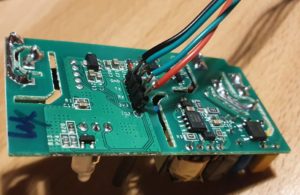
A wire to to connect your PC via an FTDI (serial2USB converter) with the switch, the FTDI and the switch have signs on it, so has the switch:
FTDI
Sonoff Smart Swtich
3V
3V
GND
GND
TXT
REC/RXI
REC/RXI
TXT
It takes 5min of soldering, when ready it should look similar to below:
Flashing
The switch needs to be connected with the PC via our nice cable, it just works by putting it in and a bit of adjusting.
To get the switch in the “programming mode” the reset-button on the switch must be pressed *before* connecting the switch via USB cable to the PC. Once connected, you can release the reset-button (its the long black stick).
Then start flashing with tasmotizer by selecting the firmware and the USB interface:
After re-power the switch, it opens an access-point and you can be configured via connecting to its WiFi (some AP with “tasmota” in the name) , so it will later connect to your own WiFi. But much more elegant, you can use tasmotizer via the button “send config” to update the WiFi directly, you will need to enter the credentials (SSID and PWD from your home network).
All your credentials and data remain will remain in your network now. On the router I also disabled the internect-connection for the IP address of the switch in my home network – just to be save 🙂
Configure the Switch – Tasmota is great
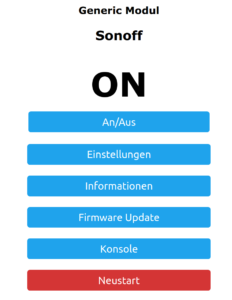
When all works, the switch will connect to your home WiFi, you can find its IP address in your Router and you can open its main config page via a web-browser. You will see the new firmware from “Tasmota” active, that gives you full control over the device.
Its an amazing software, full Opensource, not cloud connection or internet needed. It stays in you home 🙂
The basic tasmota configuration is already correct, nothing to do, maybe in the settings section, you may enter a backup WiFi address – if you want.
Connecting to OpenHAB
The Switch Side
The concept is, that the switch will use the MQTT protocol to communicate with OpenHab, once configured the switch will listen for a message via this protocol and do its job – ON/OFF.
To configure MQTT you need configure your OpenHab server IP and the credentials of the MQTT network, that you have configured in OpenHab. The trick is the “topic”, that is the “address” that the switch will listen towards – any message with this topic will be processed by the switch. For my network I gave each switch its own topic, like “sonoff1”, “sonoff2” – so I can control them separately. OpenHab has a binding that keeps the link to this protocol and its easy to configure.
The OpenHab Side
After installing the MQTT Binding in OpenHab, I did the following configuration, important to have the topic “sonoff1” correctly everywhere:
After a long time the MCW was standing outside in the cruel world – now I found its time for a real home – lets build it a home with 3D Printing.
I have used Tinkercad before, for my calendar (check out this picture)
Now, the MCW Watch-Case is more complicated, because – when I build the watch and the PCB – I did not think about the case. Hence -the case had to be build around the watch.
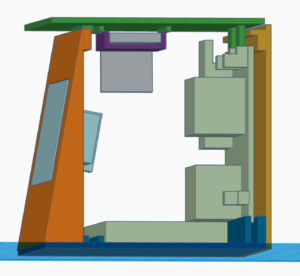
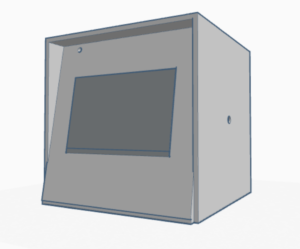
To get this done, I first measured all components of the MCW, starting from the e-Ink Display, the PCP, battery..everything. And build the case around it:
Actually, for me that was the only way to visualize the full result. I want to glue the different parts together, and fill in all components from the top. Not sure, if I considered everything 🙂
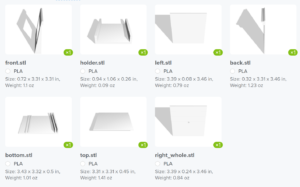
Its important that you should export each part separately from Tinkercad and upload as STL file to the order – after export into STL its not possible to get the files separated.
My order now is in Treatstock, 17€ including shipping – cant wait for the result:
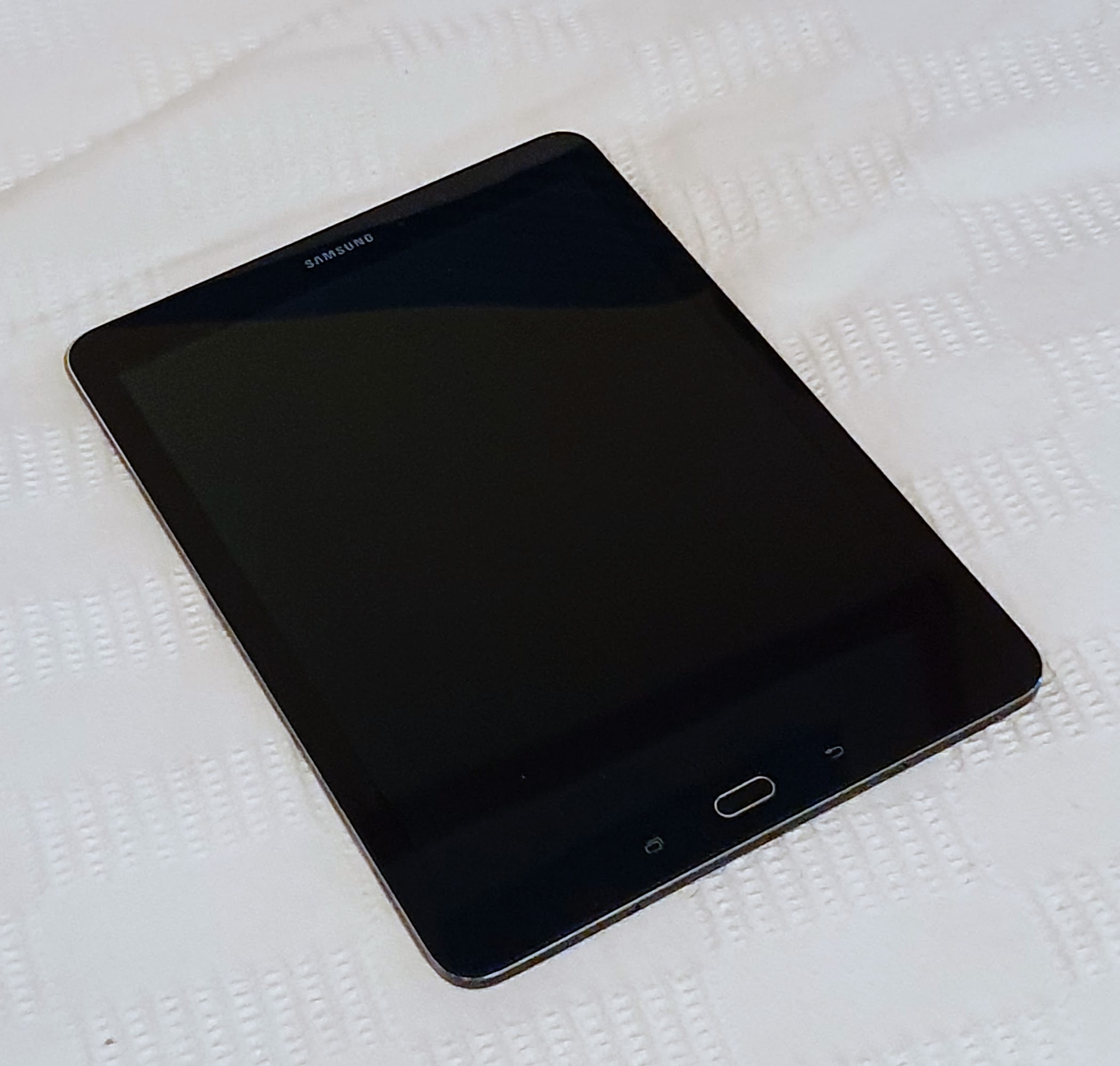
In my very perosnal opinition, the Samsung Galaxy Tab S2 is one of the best tablets ever. Not because its so fast or great, but because its the perfect combination of performance and weight. Just light enough for reading in the evening (super thin), enough performance to surf the internet and good sound to watch a Netflix. But…build in 2016.. and guess..no more updates from Samsung. Action needed…
The way back to live
Samsung Galaxy Tab S2 (9,7, Wi-Fi sm-810) – that is the 2016 version. A newer version was still on sale some months ago – but both are on Android 7.
My tablet has another issue, the hard-reset (power, volume-up,home) does not work any-more (do not follow the instruction, if your buttons are still working, plenty of instructions available).
So – how to flash a new custom ROM without having the hard reset available?
That is my solution (follow at your own risk, it can break your device)
Installing TWPR (“boot manager”) is only possible via hard-reset or as root user. So I obtained Root-User by installing CF Root first. Using the root from CF-Root I was able to install TWPR and could afterwards follow the normal installation process for the custom ROM, but more slowly:
Preparation
Enable USB-Debugging on the device (Click on the build-number on settings 10 times)
Install ADB and Heimdall on an Linux/ Ubuntu PC
Connect tables via USB to PC and check with adb connect if the device is visible
Rename the file (remove md5 at the end) and extract the files cache.img and recover.img
Reboot the S2 into download mode via adb reboot download
Flash the CF Root image to the tablet with heimdall flash --CACHE cache.img --RECOVERY recovery.img.
Reboot and check if you have obtained root (there is SU app installed
Prepare for the image
Install TWPR app via ADB adb install me.twrp.twrpapp-26.apk and use this app to install the boot image as ROOT
Now directly boot into TWPR recovery with: adb reboot recovery
Push the Lineage image and the gapps (Google Apps) to the SD card of the tables with adb push lineage-16.0-20191012-UNOFFICIAL-gts210wifi.zip /storage/emulated/0/<br />
adb push open_gapps-arm-9.0-mini-20191013 /storage/emulated/0/
Again a adb reboot recovery brings you into TWPR recovery.
I am using a 1.8 Inch LCD Screen SPI Serial Port Module TFT Color Display Touch Screen ST7735 (128*160) for Arduino”, bought for 9€ from aliexpress.com.
Details: Display Processor: ST7735, Touch Processor: XPT2046, Display Type: ZJY180-TV2.0,128*160, as ESP8266 I am using the WEMOS D1 Mini Pro (v 2.0) https://wiki.wemos.cc/products:d1:d1_mini_pro.
Its part of my Project “BigPi” to use the PI4 as my central home server. I decided it needs a display.
Things should look nice..so what did I do?
Actually I got the Touchdisplay running at the RPI after a lot of tries – but what do I have on my desk: A big black RPI4 box with a touch-display. Not looking good.
My alternative: I build a tiny Touchdisplay with ESP8266 in a little box with battery, that I can place anywhere. I will communicate via WIFI to my RPI. No black box on the desk, just a cool multifunctional switch and status-display for RPI Remote control. Kind of a long running project – lets see how it goes.
Wiring – how to get it together
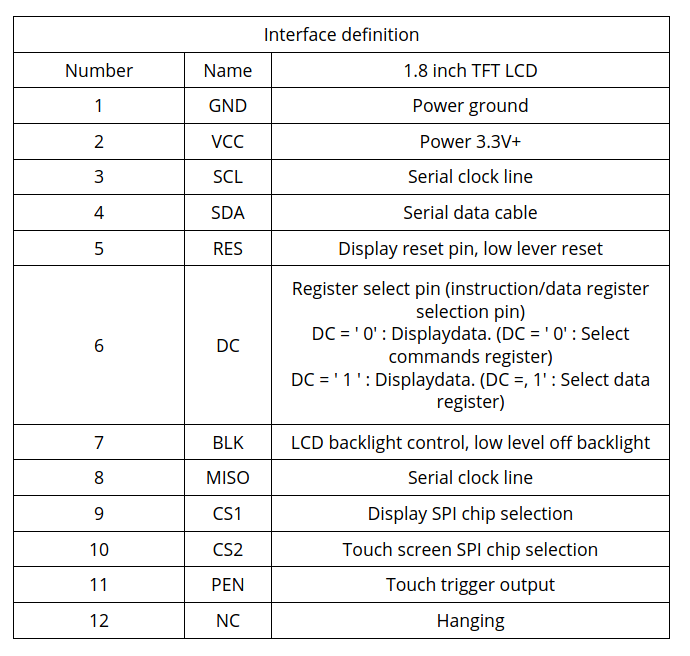
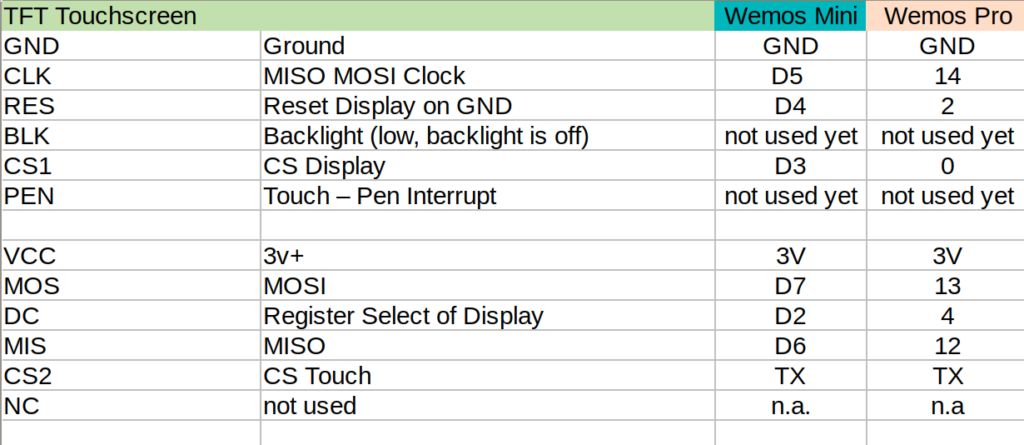
Of course, from china – there is not much documentation. Below some information I found at AliExpress about the display and all contacts at the display have labels. To note: PEN (11) is high, and gets low, when the display is touched – so can be directly linked to the Wemos (see below).
Information from VendorMapping TFT Panel to Wemos
Some Details about the WEMOS D1 Mini Pro
Understanding the Solder-Pads
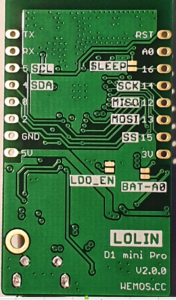
This is a very nice ESP8266 processor, small size and including LiPo charger unit, so any 3.7V battery can be directly attached on it and can be charged via the mini USB. Its Pin-Compatible to the well known WEMOS Mini, that has some interesting soldering-pads on the back:
SLEEP: This connect the Reset and the XPD_DCD – Deep Sleep Wakeup, so the WEMOS can waket-up itself from Deep-Sleep. For easy programming and the serial interface to work, this should not be connected. So do it, before you put it into production
BAT-A0: Links the battery power to the analogue A0 input, so its possible to measure battery voltage (to detect low battery).
LDO_EN: To disable the 5V regulator, so you can provide your own power source directly to the 3v3 and GND pins. Useful for battery operations. If you use standard lithium ion batteries that have 3.7-4.2V, it’s better to connect them to the 5V pin, since that is connected to an LDO converter.
back side of the board
Deep Sleep…tzzzzz…
I need “Deep Sleep” with ultra low power consumption, as it should run for a long time.
I measure current 0,15mA (150uA) out of the box for the WEMOS Pro Mini via the ESP.deepSleep(), with a 1200mAh LiPo it comes to 300 days.
If its running with display connected, but without backlight (BLK to GND), its consuming 0.48 mA (500uA) – what is approx 100 days runtime, 3 month is ok 🙂
When the display is active and backlight is on, it consumes around 20mA, when the display is off -it goes down to 1mA.
To Remember
During the Deep Sleep period GPIO_16 are held high. At the end of the Deep Sleep period GPIO_16 goes low, pulling down the Rest Pin (Reset Pin is low active, eventually add 1-10k resistor in between) and restarting the Wemos.
Prolem is, that when ESP8266 goes into DeepSleep, all IO are goint go High – so my display is “on”. It will need an inverter.
SPI – Confusion
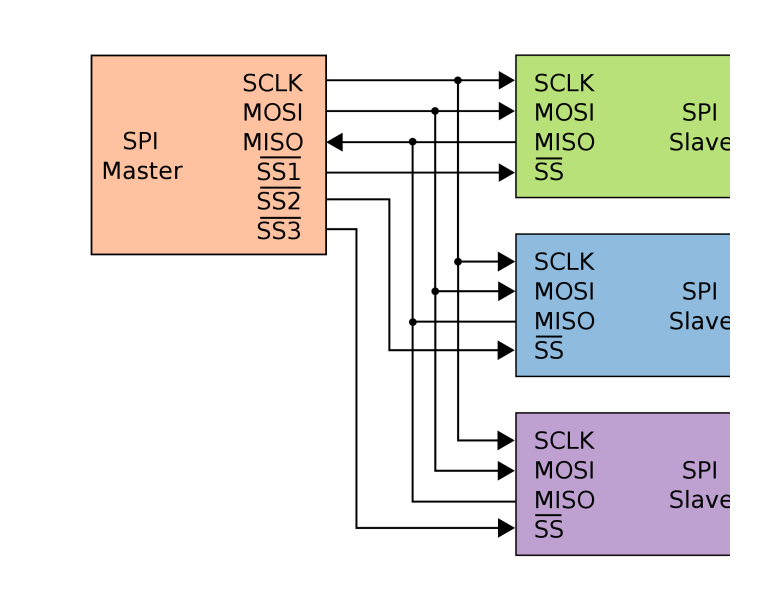
SPI did confuse me, it has 3 lines MISO, MOSI and clock, the same I found on the touch-display. At the end I realized that it has 2 controllers, one for the touch sensor, and the other one for the display. Both are connected at the the same SPI bus and are selected based on chip select. So it somehow looks like below:
SPI Logic on the TFT/Touch Display
Software – How to get it running?
I am using CLION from JetBrains and Platformio for development -what I can really recommend to do. The following libraries support both controllers:
Adafruit ST7735 and ST7789 Library
Adafruit GFX Library
XPT2046_Touchscreen
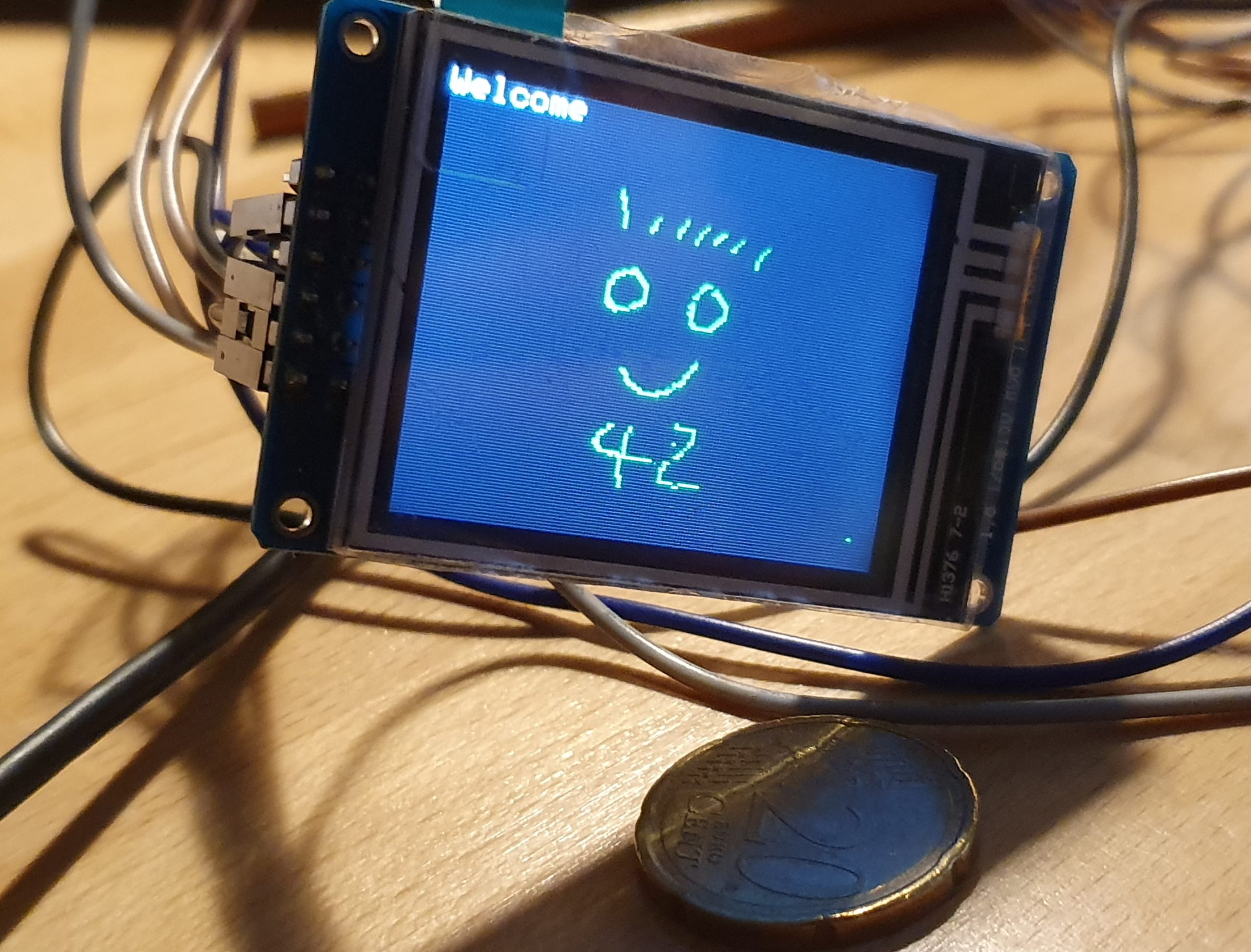
Thanks to this great libraries, below makes you paint on the little display with a pen, just some lines of code.
void setup(void) {
tft.initR(INITR_GREENTAB); // initialize a ST7735S chip, CN: My-chip has a "green flag at the protection foil"
tft.setRotation(1);
tft.fillScreen(ST7735_BLACK);
ts.begin();
ts.setRotation(0);

delay(500);

tft.fillScreen(ST7735_BLACK);
testdrawtext("Welcome", ST7735_WHITE);
delay(1000);
tft.drawPixel(150, 118, ST7735_GREEN);

}

void loop() {

if (ts.touched()) {
TS_Point p = ts.getPoint();
tft.drawPixel(p.y * x_tft_scale, p.x*y_tft_scale, ST7735_GREEN);
}
delay(5);
}
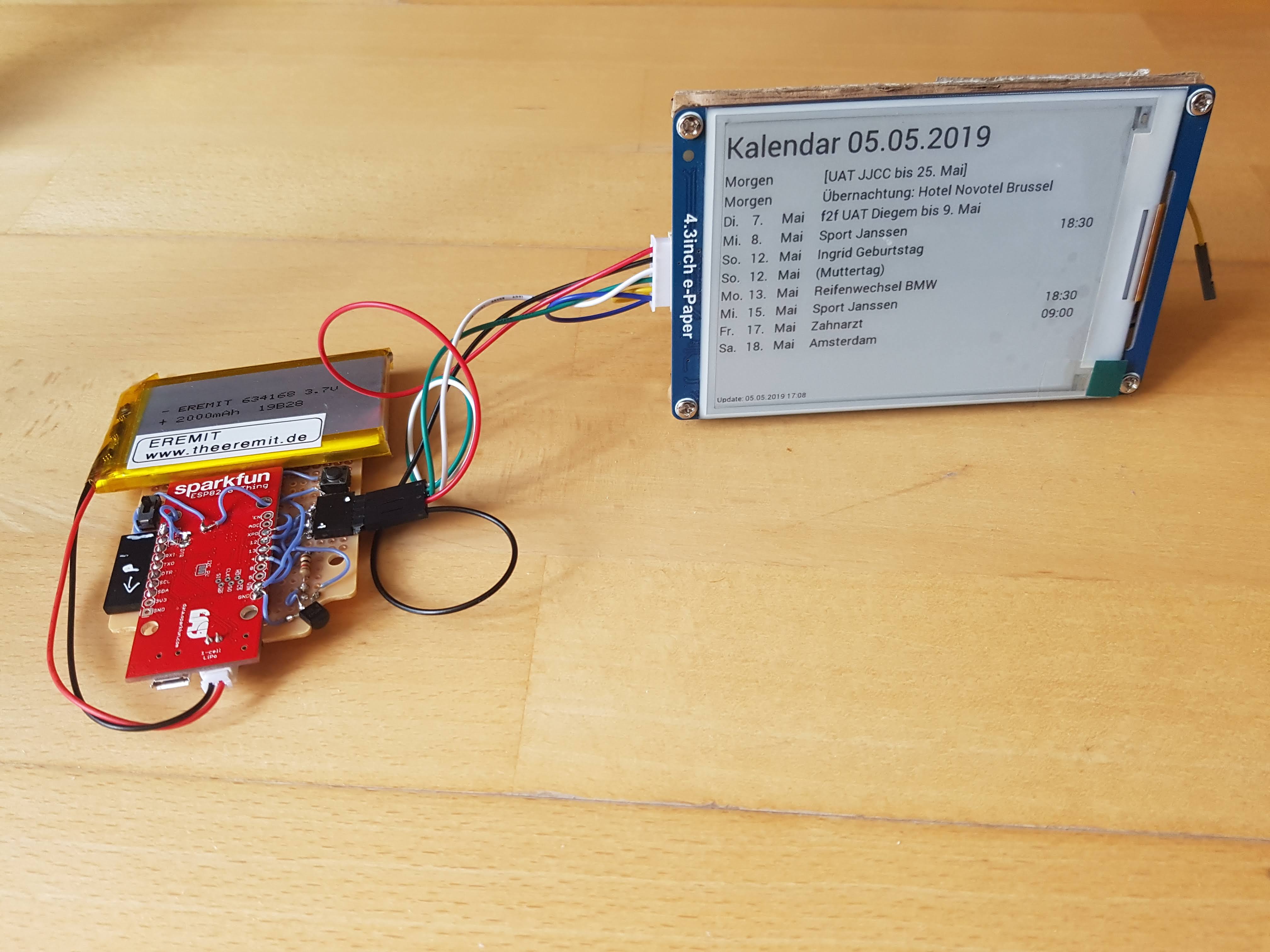
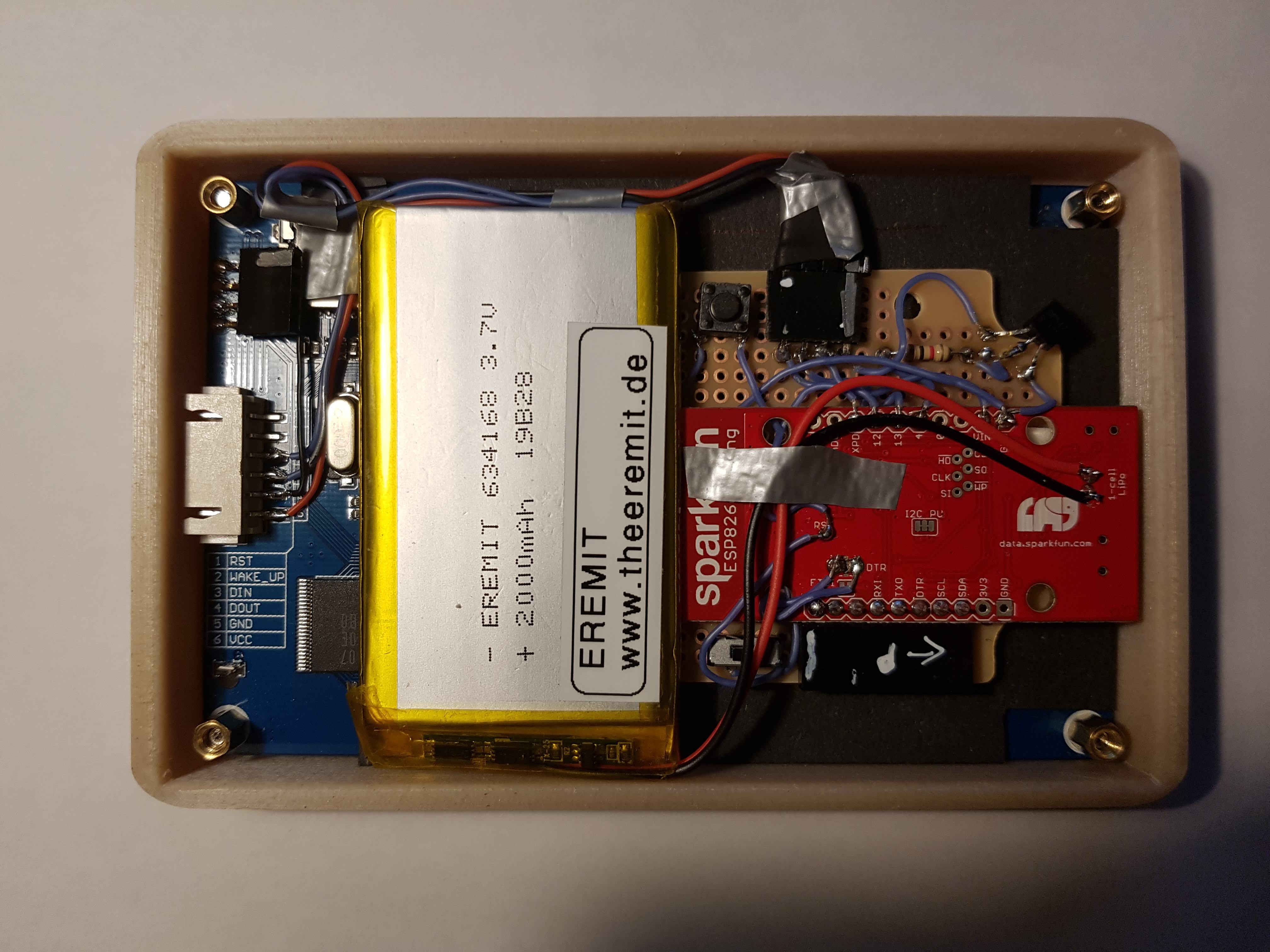
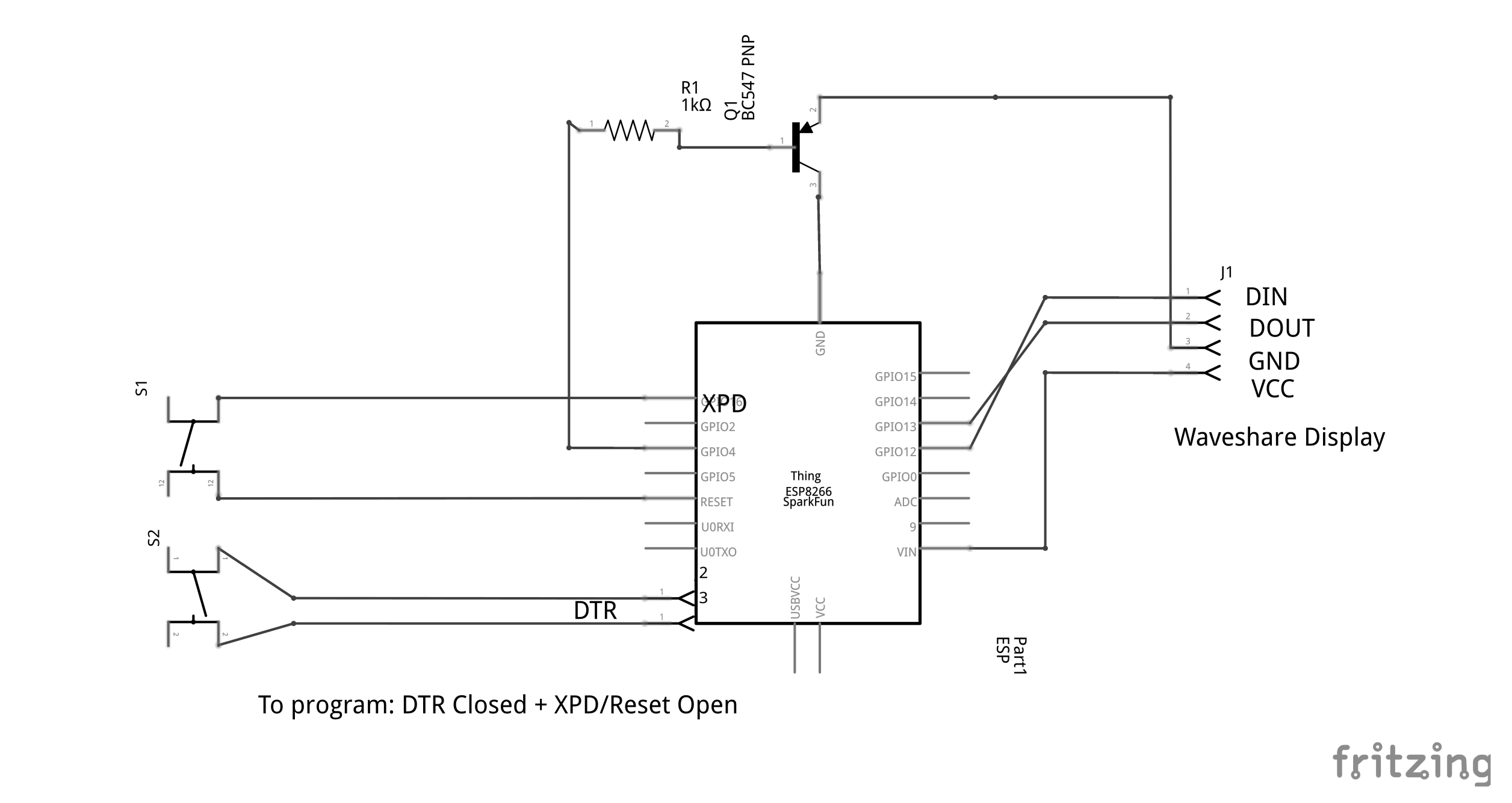
The Calendar has two components, the ESP8266 handling the WIFI Communication and the Waveshare eInk Display to show the calender information.
Overview
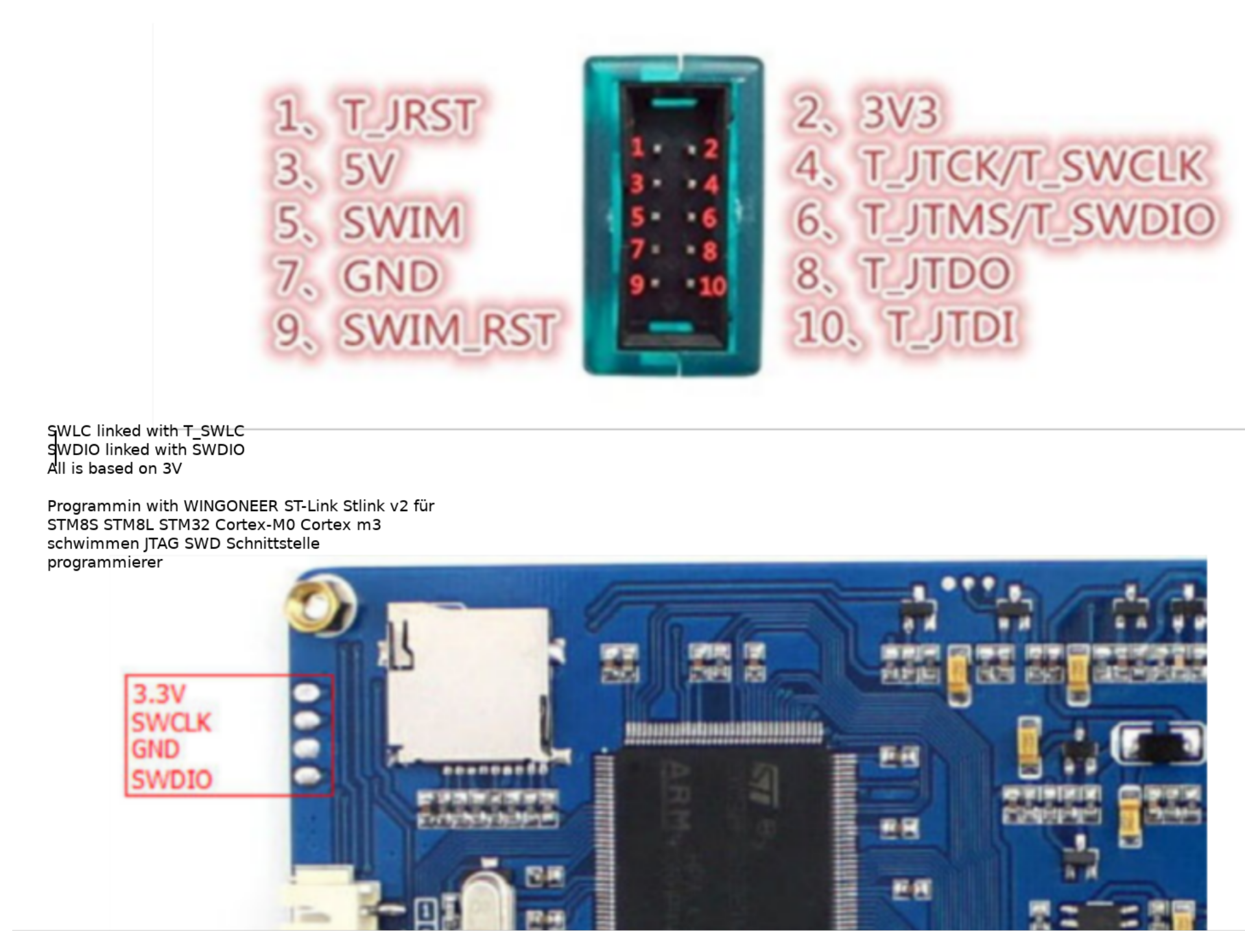
The calendar is displayed on the UART Waveshare eInk display (800×600 Black&White) powered by an STM32-F103 ZE with 512kB Flash, 64kb RAM and 1MB SRAM. Thanks to David (see link) we could remove the existing firmware and are able to program the STM32 via JTAG. This enabled me to use the memory (1MB RAM) to prepare the picture, the SD Card to configure WIFI and to use the STM32 computing “power” to parse the JSON Calendar information from Google.
The ESP8266 (ESP8266 Thing) is used to communicate with Goolge and return the JSON file with the calendar information
ESP8266 – Managing WakeUp, HTTPS, Google OAUTH
ESP8266 (ESP8266 Thing) can sleep only for 2hours. Its using RTC memory on the Thing board to count the numbers of wake-ups. Its programmed to really wake-up at 2pm (GMT) and will power the eInk Display. Via Serial Interface (pin 12/12 on ESP and RX/TX on eInk) the display reads the SD Card WIFI information and sents them to the ESP.
Using this WIFI information, the ESP will connect to the Google Calendar API using HTTPS.
LEARNING
HTTPS is only as save the the certificate validation, IOT devices may skip this and allow Man-in-the-Middle-Attacks – that could reveal your Google credentials. An alternative solution is to use the FINGERPRINT (Hash) of the pages certificate, but this may stop working as soon as the certificate expires or any change was done at the certificate. In my solution I downloaded Google Root Certificates and stored it in the ESP ROM. When connecting to Google Calendar API the complete certificate chain is validated from the Root Certificate to the Page Certificate. Feels much more secure 🙂
Once connected the ESP will follow the OATH authentication process (Google OAUTH). Initially or when the authentication with Google fails, the ESP restart the authentication and displays a DEVICE-CODE on the eInk display that needs to be entered into the Google Web-Page to pair the device.The Refresh-Token obtained from this process is stored in the RTC memory – so it can be re-used for the next wake-up and no paring is needed.
Once the authentication is completed the ESP will receive the Google-Calender information from the SD-Card of the eInk – Display and request the JSON calendar information via the authenticated connection. This is directly sent to the STM32 eInk Display processor.
eInk Display – STM32 – Display text on the eInk Display
As the original firmware was removed, I implemented a graphical library that is able to write text (different font types and sizes) using Fontem. Fontem takes a TTF font and generates C-Header files with keep the font information. It supports KERNING, so the space between the characters is looking nice.
eInk Display – STM32 – Memory Management
The Graphical Libary is using an 800*600*2 (each pixel is represented by 2 bits) memory buffer (not enough memory for the STM32 internal memory, so it needs to be stored in the external 1MB SRAM of the display.
The external RAM is set-up to be accesseable via address 0x68000000. By adjusting the link.ld file I can define which memory is used for the calloc/malloc. By using below the HEAP address is set to XRAM (external RAM) and calloc/malloc is taking this memory. This is not very performant, but as the display runs over night, this doesn’t matter.
Little Tip: To make the debugger aware of this memory mapping change, you can enter in the gdb: mem 0x68000000 0x680FFFFF rw
eInk Display – STM32 – Driving the display
The Waveshare – Board is using the E-ink display GDE043A2 (Good-Display.com). The communication between the STM32 and the GDE043A2 is using SPI. Driving the display via SPI is complex and requires a lot of knowledge. Thx to David (see link section) he reversed the original firmware and the basic functions are provided on GitHub. I am using his functions to actually write the graphic buffer to the display. The logic is covered in the file stm32_application/gde043a2.c.
Build Environment for the Waveshare STM32 e-Ink Display
Normally I am using Platformio to build the firmware for any Arduiono or ESP8266 device (check the platformio.ini for the ESP8266).
For the STM32 this is not working, we need to set-up a GNU Arm Embedded Toolchain ( PPA for -arm-embedded on UBUNTU) for cross compiling and then upload the firmware to the board. The communication goes via the JTAG interface controlled via the ST-LINK adapter (connected via USB to the developer PC and via JTAG to the board). For this we need to install the ST-Utils and run “st-utils” in background, that pushes the cross-compiled code from the development PC to the board.
Two files are important to control the build flow:
CMakeLists.txt: Controls the cross-compiling logic (generate the *ELF file for upload executes upload)
STM32F10x.cmake: Controlls the actual compiler options for the STM32 and defines the cross compiler
COOL – Using Remote Debugging the STM32 can be debugged right out-of the CLION – IDE using all features available:
That was easy one – just combining what I learned from the MCW (MCW – Most Complicated Watch . A little ESP8266 doing the WIFI to a Raspberry running OpenHab to controll the my Hue-Lights.
Why is it so cool?
Because it controls 2 switches, and the ESP only has one reset-line for wake up. So, think – how can use a “binary” signal (as the reset) to inform the ESP about 2 switches = 4 situations. Doesn’t work.
Again the PIC-8 was my friend, its checking the status of the switch and wakes up the ESP8266 when something changes. That’s possible, because the PIC8 can have for each input an interrupt enabled, on “state change”. This gives a lot of options, e.g. we could even check for more input/output.
With this constellation the ESP8266 is always in deep sleep, so the batteries last pretty long (4-6 month, as far as I remember).
Ah..yes. the ESP stores the latest WIFI information (channel) in the RTC memory and therefore connects really quick to the WIFI, pretty fast.
WARNING: The source-code for the ESP is ugly, just to get it running. Maybe some Tasmoa like configuration to set-up would be a nice exercise.
Ey, and I am still happy, when I press the switch. Because its in daily use 🙂
This project took long, much longer than expected.
Starting with Arduino, I learned how eInk displays works and how to speed up the refresh. That was not enough for me, to get it really power-saving I decided to use 8-bit PIC to control the Arduino Pro Mini. Now – when its in stand-buy – its just using “no power”. Power saving is so difficult – so I decided to let my clock check for light, and in the dark it gets into sleep-mode .. and with light..it wakes up so quickl (watch the video below). In addition, you can use a touch-sensor to wake-it up.. and much more..
This project is not recommended to “copy” – I just wanted to do it this “my way” and because….I could do it.
PCB
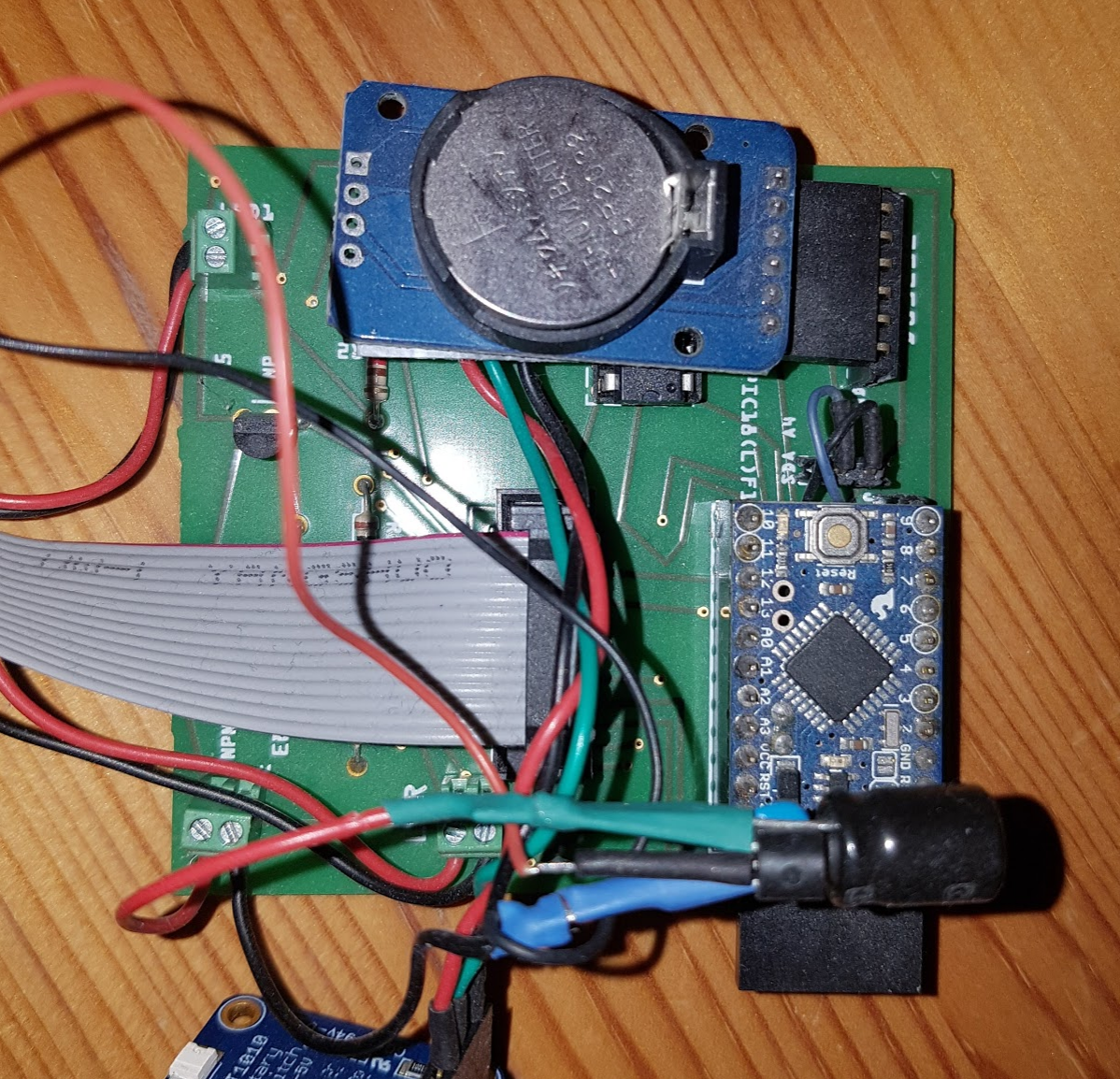
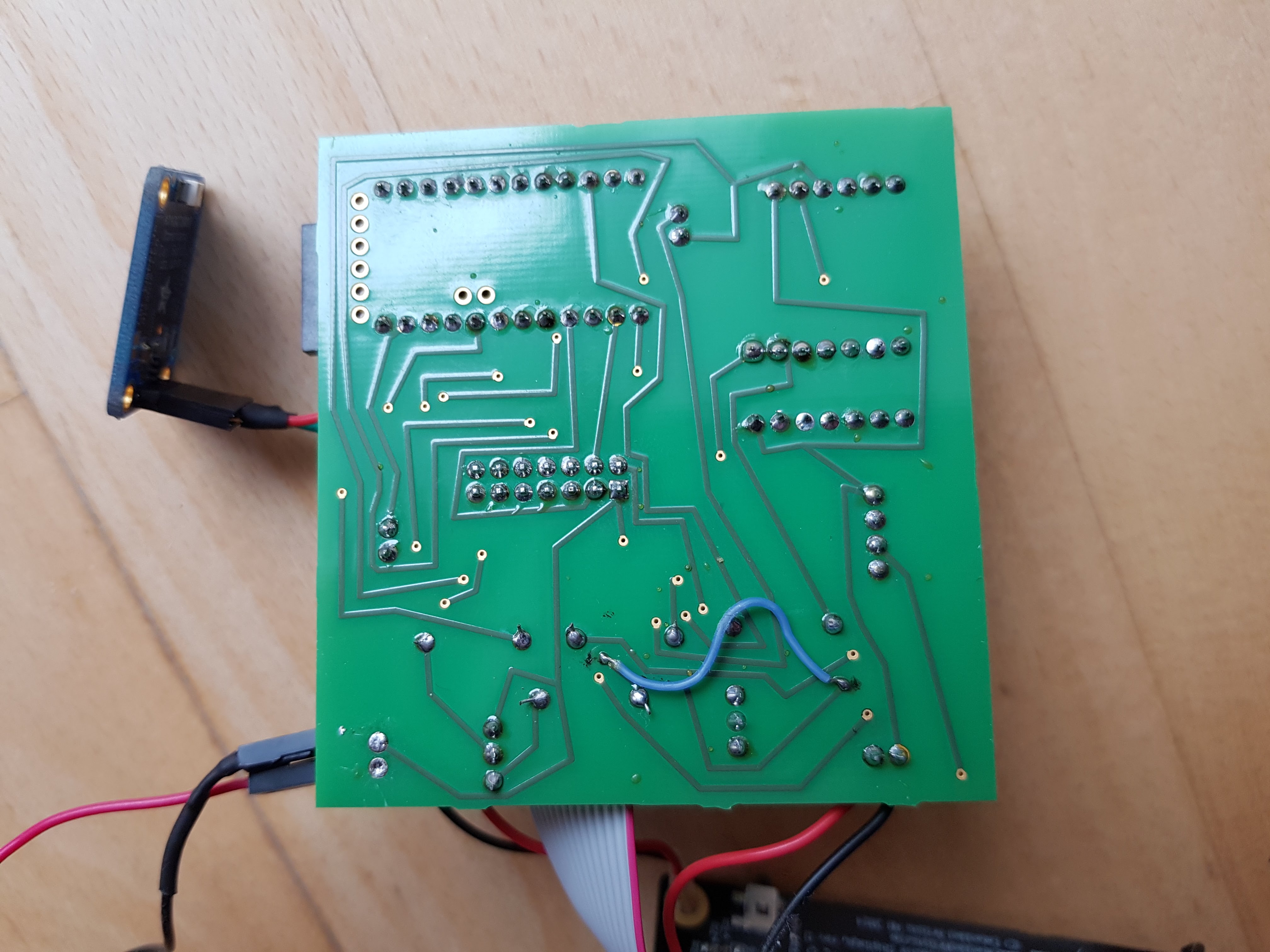
Actually I studied Electrotechnical Engineer, so used a some transistor circuit to better control the power of the eInk display and ..and it go so many wires. So I decided to learn how to build my own PCB.
Arduino Pro Mini to manage the logic, controll the display and paint the text
PIC16LF1824 (low power consumption) to control the LED Light (giving some light to the display at night), the capacitive switch to display the time in HH:MM format (not in text format)
A very precise clock DS3232RTC to have the precise time (with separate battery)
Cool Features Implemented
Reading below, you will how -why it is the MCW. Try to beet it!
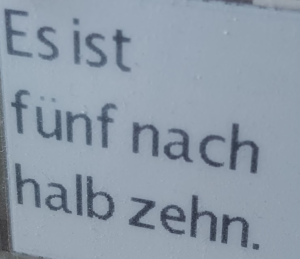
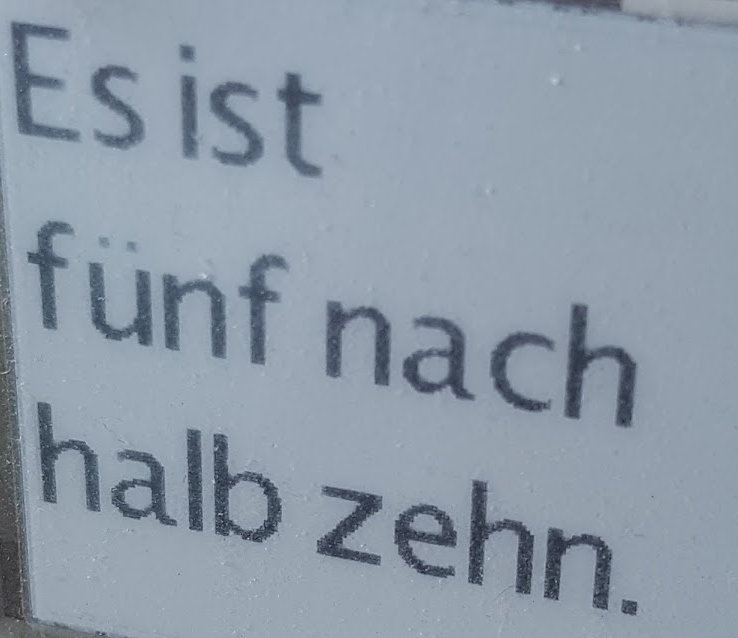
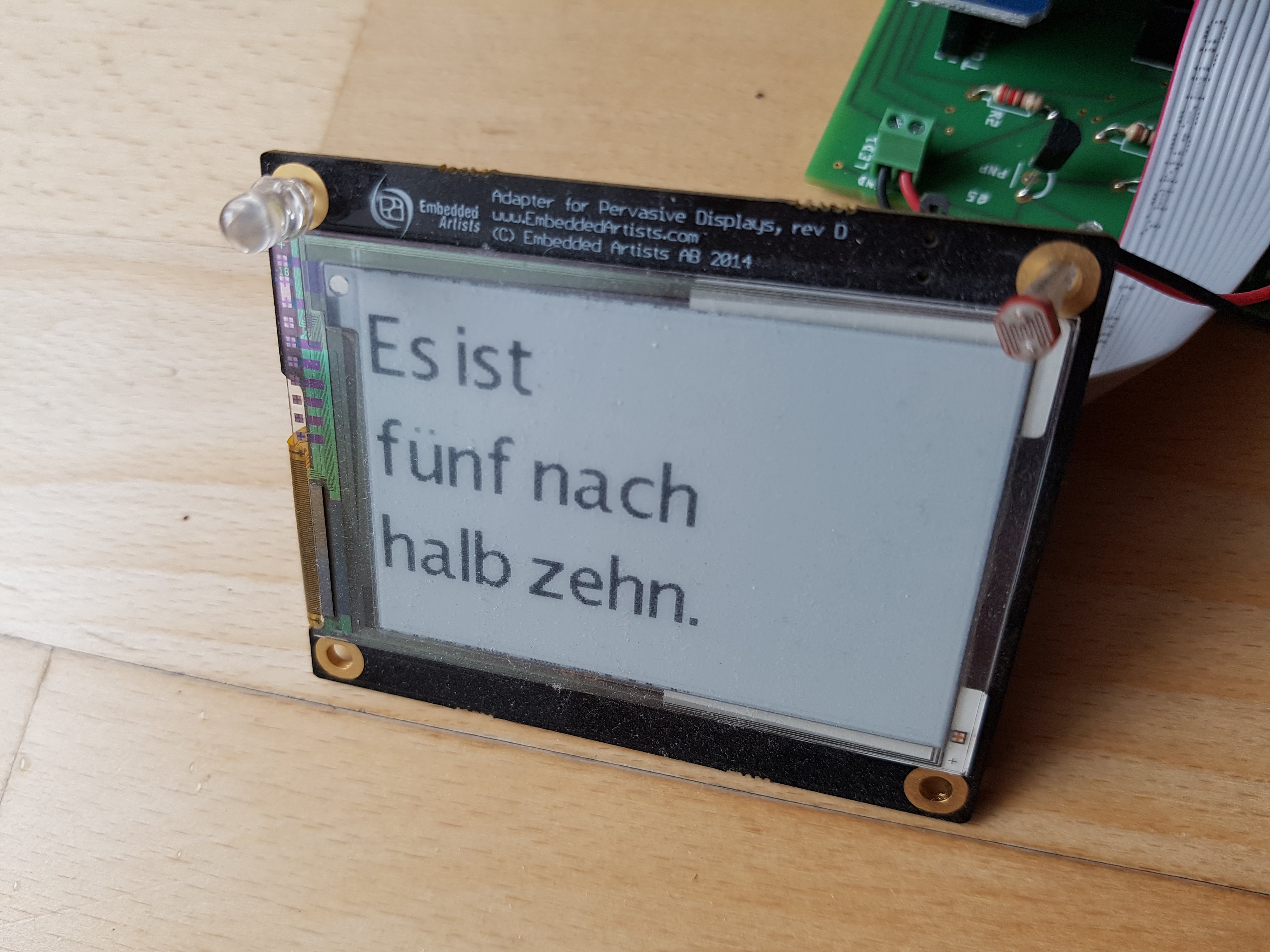
Time is displayed as text in German, e.g. “Es ist Viertel vor Acht” and updates every 5min
Pro Mini is set to deep sleep mode and wake up by DS3232RTC
In addition using a PIC16(L)F1824 to control sleep mode, light-on / light-off and the Arduino (must be the MOST COMPLICATED WATCH)
When touching the capacitive sensor, time is immediately displaying the time in HH:MM format
Displaying the time in HH:MM is using writing in blocks to the eInk-Display and a tuned writing algorithm makes the display running faster
When it is dark outside (so nobody can read the time anyway) the clock goes into very deep sleep mode, woken up by the PIC when light goes on (it wakes up quick- see the video below)
Low memory of the Pro Mini requires a new self developed memory saving graphics library – that is not using a buffer, but checks for each pixel if black or write and then writes directly to the display.
Character bitmaps are RLE encoded and stored in flash memory to save RAM
Special circuit disconnects the e-Ink display from power during sleep mode – as the display is always consuming current, even when switched off – really!
Time can be set-up by long-pressing the capacitive button and going into “time set mode” using the HH:MM minute quick display
After a long time the MCW was standing outside in the cruel world – now I found its time for a real home – lets build it a home with 3D Printing.
I have used Tinkercad before, for my calendar (check out this picture)
Now, the MCW Watch-Case is more complicated, because – when I build the watch and the PCB – I did not think about the case. Hence -the case had to be build around the watch.
To get this done, I first measured all components of the MCW, starting from the e-Ink Display, the PCP, battery..everything. And build the case around it:
Actually, for me that was the only way to visualize the full result. I want to glue the different parts together, and fill in all components from the top. Not sure, if I considered everything 🙂
Its important that you should export each part separately from Tinkercad and upload as STL file to the order – after export into STL its not possible to get the files separated.
My order now is in Treatstock, 17€ including shipping – cant wait for the result:
This project took long, much longer than expected.
Starting with Arduino, I learned how eInk displays works and how to speed up the refresh. That was not enough for me, to get it really power-saving I decided to use 8-bit PIC to control the Arduino Pro Mini. Now – when its in stand-buy – its just using “no power”. Power saving is so difficult – so I decided to let my clock check for light, and in the dark it gets into sleep-mode .. and with light..it wakes up so quickl (watch the video below). In addition, you can use a touch-sensor to wake-it up.. and much more..
This project is not recommended to “copy” – I just wanted to do it this “my way” and because….I could do it.
PCB
Actually I studied Electrotechnical Engineer, so used a some transistor circuit to better control the power of the eInk display and ..and it go so many wires. So I decided to learn how to build my own PCB.
Arduino Pro Mini to manage the logic, controll the display and paint the text
PIC16LF1824 (low power consumption) to control the LED Light (giving some light to the display at night), the capacitive switch to display the time in HH:MM format (not in text format)
A very precise clock DS3232RTC to have the precise time (with separate battery)
Cool Features Implemented
Reading below, you will how -why it is the MCW. Try to beet it!
Time is displayed as text in German, e.g. “Es ist Viertel vor Acht” and updates every 5min
Pro Mini is set to deep sleep mode and wake up by DS3232RTC
In addition using a PIC16(L)F1824 to control sleep mode, light-on / light-off and the Arduino (must be the MOST COMPLICATED WATCH)
When touching the capacitive sensor, time is immediately displaying the time in HH:MM format
Displaying the time in HH:MM is using writing in blocks to the eInk-Display and a tuned writing algorithm makes the display running faster
When it is dark outside (so nobody can read the time anyway) the clock goes into very deep sleep mode, woken up by the PIC when light goes on (it wakes up quick- see the video below)
Low memory of the Pro Mini requires a new self developed memory saving graphics library – that is not using a buffer, but checks for each pixel if black or write and then writes directly to the display.
Character bitmaps are RLE encoded and stored in flash memory to save RAM
Special circuit disconnects the e-Ink display from power during sleep mode – as the display is always consuming current, even when switched off – really!
Time can be set-up by long-pressing the capacitive button and going into “time set mode” using the HH:MM minute quick display
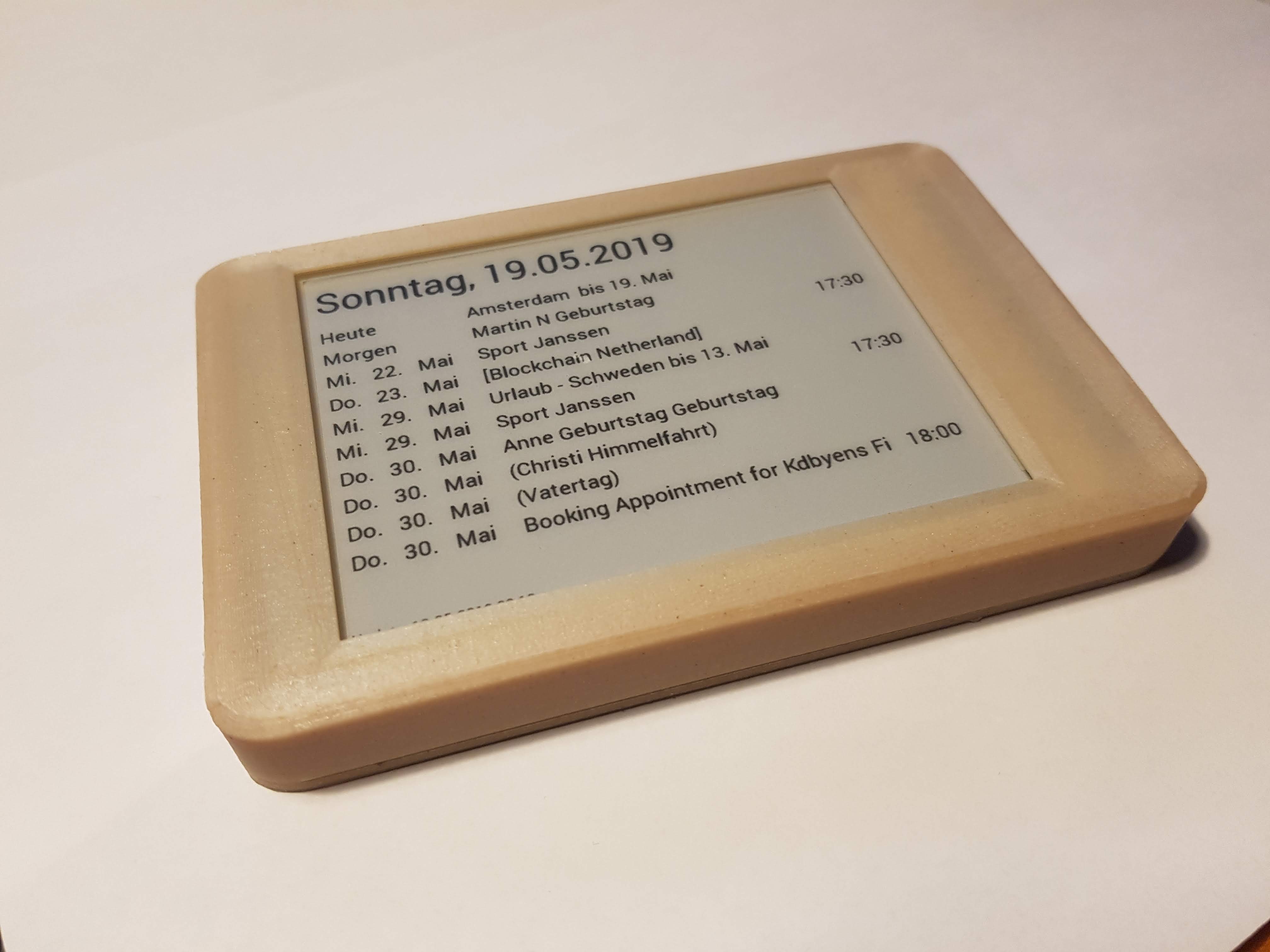
Since many years I am using Google Calendar, believe me I was an early adaptor. But what does it help, in real live…when nobody is looking at it. The master calender is in the kitchen .. and its on paper. So, this can be changed. Now we have one central place, you see what is going on the next weeks.
What did I do?
Over night the “Calendar” downloads the upcoming events from the Google Calendar and updates the display with this information. Because this is an e-Ink Display the events are displayed all day without any power – consumption. The access to Google is save and secure via HTTPS and OAUTH.
using the eInk Display to save power (only needs power once a day)
runs over 160 days without recharging
supports multiple Goolge calendars
flexible configuration via USB card (Wifi, Calender Text, Calendars used)