Author: cneuhaus

  • Reviving an Old Samsung Tab S2: Practical Reuse Instead of E-Waste

    Reviving an Old Samsung Tab S2: Practical Reuse Instead of E-Waste

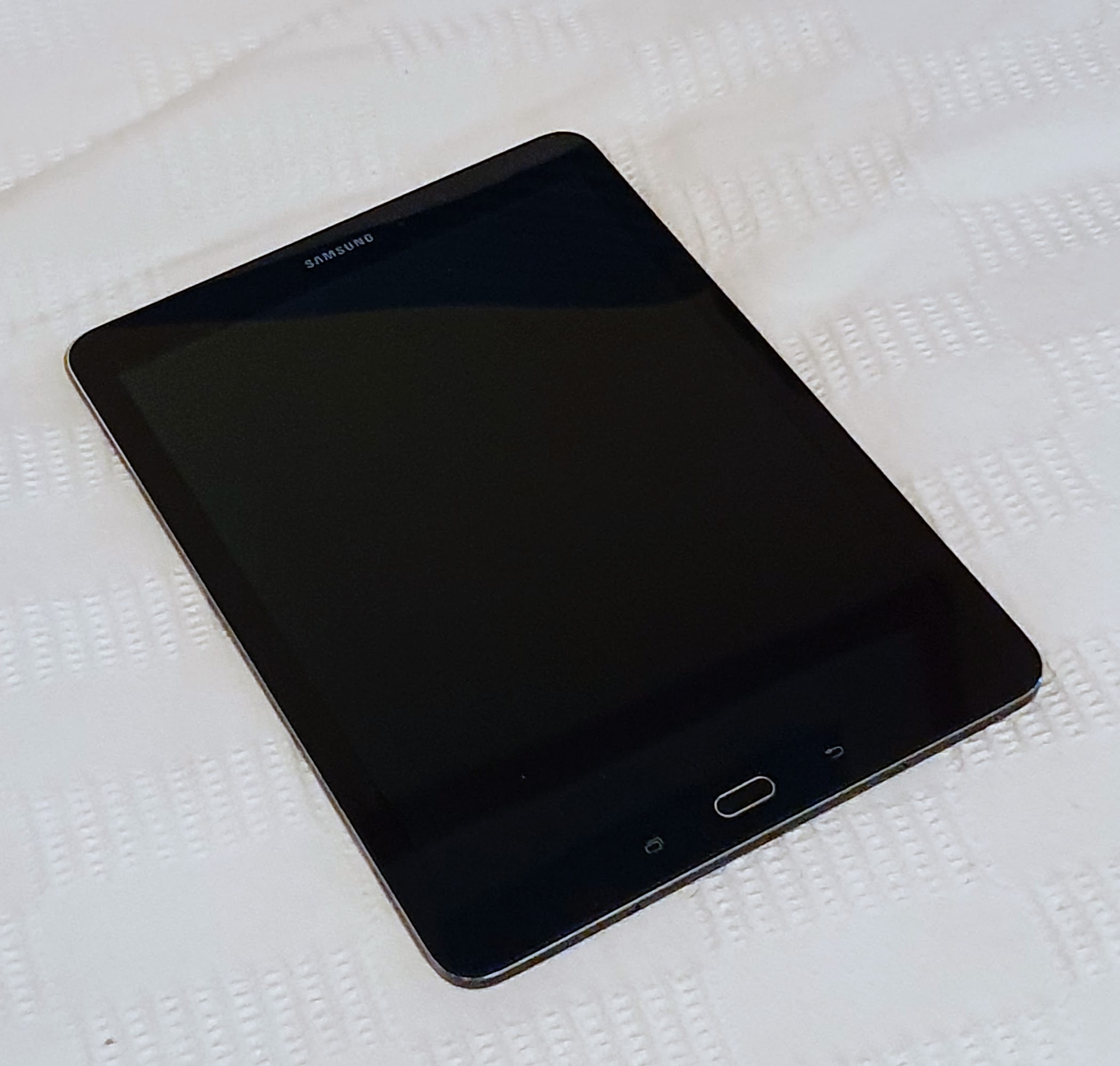
    Samsung Galaxy Tab S2 – Revival

    In my very perosnal opinition, the Samsung Galaxy Tab S2 is one of the best tablets ever. Not because its so fast or great, but because its the perfect combination of performance and weight. Just light enough for reading in the evening (super thin),  enough performance to surf the internet and good sound to watch a Netflix. But…build in 2016.. and guess..no more updates from Samsung. Action needed…

    The way back to live

    Samsung Galaxy Tab S2 (9,7, Wi-Fi sm-810) – that is the 2016 version. A newer version was still  on sale some months ago – but both are on Android 7.

    My tablet has another issue, the hard-reset (power, volume-up,home) does not work any-more (do not follow the instruction, if your buttons are still working, plenty of instructions available).

    So – how to flash a new custom ROM without having the hard reset available?

    That is my solution (follow at your own risk, it can break your device)

    Installing TWPR (“boot manager”) is only possible via hard-reset or as root user. So I obtained  Root-User by installing CF Root first. Using the root from CF-Root I was able to install TWPR and could afterwards follow the normal installation process for the custom ROM, but more slowly:

    Preparation
    1. Enable USB-Debugging on the device (Click on the build-number on settings 10 times)
    2. Install ADB and Heimdall on an Linux/ Ubuntu PC
    3. Connect tables via USB to PC and check with adb connect if the device is visible
    Become Root

    I am using CF Root Image to root my S2:

    1. Download image and follow instructions from http://www.samsungsfour.com/tutorials/how-to-root-galaxy-tab-s2-on-nougat-7-0-using-cf-auto-root-all-models.html
    2. Rename the file (remove md5 at the end) and extract the files cache.img and recover.img
    3. Reboot the S2 into download mode via adb reboot download
    4. Flash the CF Root image to the tablet with heimdall flash --CACHE cache.img --RECOVERY recovery.img.
    5. Reboot and check if you have obtained root (there is SU app installed
    Prepare for the image
    1. Install TWPR app via ADB adb install me.twrp.twrpapp-26.apk and use this app to install the boot image as ROOT
    2. Now directly boot into TWPR recovery with: adb reboot recovery
    3. Push the Lineage image and the gapps (Google Apps) to the SD card of the tables with
      adb push lineage-16.0-20191012-UNOFFICIAL-gts210wifi.zip /storage/emulated/0/<br />
      adb push open_gapps-arm-9.0-mini-20191013 /storage/emulated/0/
    4. Again a adb reboot recovery brings you into TWPR recovery.
    5. Follow EXACTLY the instructions at: https://forum.xda-developers.com/tab-s2/development/rom-lineageos-15-1-t3879302 on installing from SD-Card. Especially don’t forget to WIPE
    6. Say thanks to ripee on XDA for his great work.

    The above version of image and gapps works fine, only 2 issues:

    1. Finger Print does not work sometimes
    2. Button Lights do not work

    But complete tablet responses quickly and it seems like a little performance boost


  • ESP8266 Touch Display as a Remote Interface for Raspberry Pi

    ESP8266 Touch Display as a Remote Interface for Raspberry Pi

    Introduction

    I am using a 1.8 Inch LCD Screen SPI Serial Port Module TFT Color Display Touch Screen ST7735 (128*160)  for Arduino”, bought for 9€ from aliexpress.com.

    Details: Display Processor: ST7735, Touch Processor: XPT2046, Display Type: ZJY180-TV2.0,128*160, as ESP8266 I am using the WEMOS D1 Mini Pro (v 2.0) https://wiki.wemos.cc/products:d1:d1_mini_pro.

    Its part of my Project “BigPi” to use the PI4 as my central home server. I decided it needs a display.

    Things should look nice..so what did I do?

    Actually I got the Touchdisplay running at the RPI after a lot of tries  – but what do I have on my desk:  A big black RPI4 box with a touch-display. Not looking good.

    My alternative: I build a tiny Touchdisplay with ESP8266 in a little box with battery, that I can place anywhere. I will communicate via WIFI to my RPI. No black box on the desk, just a cool multifunctional switch and status-display for RPI Remote control. Kind of a long running project – lets see how it goes.

    Wiring – how to get it together

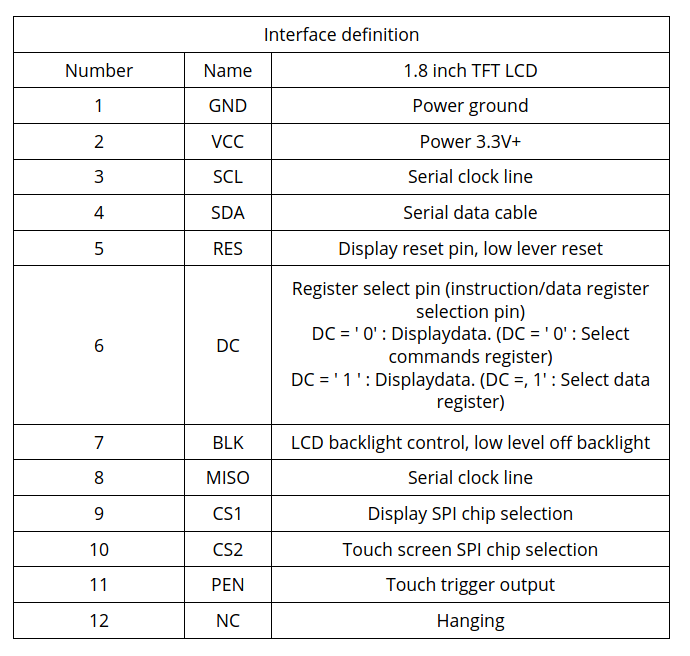
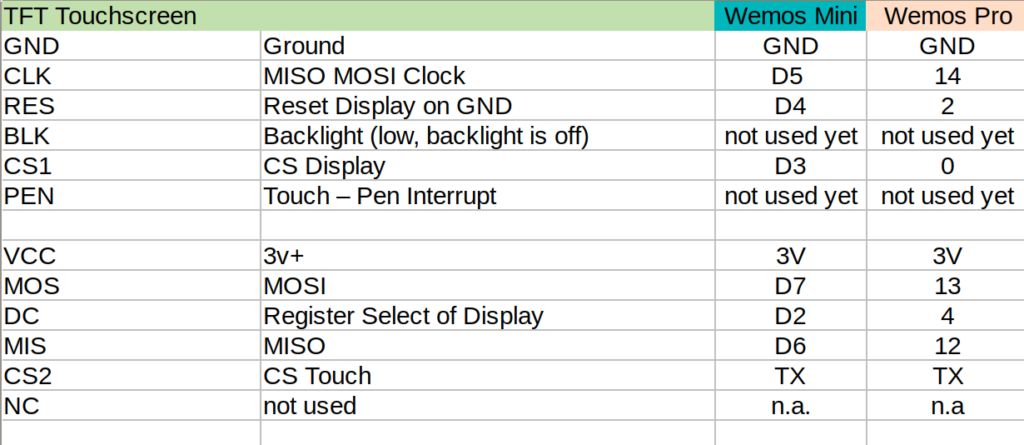
    Of course, from china – there is not much documentation. Below some information I found at AliExpress about the display and all contacts at the display have labels. To note: PEN (11) is high, and gets low, when the display is touched – so can be directly linked to the Wemos (see below).

    Information from Vendor
    Mapping TFT Panel to Wemos

    Some Details about the WEMOS D1 Mini Pro

    Understanding the Solder-Pads

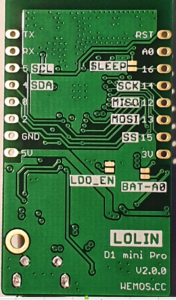
    This is a very nice ESP8266 processor, small size and including LiPo charger unit, so any 3.7V battery can be directly attached on it and can be charged via the mini USB. Its Pin-Compatible to the well known WEMOS Mini, that has some interesting soldering-pads on the back:

    • SLEEP: This connect the Reset and the XPD_DCD – Deep Sleep Wakeup, so the WEMOS can waket-up itself from Deep-Sleep. For easy programming and the serial interface to work, this should not be connected. So do it, before you put it into production
    • BAT-A0: Links the battery power to the analogue A0 input, so its possible to measure battery voltage (to detect low battery).
    • LDO_EN: To disable the 5V regulator, so you can provide your own power source directly to the 3v3 and GND pins. Useful for battery operations. If you use standard lithium ion batteries that have 3.7-4.2V, it’s better to connect them to the 5V pin, since that is connected to an LDO converter.

    back side of the board
    Deep Sleep…tzzzzz…

    I need “Deep Sleep” with ultra low power consumption, as it should run for a long time.

    I measure current 0,15mA (150uA) out of the box for the WEMOS Pro Mini via the ESP.deepSleep(), with a 1200mAh LiPo it comes to 300 days.

    If its running with display connected, but without backlight (BLK to GND), its consuming 0.48 mA (500uA) – what is approx 100 days runtime, 3 month is ok 🙂

    When the display is active and backlight is on, it consumes around 20mA, when the display is off -it goes down to 1mA.

    To Remember

    During the Deep Sleep period GPIO_16 are held high. At the end of the Deep Sleep period GPIO_16 goes low, pulling down the Rest Pin (Reset Pin is low active, eventually add 1-10k resistor in between) and restarting the Wemos.

    Prolem is, that when ESP8266 goes into DeepSleep, all IO are goint go High – so my display is “on”. It will need an inverter.

    SPI – Confusion

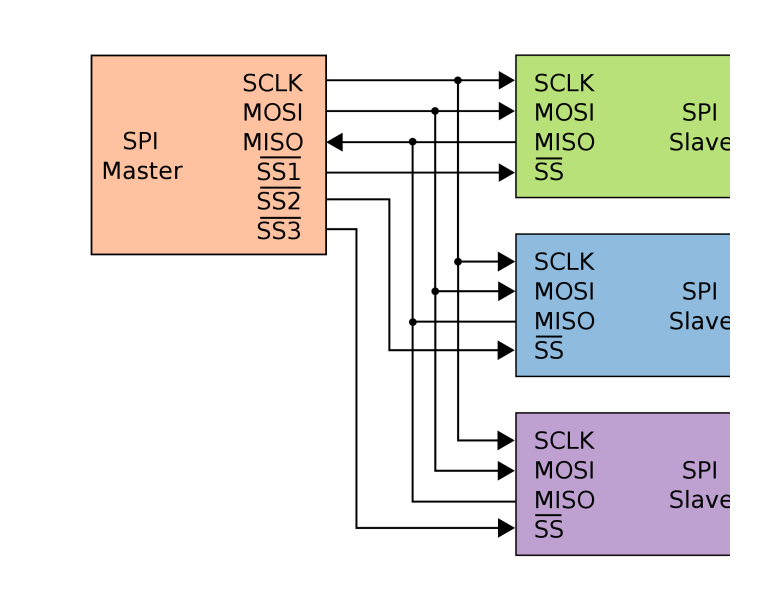
    SPI did confuse me, it has 3 lines MISO, MOSI and clock, the same I found on the touch-display. At the end I realized that it has 2 controllers, one for the touch sensor, and the other one for the display. Both are connected at the the same SPI bus and are selected based on chip select. So it somehow looks like below:

    SPI Logic on the TFT/Touch Display

    Software – How to get it running?

    I am using CLION from JetBrains and Platformio for development -what I can really recommend to do. The following libraries support both controllers:

    Adafruit ST7735 and ST7789 Library
    Adafruit GFX Library
    XPT2046_Touchscreen

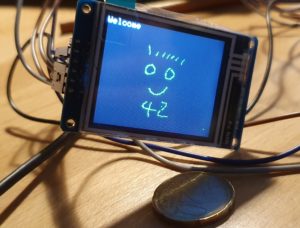
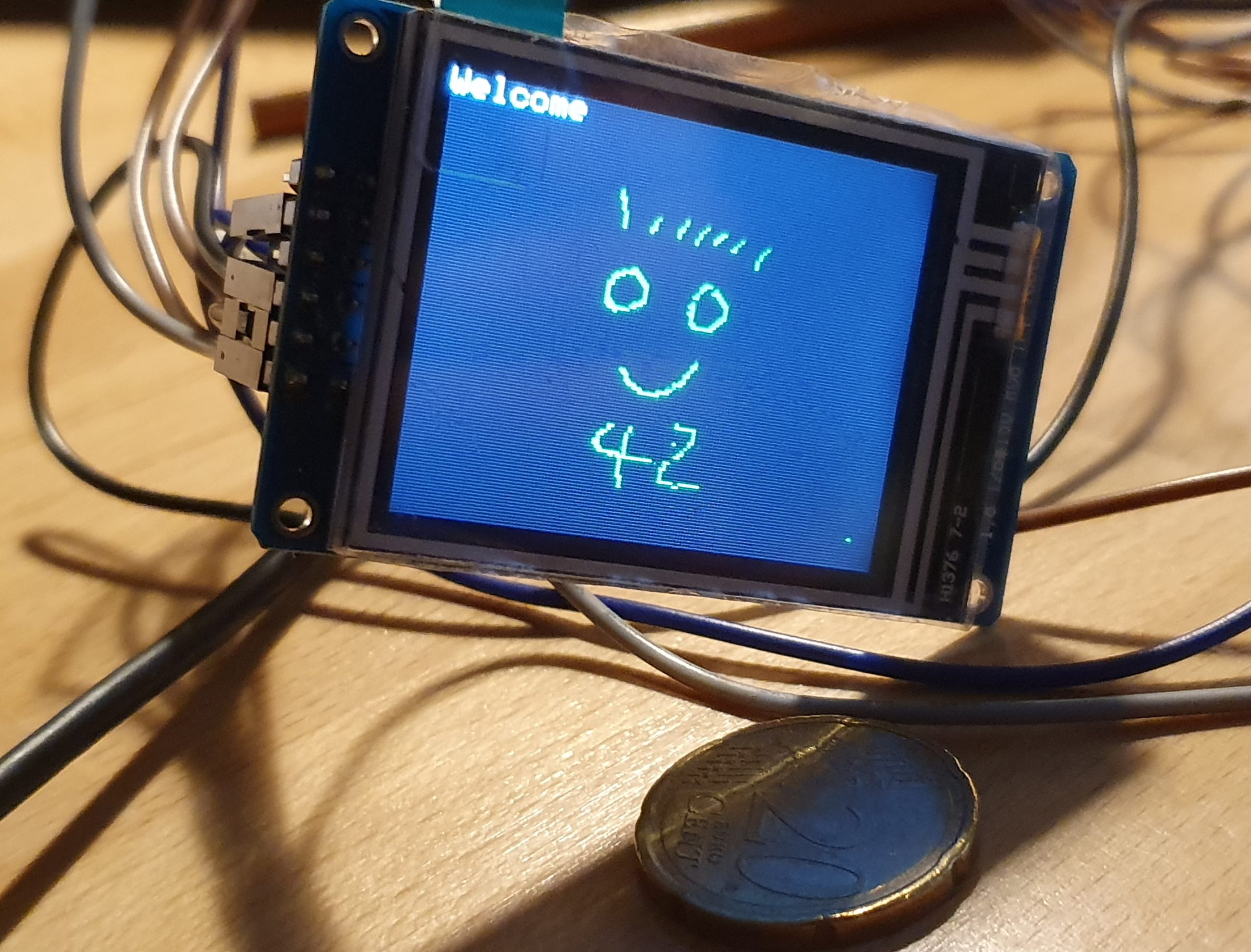
    Thanks to this great libraries, below makes you paint on the little display with a pen, just some lines of code.

    void setup(void) {
    tft.initR(INITR_GREENTAB); // initialize a ST7735S chip, CN: My-chip has a "green flag at the protection foil"
    tft.setRotation(1);
    tft.fillScreen(ST7735_BLACK);
    ts.begin();
    ts.setRotation(0);
    
    delay(500);
    
    tft.fillScreen(ST7735_BLACK);
    testdrawtext("Welcome", ST7735_WHITE);
    delay(1000);
    tft.drawPixel(150, 118, ST7735_GREEN);
    
    }
    
    void loop() {
    
    if (ts.touched()) {
    TS_Point p = ts.getPoint();
    tft.drawPixel(p.y * x_tft_scale, p.x*y_tft_scale, ST7735_GREEN);
    }
    delay(5);
    }

    Mission completed 🙂

  • Migrating a Rails Application from MySQL to PostgreSQL with pgloader

    Migrating a Rails Application from MySQL to PostgreSQL with pgloader

    I am having some trouble on the RPI 4 to get Rails installed and finding the right version of MYSQL (MariaDB) and ActiveRecord while running an older version of Rails and a newer version of Sphinx (search index). Anyway I always wanted to move to PostgreSQL…thats the time to do.

    The tool of my choise: PGLoader

    I realized pgloader does not like to run on the RPI, but the solution is easy:

    SourceDB (Cubietrack) <-> Linux PC (my desktop) = Running PG-Loader <-> TargetDB (RPI4)

    I wanted to have the schema on the target-db, as original as possible for Rails, so I used rake:
    <br />
    rake db:create<br />
    rake db:schema:load<br />

    to have an original Rails DB set-up. PGLoader is used for data-migration.

    Script:
    <br />
    LOAD DATABASE<br />
    FROM mysql://export:xxx@ct/CTCD2Server_production<br />
    INTO pgsql://docbox:xxx@pi:5432/docbox_production<br />
    with data only<br />
    ALTER SCHEMA 'CTCD2Server_production' RENAME TO 'public';<br />

    Two important points:

    1. The last statement “alter schema” is important, as pgloader creates a schema with the same name as the source db and creates all table in this schema – and rails may not expect this.
    2. “with data only” – tells pgloader that the schema is already existing (rake db:schema:load)

    Once, I got the script working – data migration is just a “button press”.


  • BigPi: Building a Raspberry Pi 4 Home Server with SSD Storage

    BigPi: Building a Raspberry Pi 4 Home Server with SSD Storage

    What I want to do!

    I am using a mini PC “Cubietruck / Cubieboard 3″ as server for DocBox and a Raspberry Pi 3 for home-automation with Openhabian. Now I have the LoRa-Node (Server) on an ESP8266. I want to run it all on one system and have some peace for the next years. I think Raspberry is a good platform with long maintenance and good support.


    Setting up the RPI-4

    Components:

    1. RPI4 with 4 GB Ram (the best version)
    2. Samsung SSD T5 500 GB
    3. dezen USB Charger

    Installation

    Prepare SD Card

    I want to directly install Raspbian and on initial boot access it via SSH (no HDMI needed). For this SSH and WLAN have to be configured on the boot SD card.

    Download latest Raspbian Buster Lite

    Copy it to SD Card (e.g. for linux using Etcher) and manipulate the SD card folder and files on your linux PC before inserting into the RPI as follow:

    1) Enable SSH: Place a file named ‘ssh’, without any extension, onto the boot partition of the SD card
    2) Enable remote-login with su, edit: //etc/ssh/sshd_config and set PermitRootLogin yes
    3) Update WIFI Configuration /etc/wpa_supplicant with following:

    <br />
    ctrl_interface=DIR=/var/run/wpa_supplicant GROUP=netdev<br />
    update_config=1<br />
    country=DE<br />
    network={<br />
    ssid="your-ssid"<br />
    psk="you-pwd"<br />
    }<br />

    Boot from USB

    New RPI can not yet boot directly from USB, but can be “tricked” by give him the SD card for boot, and set the SSD as root folder. A really good description can be found here:

    https://www.tomshardware.co.uk/boot-raspberry-pi-from-usb,news-61081.html

    Security and Login via SSH

    Connection to the Pi goes via SSH, to avoid typing in the PWD each time – we use SSH keys. For testing purpose the PI runs on SSH-Keyfile without passphrase question (less secure, but its only for a test-system). I also have another SSH-Keyfile (for other purposes) with a passphrase, so I need to create a new SSH-Keyfile only for the PI.

    Concept: The PI will contain a file “authorized_keys” that has a list of *trusted* clients that can connect via SSH. The client will generate a key-pair and copy his public-key to the PI “authorized_key”. On authentication the client will use his private-key to prove that he own the public-key.

    On PI – first create a new user:

    <br />
    sudo adduser username<br />
    sudo usermod -aG sudo username<br />

    Log-Off and Log-In with new user via SSH and PWD – to prepare the ssh folder. It will contain a file with public keys of authenticated servers that can login into the PI.
    <br />
    cd ~<br />
    mkdir .ssh<br />
    chmod 700 ~/.ssh<br />

    On your PC (descriptions are for Linux/Ubuntu) edit the file ~./ssh/config. Each line is one key-file use (Tip from Stackoverflow)
    <br />
    IdentityFile ~/.ssh/id_rsa<br />
    IdentityFile ~/.ssh/id_rsa_pi<br />

    Generate a new key-file via ssh-keygen, make sure to use the file-name from above and copy the file to the authorized_keys of the PI with
    <br />
    ssh-copy-id -i ~/.ssh/id_rsa_pi new_user@pi<br />

    Login into the PI from the PC should now be possible just with ssh user_name@pi.

    Latest News
    • Thank you for your order with Banggood – or how to build a Smart Home Switch for $4.00 (26.01.2020)

      It all started with an article in my favourite computer magazine Heise – WLAN Plug with Tasmota. So I could control some 220V devices, like a floor lamp with my OpenHAB Super-Cheap – Smart Home Solution Smart Home.

      Some 220V devices don’t need a plug, I want to control them with a tiny switch and not a big plug on the wall, here I found this- 4€ each from China…will this work?

      After one month of waiting, 3 arrived. Looked actually quite good!

      Its actually amazing, what you get for 4€, and ESP8266 micro computer with WiFi and all the hardware to control 220V / 10 A = 2200W)

      But: Its firmware is from China, you need to register an account somewhere and the little switch will connect to it and send your data somewhere – I cannot control.

      Wo we need to exchange the firmware on the switch, the brand “Sonoff” is well known for an “easy to way” to do this

      The firmware solution of my choice is Tasmota, an OpenSource SW that connects the device only into the internal WiFi network and provide a user-interface to configure the device. So we need to do 2 things to get it running:

      1. Flash new Firmware flashed on the switch
      2. Integrate the switch into OpenHAB (smart home open source SW)

      Preparation

      Pretty easy thing (all here: Details), you need:

      1. Image “tasmota.bin” from Tasmota: https://github.com/arendst/Tasmota/releases
      2. Flashsoftware to reprogram the device with the image from 1): tasmotizer
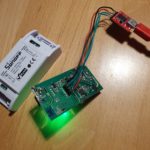
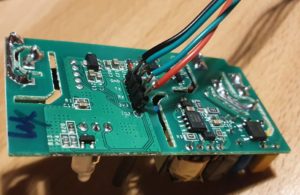
      3. A wire to to connect your PC via an FTDI (serial2USB converter) with the switch, the FTDI and the switch have signs on it, so has the switch:
        Edit
        FTDI Sonoff Smart Swtich
        3V 3V
        GND GND
        TXT REC/RXI
        REC/RXI TXT

        It takes 5min of soldering, when ready it should look similar to below:

      Flashing

      The switch needs to be connected with the PC via our nice cable, it just works by putting it in and a bit of adjusting.

      To get the switch in the “programming mode” the reset-button on the switch must be pressed *before* connecting the switch via USB cable to the PC. Once connected, you can release the reset-button (its the long black stick).

      Then start flashing with tasmotizer by selecting the firmware and the USB interface:

      After re-power the switch, it opens an access-point and you can be configured via connecting to its WiFi (some AP with “tasmota” in the name) , so it will later connect to your own WiFi. But much more elegant, you can use tasmotizer via the button “send config” to update the WiFi directly, you will need to enter the credentials (SSID and PWD from your home network).

      All your credentials and data remain will remain in your network now. On the router I also disabled the internect-connection for the IP address of the switch in my home network – just to be save 🙂

      Configure the Switch – Tasmota is great

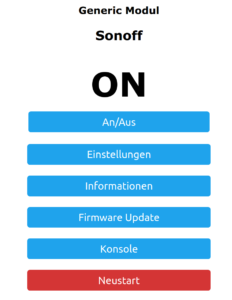
      When all works, the switch will connect to your home WiFi, you can find its IP address in your Router and you can open its main config page via a web-browser. You will see the new firmware from “Tasmota” active, that gives you full control over the device.

      Its an amazing software, full Opensource, not cloud connection or internet needed. It stays in you home 🙂

      The basic tasmota configuration is already correct, nothing to do, maybe in the settings section, you may enter a backup WiFi address – if you want.

      Connecting to OpenHAB

      The Switch Side

      The concept is, that the switch will use the MQTT protocol to communicate with OpenHab, once configured the switch will listen for a message via this protocol and do its job – ON/OFF.

      To configure MQTT you need configure your OpenHab server IP and the credentials of the MQTT network, that you have configured in OpenHab. The trick is the “topic”, that is the “address” that the switch will listen towards – any message with this topic will be processed by the switch. For my network I gave each switch its own topic, like “sonoff1”, “sonoff2” – so I can control them separately. OpenHab has a binding that keeps the link to this protocol and its easy to configure.

      The OpenHab Side

      After installing the MQTT Binding in OpenHab, I did the following configuration, important to have the topic “sonoff1” correctly everywhere:

      Bridge mqtt:broker:OH2mqtt "MQTT Broker" @ "MQTT" [
          host="192.168.1.106",
          port=1883,
          username="OpenHAB",
          password="xyz"
      
      ] {
          Thing topic sonoff1 "Sonoff1" @ "MQTT" {
           Channels:
           Type switch : ch1  "Light1" [ stateTopic="sonoff:stat/sonoff1/POWER", commandTopic="cmnd/sonoff1/POWER" ]
          }
      }

      To enable and disable the switch, its straight forward:

      Switch Sonoff1 "Light1"  	 	 	 	 	 	 	 	<light> ["Switchable"] { channel="mqtt:topic:OH2mqtt:sonoff1:ch1" }
      
       sendCommand(Sonoff1,ON)</light>

      Enjoy 🙂

    • About Amazon Dash-Buttons, and what you can learn from it about IoT and Amazon! (19.01.2020)

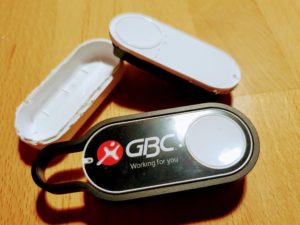
      I am using Amazon-Dash buttons in my home automation project, got them from eBay for some euro. So I can switch-off all lights and heating from my bed, dim the lights in the living-room when watching TVs. And all for nearly no money. The buttons a made for 1000 clicks, so I thought I would be save.

      But I didnt realize the “power of Amazon” and under-estimated the SW and HW that is build into this little button.

      My plan – how to use the “Dash-Button” in Home Automation!

      Amazon did everything to make the button not useable – except for ordering from Amazon 🙂

      But smart people found a solution: You set-up the button once with the Amazon App (to let him connect to your WiFi network by providing SSID and PWD) .

      When the button is pressed, it wakes up and needs to re-connect to the configured WiFi , this connection event can be monitored with a simple script to install on  RPI HomeServer with Openhabian: https://github.com/Nekmo/amazon-dash

      sudo apt-get remove python3-pip; sudo apt-get install python3-pip
      sudo pip3 install amazon-dash
      <code class="yml">sudo systemctl start amazon-dash 

      Finally you need to configure the buttons (name, mac-address)  to be controlled in a config-file That’s it – you can access the button from OpenHABian like any Hue device.

      Ohnn…not really…..its important you make it impossible for the button to “CALL HOME” to Amazon (e.g. with a FritzBox you disable internet for fixed IP address of the button).

      The big disappointment!

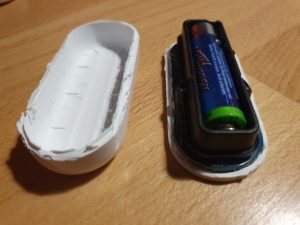
      One day, one button stopped working.It seems that the battery is empty. Ok, no problem – took me a while to open the case  – and I replaced the battery.

      Nope..not working...of course the button forgot anything about WiFi and PWD. So I wanted to use the Amazon-App to save this settings.

      Nope..not working..Amazon has changed the App, no menue-item any-more for Dash-Buttons. So, how to teach the button about the WiFi?

      While doing research I learned more about this button, and had an interesting evening, starting here: https://github.com/danimtb/dasshio/issues/93

      My “Dash-Button” is a little WebServer with Access Point!

      During Reset the button opens it own WiFi AP, so you can access him via: http://192.168.0.1 from a browser of the device in this local WiFi. It tells you e.g. the firmware version. The button also allows to set-up the WiFi SSID and PWD with http://192.168.0.1/?amzn_ssid=SSID&amzn_pw=PASSWORD.

      My “Dash-Button” can update its firmware and validates certificates!

      Nope..not working.. this tiny buttons has a firmware, and when connected to the internet, it automatically updates the firmware (could you imagine, this little thing..). As of a recent version of firmware, that button wants to connect to an Amazon Server and is validating its certificate before he is saving the WiFi information. Amazon has disabled the server, because of the certificate validation you can not “fake” an Amazon server. No way to convince the button to save the SSID and PWD 🙁

      So…is there a way to get an older version of firmware or maybe a firmware hack?

      My “Dash-Button” has a microphone !

      In case WiFi is not working, the Dash-Button can be configured using *sound*, so it has a little microphone and it will load its setting from the mobile via audio. Some really smart people found a memory leak in this interfaces and managed to use this leak to implement a new version of the firmware that would skip the certificate validation. I found this on github: https://github.com/znuh/dashbutton

      So, you download the wave-file, reset-the button, play the wave-file and afterwards http://192.168.0.1/?amzn_ssid=SSID&amzn_pw=PASSWORD will work again, because the button will not ask for the certificate.

      Trying it, it first looked great – the button reacted on the sound, but:

      Nope..not working.. I found out, that my button had a recent version of the firmware and that Amazon has fixed this bug in the new version.

      My “Dash-Button” gets a *Packet of Death* from Amazon!

      I also learned that (at the moment) any Dash-Button now would connect to the internet, it will receive a special command to completely disable itself by going into an endless-loop.

      Conclusion – The POWER OF AMAZON

      I spent a full evening with my Dash-Button, a bit disappointing that I couldn’t get it back to live, but a very interesting learning experience.

      How much effort and brain-power Amazon put into this button with a functionality that is completely invisible to the user – who only things he buys a button. And that has even a microphone. And also how much power does Amazon have, the company just decided that the buttons should not be used any-more, updates the firmware, sends a packet of death and disables the certificate server. Now you have just a  peace of dead electronic to through away.


      Makes me thinking….how much sensors and computing power is in a mobile phone or an robotic vacuum cleaners. And how much power do we have about this devices – if we even cant control a simple button 🙂


    • Touchdisplay running on ESP8266 (Wemos) – RPI Remote Controll (22.09.2019)

      Introduction

      I am using a 1.8 Inch LCD Screen SPI Serial Port Module TFT Color Display Touch Screen ST7735 (128*160)  for Arduino”, bought for 9€ from aliexpress.com.

      Details: Display Processor: ST7735, Touch Processor: XPT2046, Display Type: ZJY180-TV2.0,128*160, as ESP8266 I am using the WEMOS D1 Mini Pro (v 2.0) https://wiki.wemos.cc/products:d1:d1_mini_pro.

      Its part of my Project “BigPi” to use the PI4 as my central home server. I decided it needs a display.

      Things should look nice..so what did I do?

      Actually I got the Touchdisplay running at the RPI after a lot of tries  – but what do I have on my desk:  A big black RPI4 box with a touch-display. Not looking good.

      My alternative: I build a tiny Touchdisplay with ESP8266 in a little box with battery, that I can place anywhere. I will communicate via WIFI to my RPI. No black box on the desk, just a cool multifunctional switch and status-display for RPI Remote control. Kind of a long running project – lets see how it goes.

      Wiring – how to get it together

      Of course, from china – there is not much documentation. Below some information I found at AliExpress about the display and all contacts at the display have labels. To note: PEN (11) is high, and gets low, when the display is touched – so can be directly linked to the Wemos (see below).

      Information from Vendor
      Mapping TFT Panel to Wemos

      Some Details about the WEMOS D1 Mini Pro

      Understanding the Solder-Pads

      This is a very nice ESP8266 processor, small size and including LiPo charger unit, so any 3.7V battery can be directly attached on it and can be charged via the mini USB. Its Pin-Compatible to the well known WEMOS Mini, that has some interesting soldering-pads on the back:

      • SLEEP: This connect the Reset and the XPD_DCD – Deep Sleep Wakeup, so the WEMOS can waket-up itself from Deep-Sleep. For easy programming and the serial interface to work, this should not be connected. So do it, before you put it into production
      • BAT-A0: Links the battery power to the analogue A0 input, so its possible to measure battery voltage (to detect low battery).
      • LDO_EN: To disable the 5V regulator, so you can provide your own power source directly to the 3v3 and GND pins. Useful for battery operations. If you use standard lithium ion batteries that have 3.7-4.2V, it’s better to connect them to the 5V pin, since that is connected to an LDO converter.
      back side of the board
      Deep Sleep…tzzzzz…

      I need “Deep Sleep” with ultra low power consumption, as it should run for a long time.

      I measure current 0,15mA (150uA) out of the box for the WEMOS Pro Mini via the ESP.deepSleep(), with a 1200mAh LiPo it comes to 300 days.

      If its running with display connected, but without backlight (BLK to GND), its consuming 0.48 mA (500uA) – what is approx 100 days runtime, 3 month is ok 🙂

      When the display is active and backlight is on, it consumes around 20mA, when the display is off -it goes down to 1mA.

      To Remember

      During the Deep Sleep period GPIO_16 are held high. At the end of the Deep Sleep period GPIO_16 goes low, pulling down the Rest Pin (Reset Pin is low active, eventually add 1-10k resistor in between) and restarting the Wemos.

      Prolem is, that when ESP8266 goes into DeepSleep, all IO are goint go High – so my display is “on”. It will need an inverter.

      SPI – Confusion

      SPI did confuse me, it has 3 lines MISO, MOSI and clock, the same I found on the touch-display. At the end I realized that it has 2 controllers, one for the touch sensor, and the other one for the display. Both are connected at the the same SPI bus and are selected based on chip select. So it somehow looks like below:

      SPI Logic on the TFT/Touch Display

      Software – How to get it running?

      I am using CLION from JetBrains and Platformio for development -what I can really recommend to do. The following libraries support both controllers:

      Adafruit ST7735 and ST7789 Library
      Adafruit GFX Library
      XPT2046_Touchscreen

      Thanks to this great libraries, below makes you paint on the little display with a pen, just some lines of code.

      void setup(void) {
      tft.initR(INITR_GREENTAB); // initialize a ST7735S chip, CN: My-chip has a "green flag at the protection foil"
      tft.setRotation(1);
      tft.fillScreen(ST7735_BLACK);
      ts.begin();
      ts.setRotation(0);
      
      delay(500);
      
      tft.fillScreen(ST7735_BLACK);
      testdrawtext("Welcome", ST7735_WHITE);
      delay(1000);
      tft.drawPixel(150, 118, ST7735_GREEN);
      
      }
      
      void loop() {
      
      if (ts.touched()) {
      TS_Point p = ts.getPoint();
      tft.drawPixel(p.y * x_tft_scale, p.x*y_tft_scale, ST7735_GREEN);
      }
      delay(5);
      }

      Mission completed 🙂

    • Migrating from MySQL to Postgres (25.07.2019)

      I am having some trouble on the RPI 4 to get Rails installed and finding the right version of MYSQL (MariaDB) and ActiveRecord while running an older version of Rails and a newer version of Sphinx (search index). Anyway I always wanted to move to PostgreSQL…thats the time to do.

      The tool of my choise: PGLoader

      I realized pgloader does not like to run on the RPI, but the solution is easy:

      SourceDB (Cubietrack) <-> Linux PC (my desktop) = Running PG-Loader <-> TargetDB (RPI4)

      I wanted to have the schema on the target-db, as original as possible for Rails, so I used rake:
      <br />
      rake db:create<br />
      rake db:schema:load<br />

      to have an original Rails DB set-up. PGLoader is used for data-migration.

      Script:
      <br />
      LOAD DATABASE<br />
      FROM mysql://export:xxx@ct/CTCD2Server_production<br />
      INTO pgsql://docbox:xxx@pi:5432/docbox_production<br />
      with data only<br />
      ALTER SCHEMA 'CTCD2Server_production' RENAME TO 'public';<br />

      Two important points:

      1. The last statement “alter schema” is important, as pgloader creates a schema with the same name as the source db and creates all table in this schema – and rails may not expect this.
      2. “with data only” – tells pgloader that the schema is already existing (rake db:schema:load)

      Once, I got the script working – data migration is just a “button press”.


  • LoRa

    LoRa – Washing and Parking

    What is LoRa?

    LoRa (Long Range) is a spread spectrum modulation technique derived from chirp spread spectrum (CSS) technology and is the first low-cost implementation of chirp spread spectrum for commercial usage.[1] It was developed by Cycleo of Grenoble, France, and acquired by Semtech in 2012, a founding member of the LoRa Alliance.(Wikipedia).

    What do I want to do?

    We have a Washing Machine in the basement – and allways forget when its finished. So I want to build a LoRa module, stick it to the Washing Machine.  A little sensor will check when it runs (by the movement). And when its finishing running (tumbling) – it will  notify me with OpenHab.  Aaah.. yes – and we have a garage (only 1 for 2 cars). So,  how to know, if its already used by one car. Also an idea for LoRa.

    Network Topology

    LoRa consists of 4 parts:

    1. Nodes: Endpoint, e.g. measuring device
    2. Gateways: Bridge between the note and the internet, the number of channels that a gateway has is the number of nodes that it can talk to at once, node is not sending allays, e.g. a 1% duty cycle represents almost 15 minutes of combined
    3. Network Servers: direct packets between gateways and application servers. Since LoRaWAN™ allows for uplinks (messages to a server from a node) and downlinks (messages to a node from a server).
    4. Application Servers: Does actually do something with the data.

    I will try first to get a P2P communication running, meaning just connecting 2 LoRa Endpoints calling Client and Server

    Client and Server

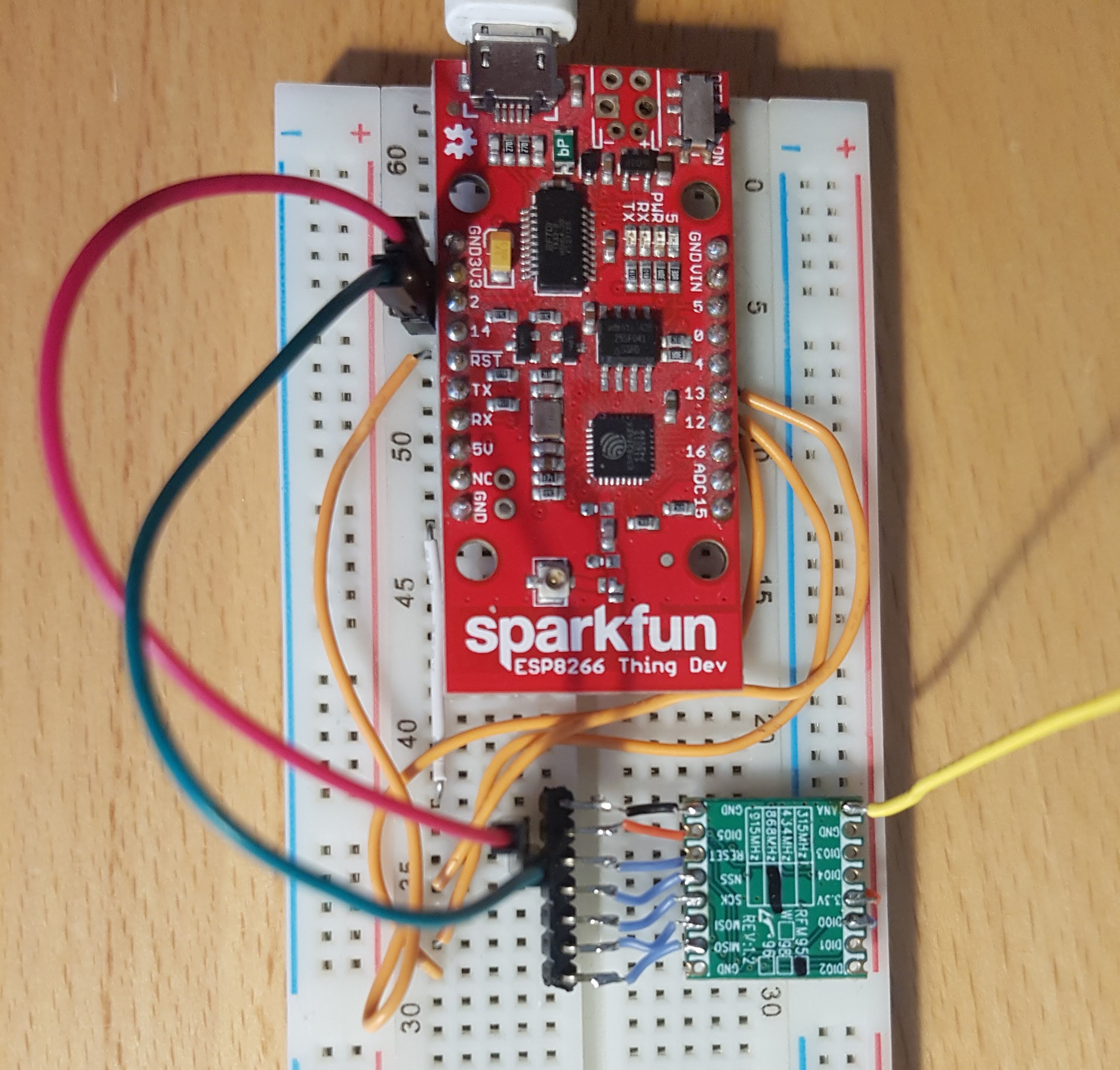
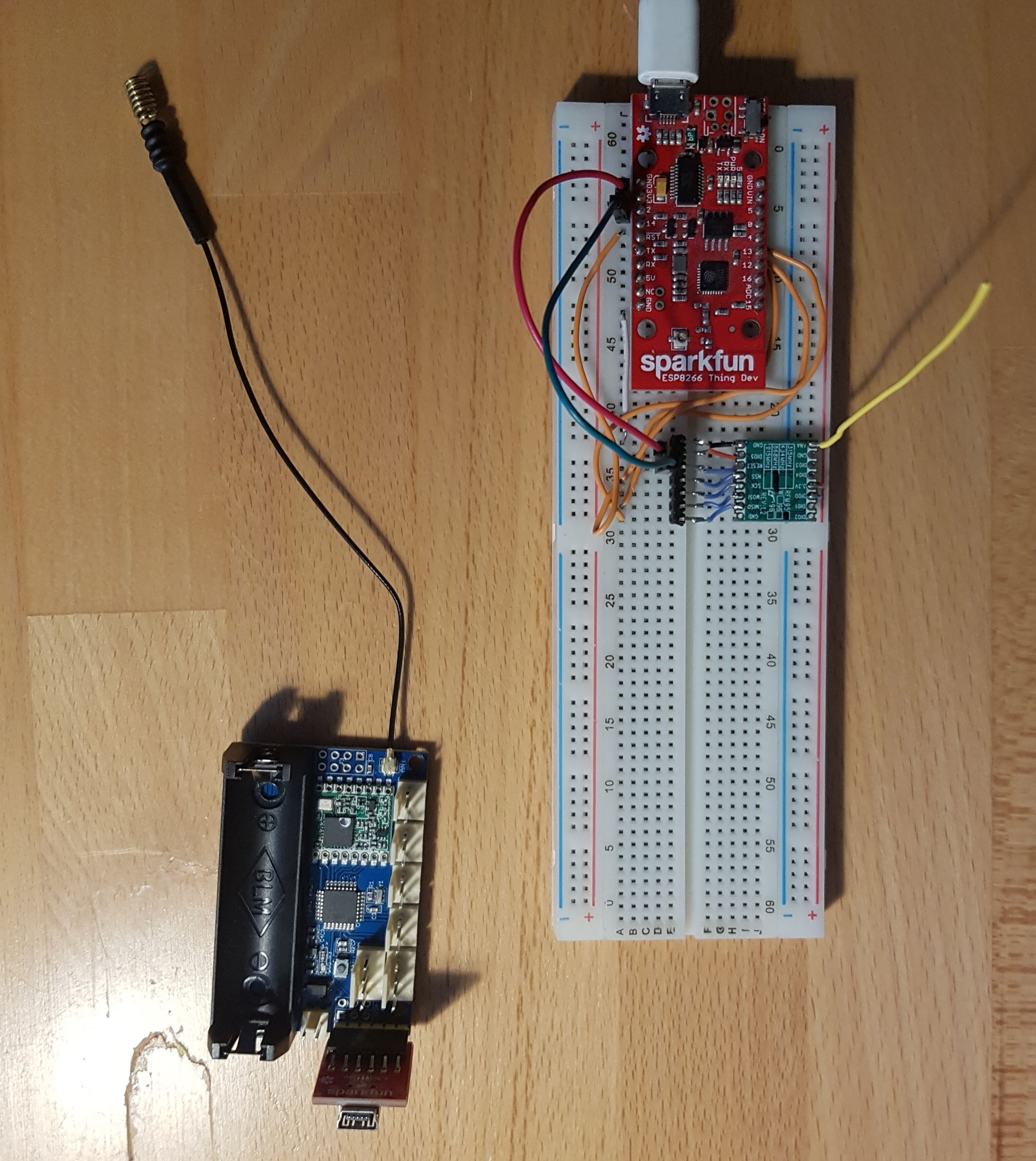
    As the “LoRa Server” I plan to use an ESP8266 (with WIFI) – to connect to RFM95.

    As the Client I want to use a module (ready made) you can by in china for cheap money: LoRa Radio Node v1.0.

    For both I will use the the LoRa-Library from Sandeepmistry.

    The nifty Details

    Server: ESP8266 with RFM95

    The RFM95 Device
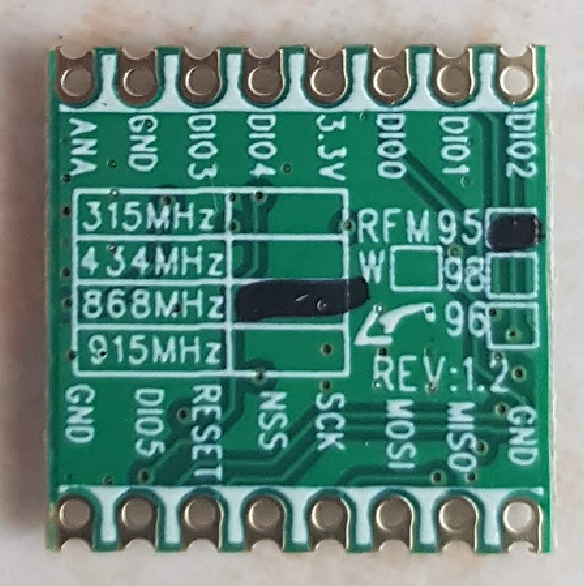
    1. Frequency used in Germany: Frequency Plan: EU863-870, 868 Mhz,  you must use at least the 3 main channels you already mentioned (868.1, 868.3 & 868.5) with a duty cycle of <1%
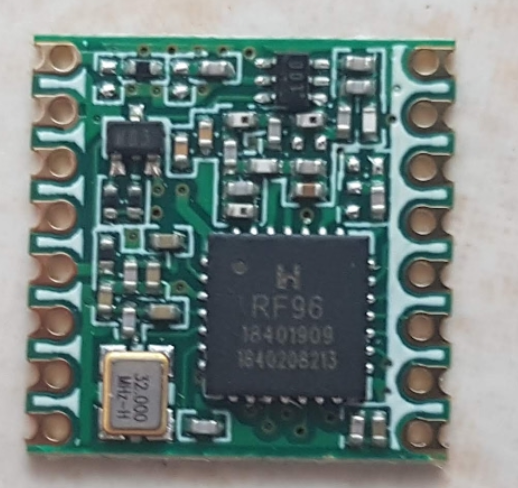
    2. Device used: RFM95 868 MHz (my one does not have a “W” – RFM95 vs RFM95w)
    3. Antenna:cut a stranded or solid core wire the the proper length for the module/frequency: 868 MHz – 3.25 inches or 8.2 cm ((How to connect the antenna)

    These different transceivers are using Semtech SX1276 chip.

    The configuration and communication of the module is done via 4-wire SPI Bus, technically implemented in all microcontrollers.

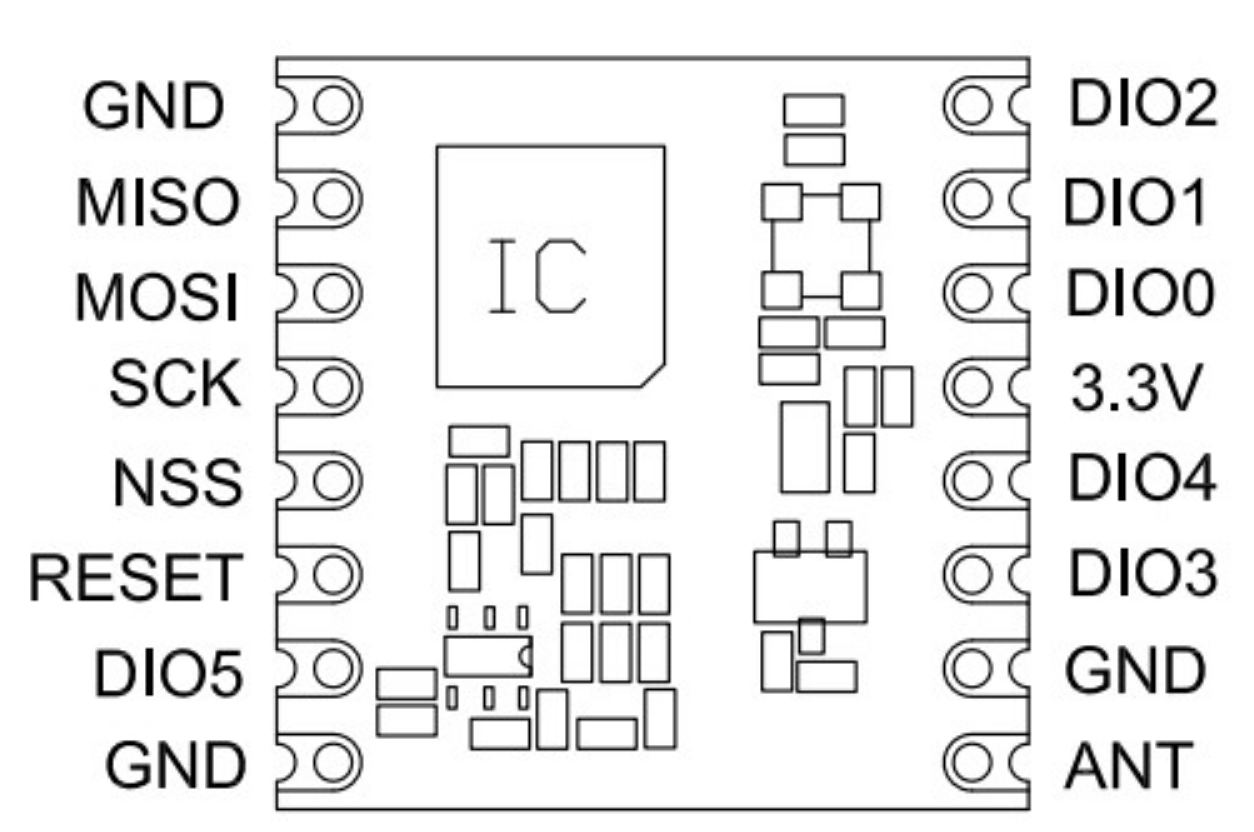
    RFM95 Documentation

    1. ANT is the antenna Pin.
    2. GND can be connected to any of the GND pad (connecting all is always better)
    3. DIO0 is used by RFM95w module to trigger RxDone/TxDone status.
    4. DIO1 is used by RFM95w module to trigger RxTimeout and other kind of errors status.
    5. NSS, MOSI, MISO, SCLK are for SPI communication. NSS is the chip select signal. Arduino is the master.
    6. Reset is resetting the RFM95w module.
    Wiring

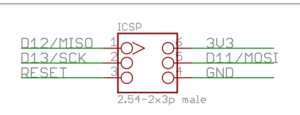
    see gallery below for mapping RFM95 with ESP.

    Serial interface and  does not work, when pin 2 is connected. Pin can be connected after serial starts working.

    Client with LoRa Radio Nove v1.0

    As “LoRa Client (the module that is sending data, form a sensor) I am using the  LoRa Radio Node v1.0

    1. Power supply: 3.7V 14500 Lipo battery Or 3.7-12V DC power(VCC GND: 2PIN 2510-I Type connect) and 3.3V regulator with 500mA peak current output
    2. ATmega328P @ 8MHz with 3.3V logic/power, 32K of flash and 2K of RAM, same usage as Arduino pro mini.
    3. Hardware Serial, hardware I2C, hardware SPI support
    4. 1 x PWM pins: D3
    5. 2 x analog inputs: A0 A1
    6. Pin #13 BLUE LED for general purpose blinking
    7. Reset button

    LoRa Radio Node v1.0 1

    Wiring

    Nothing to wire at all. Connect Antenna, put in a 3.7V LiI-Ion Battery (e.g. Model 17500, 3.7V,850mAH) for operation and use a standard FTDI cable to program and test.

    Pin Mapping between RFM95 and ATmega328P:

    RFM_DIO0 = 2
    RFM_NSS  = 10
    RFM_RESET 9

    The ATMega and the RFM95 will be sent to Deep-Sleep to save power. Wake-up is possible via connecting RESET to GND.

    First Results

    Distance:  Amazing, 3 level building with thick walls down into the cellar – still working.  RSSI values from -23 (when close to together, down-to -99 on some distance). I am impressed by LoRa technology. It works for my use-case 🙂

    Power-Consumption – Sending: A lot when sending – but only on peek times.

    Power-Consumption – Sleeping: Using DeepSleep Library and sending the RFM95 via LoRa.sleep results in  0.08mA to 0.1mA, providing nearly a year of runtime with a 850mAh battery. Perfect

    Detailed Pictures (click to enlarge)

  • DocBox Architecture: Designing a Modular Document Management System

    DocBox Architecture: Designing a Modular Document Management System

    How to build a modular Document Management System?

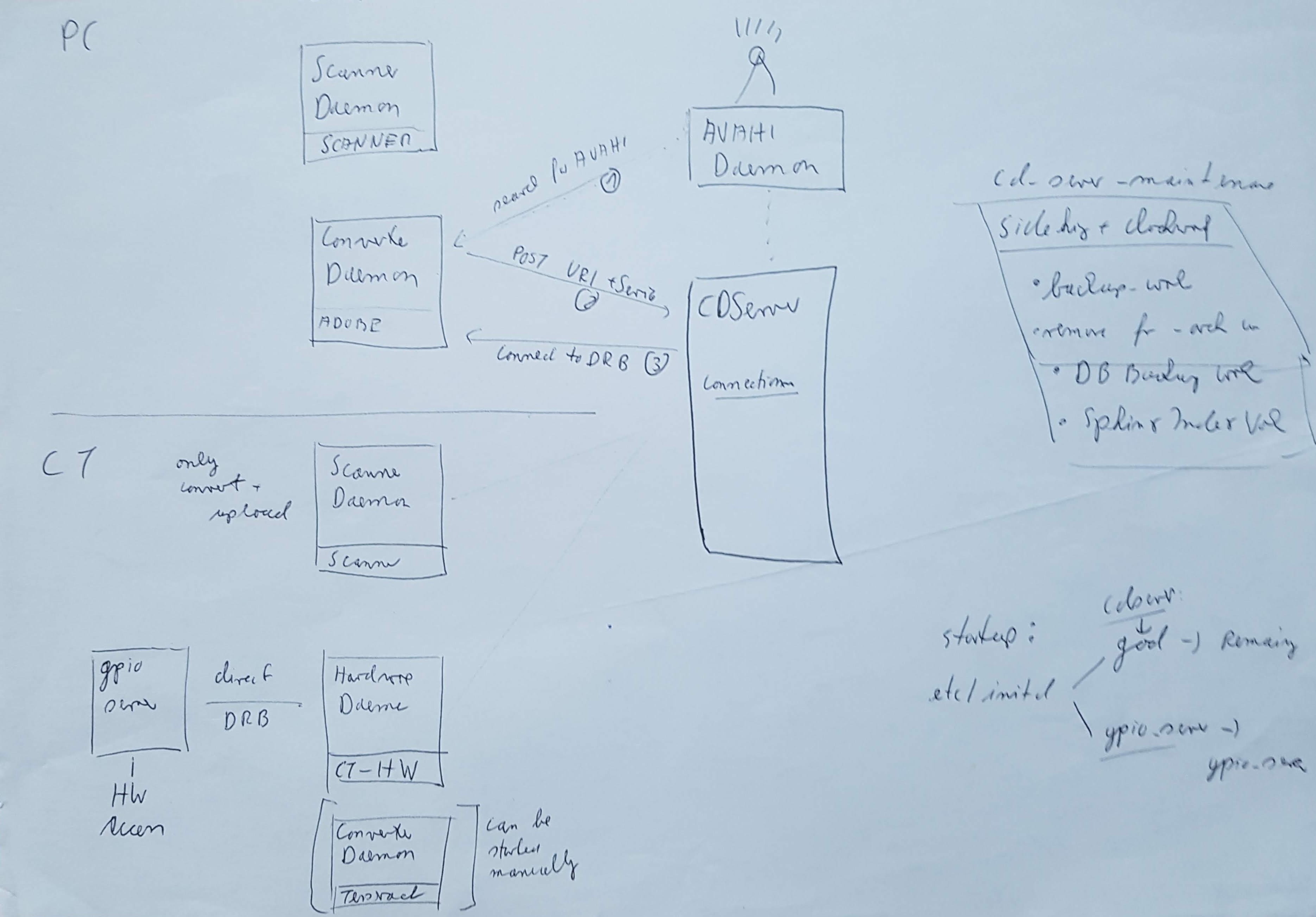
    Of course the answer: The DocBox Software is build modular, and can therefore work in different constellations.

    Server: This is the central WebServer running in on ROR, connecting with the database.

    Scanner-Daemon: This process must be adapted per scanner, in my example using a Fujitso ScanSnap S1300 (described here in GitHub).

    Converter-Daemon: This guy does all the work of processing the scanned images he received from the Scanner-Daemon, including OCR processing. For OCR on my local Cubietrack I am using ADOPE PDF, but it also supports tesseract (also pretty good results). I have the Convert-Daemon currently running on my PC and put it into auto-start. So when I boot my PC it automatically starts converting the images and does the OCR. Alternatively the Converter-Daemon could run a Raspberry PI – would just take longer 🙂

    Hardware-Daemon: This is currently only implemented for my Cubietrack, you can see the wonderful GREEN button, that triggers the scanning of the document. Its an additional abstraction layer, so the SW can be more easily adjusted to new hardware.

    Why is this useful?

    This allows scaling and using multiple scanners in different locations, e.g. with one central converter and web-server daemon.  Using the AVAHI-daemon, there is no need to configure IP-addresses, as the components register themself.

    How do all this Daemons communicate?

    This took my quite a while to get running in a reliable way. But it works, the complete constellation runs for months without any issue.

    3 Steps..ONLY
    1. On the same system as the WebServer an AVAHI-Daemon is running, that allows the other modules to use avahi-discover to find the DoxBox-Server in the network.
    2. Using the IP – Address and Port announced bay the AVAHI-Daemon, the external modules connect with the DocBox-Server and register its service by calling a specific URL (there is some need for additional security, but the assumption is, that we are running on a local network  – but I think more security can be easily added). The information that is registered at the server is the IP-address of the Daemon and its port.
    3. Now the server has IP-Address and Port and is using DRB – Distributed Object System for Ruby.

    Because I think DRB is so nice, look at this code – so easy to have all the logic in an object available from a remote system.

  • Inside the eInk Calendar: ESP8266, WiFi and Low-Power Display Design

    Inside the eInk Calendar: ESP8266, WiFi and Low-Power Display Design

    How does it work?

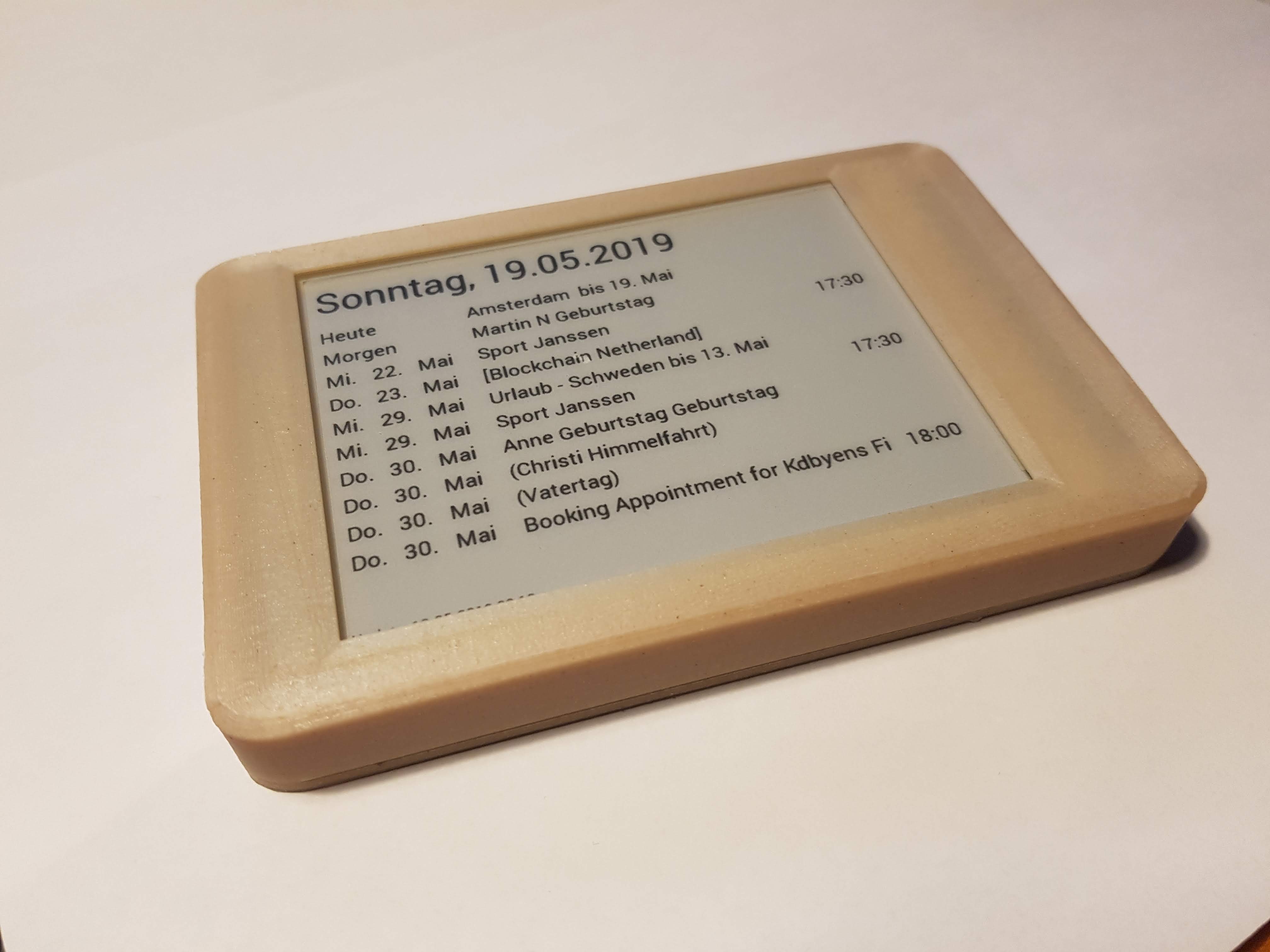
    The Calendar has two components, the ESP8266 handling the WIFI Communication and the Waveshare eInk Display to show the calender information.

    Overview

    The calendar is displayed on the UART Waveshare eInk display (800×600 Black&White) powered by an STM32-F103 ZE with 512kB Flash, 64kb RAM and 1MB SRAM. Thanks to David (see link) we could remove the existing firmware and are able to program the STM32 via JTAG.  This enabled me to use the memory (1MB RAM) to prepare the picture, the SD Card to configure WIFI and to use the STM32 computing “power” to parse the JSON Calendar information from Google.

    The ESP8266  (ESP8266 Thing) is used to communicate with Goolge and return the JSON file with the calendar information

    ESP8266 – Managing WakeUp, HTTPS, Google OAUTH

    ESP8266  (ESP8266 Thing) can sleep only for 2hours. Its using RTC memory on the Thing board to count the numbers of wake-ups. Its programmed to really wake-up at 2pm (GMT) and will power the eInk Display. Via Serial Interface (pin 12/12 on ESP and RX/TX on eInk) the display reads the SD Card WIFI information and sents them to the ESP.

    Using this WIFI information, the ESP will connect to the Google Calendar API using HTTPS.

    LEARNING

    HTTPS is only as save the the certificate validation, IOT devices may skip this and allow Man-in-the-Middle-Attacks – that could reveal your Google credentials. An alternative solution is to use the FINGERPRINT (Hash) of the pages certificate, but this may stop working as soon as the certificate expires or any change was done at the certificate. In my solution I downloaded Google Root Certificates and stored it in the ESP ROM. When connecting to Google Calendar API the complete certificate chain is validated from the Root Certificate to the Page Certificate. Feels much more secure 🙂

    Once connected the ESP will follow the OATH authentication process (Google OAUTH). Initially or when the authentication with Google fails, the ESP restart the authentication and displays a DEVICE-CODE on the eInk display that needs to be entered into the Google Web-Page to pair the device.The Refresh-Token obtained from this process is  stored in the RTC memory – so it can be re-used for the next wake-up and no paring is needed.

    Once the authentication is completed the ESP will receive the Google-Calender information from the SD-Card of the eInk – Display and request the JSON calendar information via the authenticated connection. This is directly sent to the STM32 eInk Display processor.

    eInk Display – STM32 – Display text on the eInk Display

    As the original firmware was removed, I implemented a graphical library that is able to write text (different font types and sizes) using Fontem. Fontem takes a TTF font and generates C-Header files with keep the font information. It supports KERNING, so the space between the characters is looking nice.

    eInk Display – STM32 – Memory Management

    The Graphical Libary is using an 800*600*2 (each pixel is represented by 2 bits) memory buffer (not enough memory for the STM32 internal memory, so it needs to be stored in the external 1MB SRAM of the display.

    The external RAM is set-up to be accesseable via address 0x68000000. By adjusting the link.ld file I can define which memory is used for the calloc/malloc. By using below the HEAP address is set to XRAM (external RAM) and calloc/malloc is taking this memory. This is not very performant, but as the display runs over night, this doesn’t matter.

    
    MEMORY
    {
    FLASH (rx) : ORIGIN = 0x08000000, LENGTH = 512K
    SRAM (rwx) : ORIGIN = 0x20000000, LENGTH = 64K
    <strong>XRAM (rwx) : ORIGIN = 0x68000000, LENGTH = 1M</strong>
    }
    
    __rom_start__ = ORIGIN(FLASH);
    __rom_size__ = LENGTH(FLASH);
    __ram_start__ = ORIGIN(SRAM);
    __ram_size__ = LENGTH(SRAM);
    __ram_end__ = __ram_start__ + __ram_size__;
    __stack_end__ = __ram_end__; /* Top of RAM */
    __stack_size__ = 16K;
    __stack_start__ = __stack_end__ - __stack_size__;
    __heap_start__ = ORIGIN(XRAM);
    __heap_end__ = ORIGIN(XRAM) + LENGTH(XRAM);
    end = __heap_start__;
    

    Little Tip: To make the debugger aware of this memory mapping change, you can enter in the gdb:
    mem 0x68000000 0x680FFFFF rw

    eInk Display – STM32  – Driving the display

    The Waveshare – Board is using the E-ink display GDE043A2 (Good-Display.com). The communication between the STM32 and the GDE043A2 is using SPI. Driving the display via SPI is complex and requires a lot of knowledge. Thx to David (see link section) he reversed the original firmware and the basic functions are provided on GitHub. I am using his functions to actually write the graphic buffer to the display. The logic is covered in the file stm32_application/gde043a2.c.

    Build Environment for the Waveshare STM32 e-Ink Display

    Normally I am using Platformio to build the firmware for any Arduiono or ESP8266 device (check the platformio.ini for the ESP8266).

    For the STM32 this is not working, we need to set-up a GNU Arm Embedded Toolchain ( PPA for -arm-embedded on UBUNTU) for cross compiling and then upload the firmware to the board. The communication goes via the JTAG interface controlled via the ST-LINK adapter (connected via USB to the developer PC and via JTAG to the board). For this we need to install the ST-Utils and run “st-utils” in background, that pushes the cross-compiled code from the development PC to the board.

    Two files are important to control the build flow:

    1. CMakeLists.txt: Controls the cross-compiling logic (generate the  *ELF file for upload executes upload)
    2. STM32F10x.cmake: Controlls the actual compiler options for the STM32 and defines the cross compiler

    COOL – Using Remote Debugging the STM32 can be debugged right out-of the CLION – IDE using all features available:

  • Tracker: A Lightweight Project Management Tool Built from Real Project Experience

    Tracker: A Lightweight Project Management Tool Built from Real Project Experience

    What did I do?

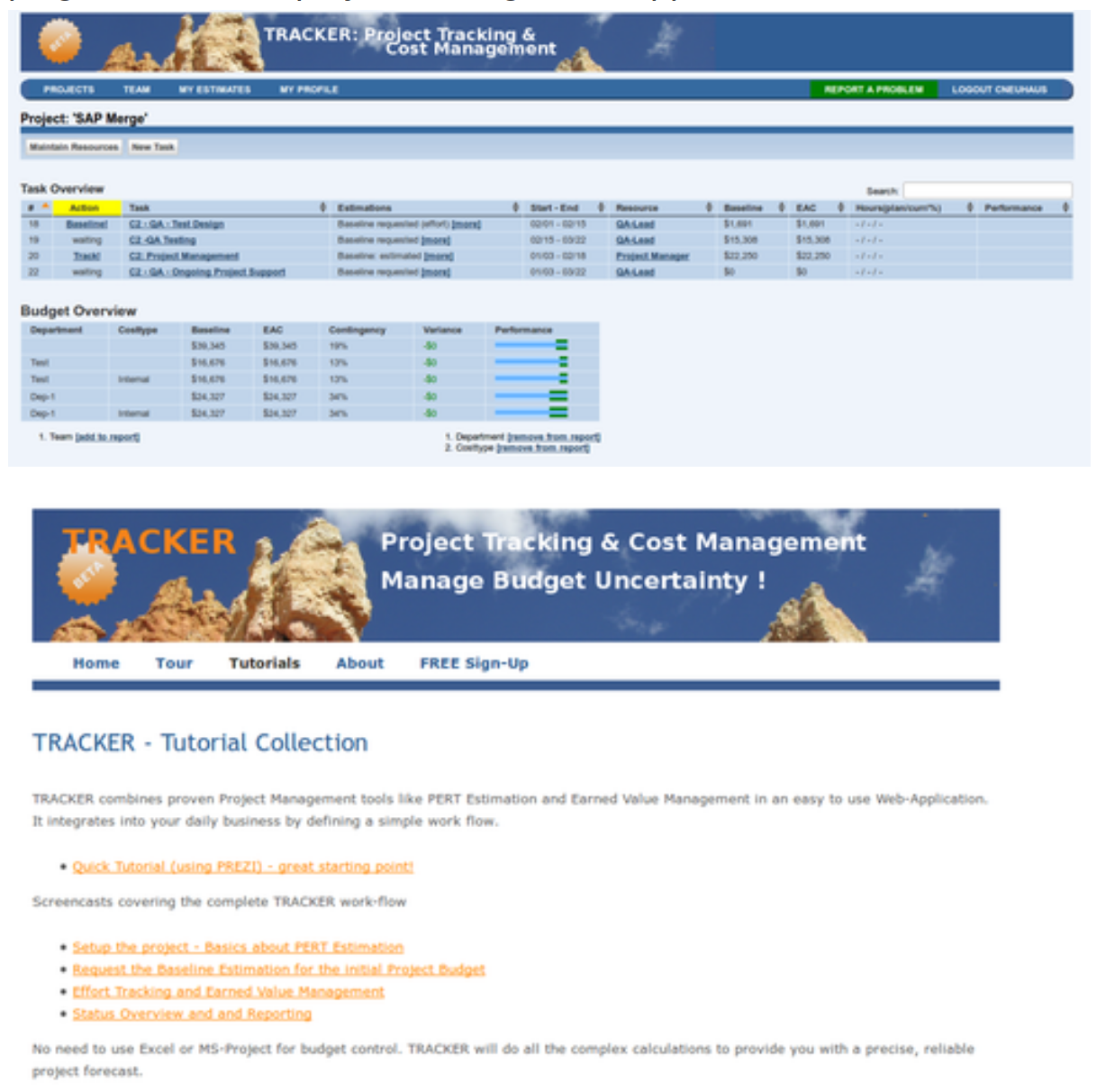
    TRACKER is based on my experience as a Project Manager and my lessons learned from several projects with tight budget. At one point of time I decided to combine my hobby “Ruby on Rails” and my Project Management know how.

    It could run as SaaS or be installed on a companies server. Other alternatives would be to have it as Open Source and let the community decide. I have also considered offering my know how on this topic and to provide this for creating a “cost management” plugin for another project management application.

    Why is it so great?

    It provides a new way of using the team members know how and responsibility for estimations, using PERT to express the uncertainty. This uncertainty is used to calculate the effort and amount, considering a risk factor. I have done several projects with this methodology and the result was very convincing.

    What comes next?

    I have not yet decided how to continue with it.

    Currently development is on hold, so much other things to do.

    If you are interested, let me know – we can start at any point of time.

  • DocBox: Building My Own Document System Because Folders Were Not Enough

    DocBox: Building My Own Document System Because Folders Were Not Enough

    Why did I do it?

    At one point of time – it was enough. All kind of ring-folders, files, documents accumulated in some cabinets and on the desk. No more space and so much effort to find the documents again 🙂

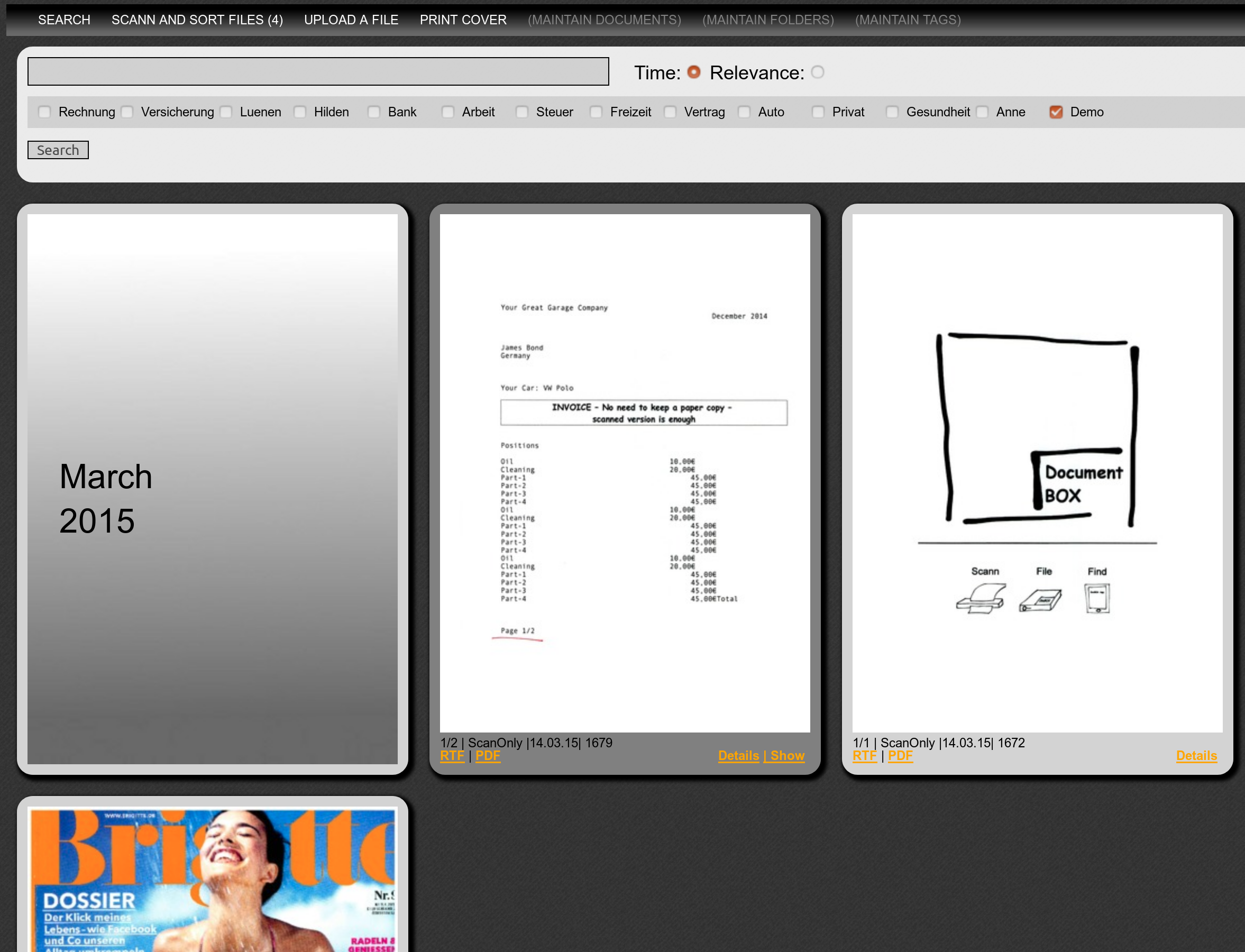
    The result is DocBox. A smart solution that changes the way you handle your documents. It runs on a separate box (e.g. Raspberry PI) and allows to upload and access documents via Web & Android App – SECURE AND PRIVATE.

    Take your time and watch the video

    How did I to it?

    DocBox is written in Ruby on Rails (RoR), an elegant Web Framework based on Ruby  supporting the MCV concept (Model, Controller, View). Its running at home for me on a Cubietrack (ARM board) with Ubuntu Linux since 2 years without any problems.

    As installation is quite complex on this board I made a 2nd version that is running on a Raspberry Pi and can be installed from Docker in some minutes. Installation details are at GitHub. If anybody want to try it out, let me know

    >>> Lean more, read THIS– The Architecture – How to build a modular Document Management System?

    Latest News

    • ZOTAC ZBOX CI620 NANO i3 – New Home Server with Ubuntu 20.04 LTS (07.05.2020)

      Intro

      This will be my new “HomeServer” running https://44-2.de/docbox/ and Openhabian..and more. Its a passive cooled mini PC with Intel i3-8130U, for my needs its equipped with 8GB RAM and a 8GB (2x4GB) Crucial DDR4-2400 CL17 SO-DI RAM and a Samsung SSD 860 EVO Series 1TB.

      Installing the Hardware


      https://www.youtube.com/watch?v=SizIpEPl378

      Installing Ubuntu 20.04 LTS on ZOTAC ZBOX + The Bacis

      Very simple and straight forward

      • Create Bootable USB Stick with Etcher
      • Connect with Keyboard , HDMI Monitor and Ethernet (optional)
      • PlugIn USB Stick in the front USB
      • Power on the box + press F8 on the keyboard (every 1-2 seconds)
      • Boot Menu: Enable UEFI – Boot (if you like) + Reboot
      • Again press F8 and select USB as boot-device
      • Follow the standard Ubuntu Setup (goes really fast), reboot
      • Install WIFI: Install wpa tools: sudo apt-get install wpasupplicant
      • Follow https://linuxconfig.org/ubuntu-20-04-connect-to-wifi-from-command-line to set-up the interface using netplan, my config file for WiFi located in //etc/netplan see below. To use the local name service (e.g. by your router, e.g. AVM Fritzbox) you need to add the section “search”.
      • I got error messages in dmesg about Active Power State management, to fix follow https://www.thomas-krenn.com/de/wiki/PCIe_Bus_Error_Status_00001100_beheben. This will deativate a power-status in the PCI, from short research I think its not to bad for power consumption
      • Some other error messages came from multipath tool, used on server to manage LVM devices – not needed, we only have one SSD, so I removed it with
        sudo apt-get remove multipath-tools
      # //etc/netplan config code for wifi interface (check the name of the interface, here its wlp3s0)
      network:
         ethernets:
           enp1s0:
             dhcp4: true
         version: 2
         wifis:
             wlp3s0:
               optional: true
               access-points:
                 "YOUR SSID":
                     password: "YOUR PWD"
               dhcp4: no
               addresses: [YOUR IP/24]
               gateway4: 192.168.1.1
               nameservers:
                 search: [fritz.box]
                 addresses: [192.168.1.1]

      Install openHAB Smart Home on Ubuntu 20.04 Server

      There are two ways to install Openhab, one as a normal package or the other one as from the “openhabian” project. That starts with a config-tool, from here you will install Openhab. I can really recommend using this options. Instructions can be found here:https://www.openhab.org/docs/installation/openhabian.html#other-linux-systems-add-openhabian-just-like-any-other-software.

      Small Tips

      OpenHABian configuration tool also allows to add additional components, I went with “Log Viewer” and “MQTT Mosquitto”.

      I had to migrate from an existing openHAB installation, and used this trick: https://community.openhab.org/t/how-to-transfer-configuration-from-one-openhab-to-another/92784 that basically create a backup and restore via


      #on source: sudo openhab-cli backup --full


    • Mobile Application Development is easy! Really? (08.12.2019)

      We are all using Mobile Apps we download  from Google Play – and use them every day. 


      But -do we ever think about the developers?


      I do – especially since I developed a Mobile App on my own 🙂

      What did I build?

      I love my little document management system “DocBox” (read more here: DocBox) – that I wrote some time ago in RubyOnRails and that is running on a Raspberry Pi (BigPi – a Raspberry Pi 4 with SSD as HomeServer).

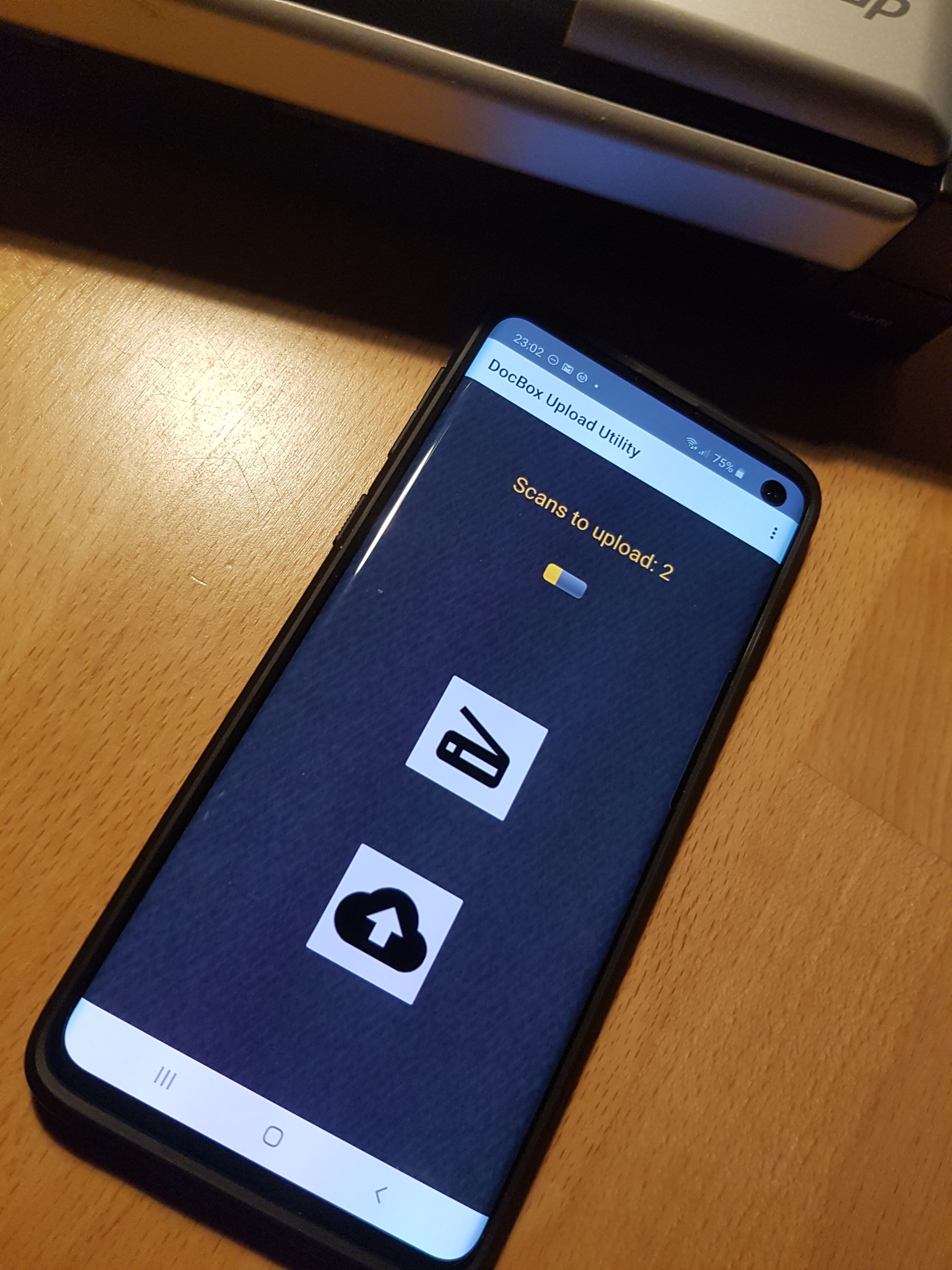
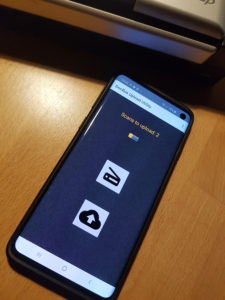
      The Mobile-App is used to take pictures from documents that I want to keep or archive, especially  when I am away and I don’t have access to my scanner. Back at home, I upload these documents directly to my DocBox. So my Mobile App does:

      1. Scan (take a photo) and edit the picture
      2. Store Picture on the phone until back at home
      3. Back at home – upload all saved pictures to the DocBox server
      4. Only upload data to DocBox, when we are in a verified Wi-Fi network and when a DocBox server is available.
      5. Allow maintenance of a list of allowed Wi-Fi network and DocBox server via setting
      6. Do *not* upload anything to Google, Facebook and do *not* store my data anywhere else!!!

      Doesn’t sound to complicated…maybe a rainy Sunday?

      How did I do it?

      Its best to start by using the IDE/ tool-chain called “Android Studio”,  that can be downloaded here.

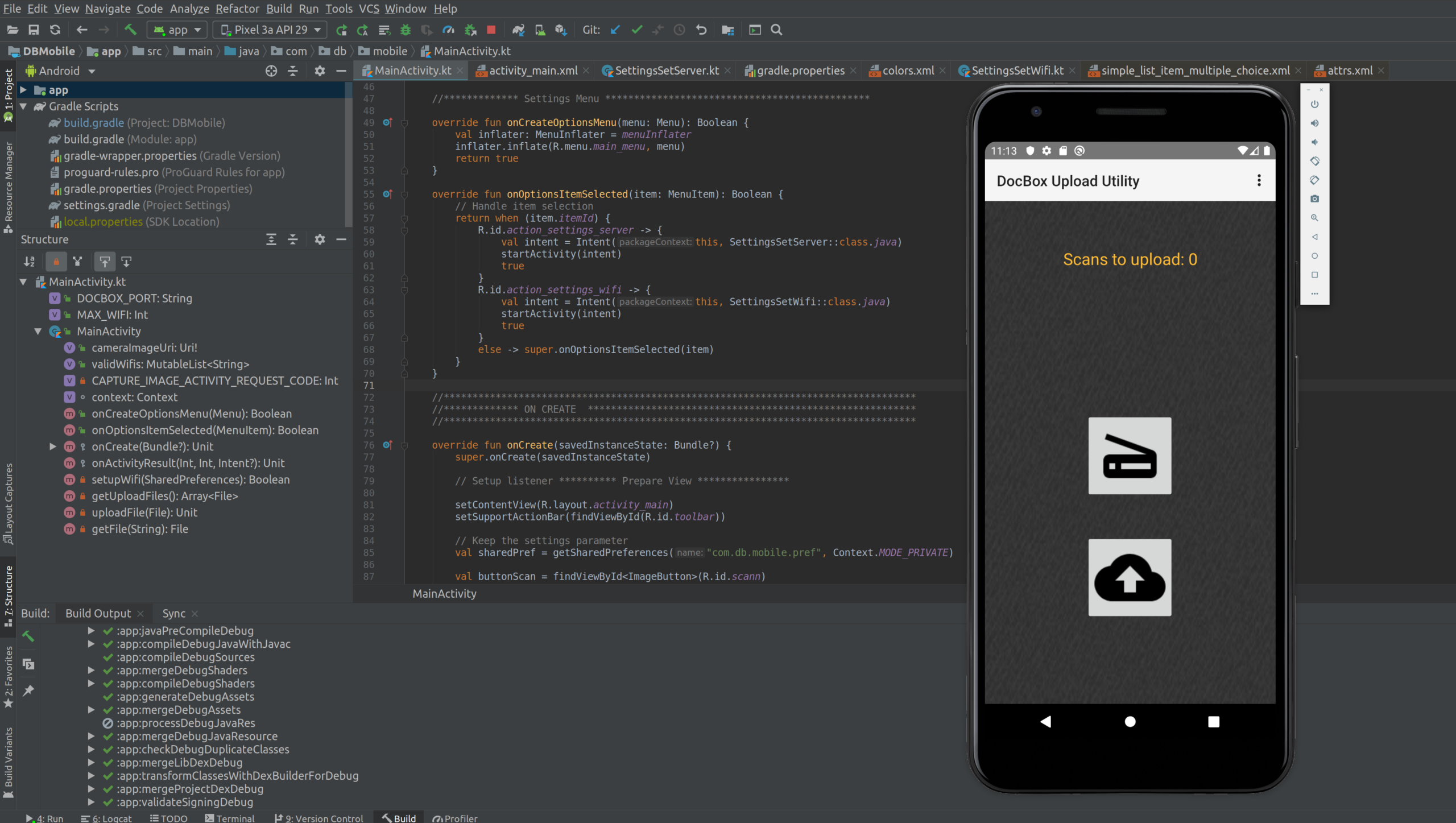
      Android Studio is provided by Google and is developed by JetBrains. Its an Integrated Development Environment and handles everything (Coding, Code-Completion, Refactoring, Debugging, Testing, Resource Management).  Once you installed it, you can start with an empty template app or example app.

      To try the mobile app you just have developed, you can use a simulator that’s running on your PC (you can even select the model of phone you want to simulate) or you connect a normal mobile phone  with USB-Debugging enabled. Voila….

      You can choose between 2 different programming languages, JAVA or Kotlin. Kotlin is a “new programming language” developed by JetBrains. Its object oriented, cross-plattform and statically typed. Personally I think that programs written in Kotlin are much better readable. At the end the Kotlin program is also compiled to run in to a JVM, not much of a difference to Java. So I learned Kotlin.

      To give you some impression, I picked one simple activity – see below some Kotlin code (its for Android 10)  – it does a lot:

      1. It creates the setting screen for the servers IP address in the “onCreate” activity
      2. It gets all the ID of the graphical elements, so you can access them from the program
      3. It opens a preference key-value database to store the IP address permanently on the phone (only accessible from the app)
      4. It set’s up a listener, that is waiting for a button, when this button is clicked it:
      5. It calls the DocBox server and checks if it is available
      6. Finally it update the correct IP address in the database and returns to the main menue

      I think, the APIs provided by Google, together with the Kotlin language do a great job to allow clear and structured coding:

      class SettingsSetServer : AppCompatActivity() {
          internal val context: Context = this
      
          override fun onCreate(savedInstanceState: Bundle?) {
              super.onCreate(savedInstanceState)
              setContentView(R.layout.activity_settings_set_server)
      
              setSupportActionBar(toolbar)
              supportActionBar?.setDisplayHomeAsUpEnabled(true)
      
              val ipAddress = findViewById<edittext>(R.id.ip_address)
              val serverStatus = findViewById<textview>(R.id.server_status)
              serverStatus.text=""
      
              // Read current IP address from Preferences and update on GUI
              val sharedPref = getSharedPreferences("com.db.mobile.pref", Context.MODE_PRIVATE)
              val oldIpAddress = sharedPref.getString("docboxserver","")
      
              ipAddress.setText(oldIpAddress)
      
              // **************************************************************************
              // Update IP address if changed with new IP address
      
              ipAddress.setOnClickListener {
      
                  val newIpAddress =ipAddress.text
                  var error=false
      
                  runBlocking {
                      try {
                          Fuel.get("http://$newIpAddress:$DOCBOX_PORT/cd_server_status_for_mobile").awaitStringResponse()
                      } catch (exception: Exception) {
                          serverStatus.text="No connection to Server"
                          error=true
                      }
                  }
      
                  // if no error, update new IP address in preferences
                  if (!error) {
                      with (sharedPref.edit()) {
                          putString("docboxserver", newIpAddress.toString())
                          commit()
                      }
                      finish()
                  }
              }
          }
      }</textview></edittext>

      How did it go?

      Lets start with the good news:

      1. Kotlin was new to me, so I had to get used to the specialities of this language – but its very consistent – good exercise.
      2. I have used other IDEs from JetBrains, so I knew the concept and had a quick start
      3. To get the first app running takes only some minutes
      4. Google is your friend, 90% of all questions have been already solved!

      Here comes the bad:

      1. You need to decide for which Android version the app should run, each version Google comes up with new features  – but also depreciates old ones. Its a nightmare to find out -what you need to do. Upgrading and keep an app recent for sure is HARD WORK.
      2. Android is separating programming logic and views and resources very strict. Its using Activities to control different screens. Each Activity has a live-cycle. Its core to understand this underlying principles. That takes time.
      3. Many configuration files (manifest.xml, gradle) can be adjusted, and everything can be configured. It just should be correct.
      4. All is multi-threading, threads communicate and impact each other – can be quite confusing at the beginning – for me that was the biggest challenger!
      5. The 10% of the questions, that are not solved via Google-Search – are really a problem. You can get really, really stuck!
      6. …..

      Conclusion

      In total it took me much longer then expected, I got into one problem where was no solution in the Internet – and that took time to solve. Also at the end the solution was so easy, just one line of code 🙁

      I have my full respect for people writing apps for free, putting them in the play-store and keep them even up-to-date. THANK YOU!!!


      But on the other hand – mobile app development is not a miracle – if someone starts charging you 100k€ for an app like mine – start thinking.


      By the way, my DocBox-Mobile is not in GooglePlay – but you find it on GitHub:

      https://github.com/happychriss/DocumentBox-Mobile

      If you want to see it all, check out the full project: DocBox

    • DocBox – The Architecture – How to build a modular Document Management System? (22.06.2019)

      How to build a modular Document Management System?

      Of course the answer: The DocBox Software is build modular, and can therefore work in different constellations.

      Server: This is the central WebServer running in on ROR, connecting with the database.

      Scanner-Daemon: This process must be adapted per scanner, in my example using a Fujitso ScanSnap S1300 (described here in GitHub).

      Converter-Daemon: This guy does all the work of processing the scanned images he received from the Scanner-Daemon, including OCR processing. For OCR on my local Cubietrack I am using ADOPE PDF, but it also supports tesseract (also pretty good results). I have the Convert-Daemon currently running on my PC and put it into auto-start. So when I boot my PC it automatically starts converting the images and does the OCR. Alternatively the Converter-Daemon could run a Raspberry PI – would just take longer 🙂

      Hardware-Daemon: This is currently only implemented for my Cubietrack, you can see the wonderful GREEN button, that triggers the scanning of the document. Its an additional abstraction layer, so the SW can be more easily adjusted to new hardware.

      Why is this useful?

      This allows scaling and using multiple scanners in different locations, e.g. with one central converter and web-server daemon.  Using the AVAHI-daemon, there is no need to configure IP-addresses, as the components register themself.

      How do all this Daemons communicate?

      This took my quite a while to get running in a reliable way. But it works, the complete constellation runs for months without any issue.

      3 Steps..ONLY
      1. On the same system as the WebServer an AVAHI-Daemon is running, that allows the other modules to use avahi-discover to find the DoxBox-Server in the network.
      2. Using the IP – Address and Port announced bay the AVAHI-Daemon, the external modules connect with the DocBox-Server and register its service by calling a specific URL (there is some need for additional security, but the assumption is, that we are running on a local network  – but I think more security can be easily added). The information that is registered at the server is the IP-address of the Daemon and its port.
      3. Now the server has IP-Address and Port and is using DRB – Distributed Object System for Ruby.

      Because I think DRB is so nice, look at this code – so easy to have all the logic in an object available from a remote system.

      <pre><code class="lang-ruby">
      # Server ************************************
      require 'drb/drb'

      # The URI for the server to connect to
      URI="druby://localhost:8787"

      class TimeServer

      def get_current_time
      return Time.now
      end

      end

      # The object that handles requests on the server
      FRONT_OBJECT=TimeServer.new

      $SAFE = 1 # disable eval() and friends

      DRb.start_service(URI, FRONT_OBJECT)
      # Wait for the drb server thread to finish before exiting.
      DRb.thread.join

      # Client ************************************
      require 'drb/drb'

      # The URI to connect to (that was sent from the daemon)
      SERVER_URI="druby://localhost:8787"

      DRb.start_service

      timeserver = DRbObject.new_with_uri(SERVER_URI)
      puts timeserver.get_current_time

      </code></pre>

    • DocBox (26.05.2019)

      Why did I do it?

      At one point of time – it was enough. All kind of ring-folders, files, documents accumulated in some cabinets and on the desk. No more space and so much effort to find the documents again 🙂

      The result is DocBox. A smart solution that changes the way you handle your documents. It runs on a separate box (e.g. Raspberry PI) and allows to upload and access documents via Web & Android App – SECURE AND PRIVATE.

      Take your time and watch the video

      How did I to it?

      DocBox is written in Ruby on Rails (RoR), an elegant Web Framework based on Ruby  supporting the MCV concept (Model, Controller, View). Its running at home for me on a Cubietrack (ARM board) with Ubuntu Linux since 2 years without any problems.

      As installation is quite complex on this board I made a 2nd version that is running on a Raspberry Pi and can be installed from Docker in some minutes. Installation details are at GitHub. If anybody want to try it out, let me know

      >>> Lean more, read THIS– The Architecture – How to build a modular Document Management System?

      3min – that can change the way you work with your document – WATCH IT

      Latest News

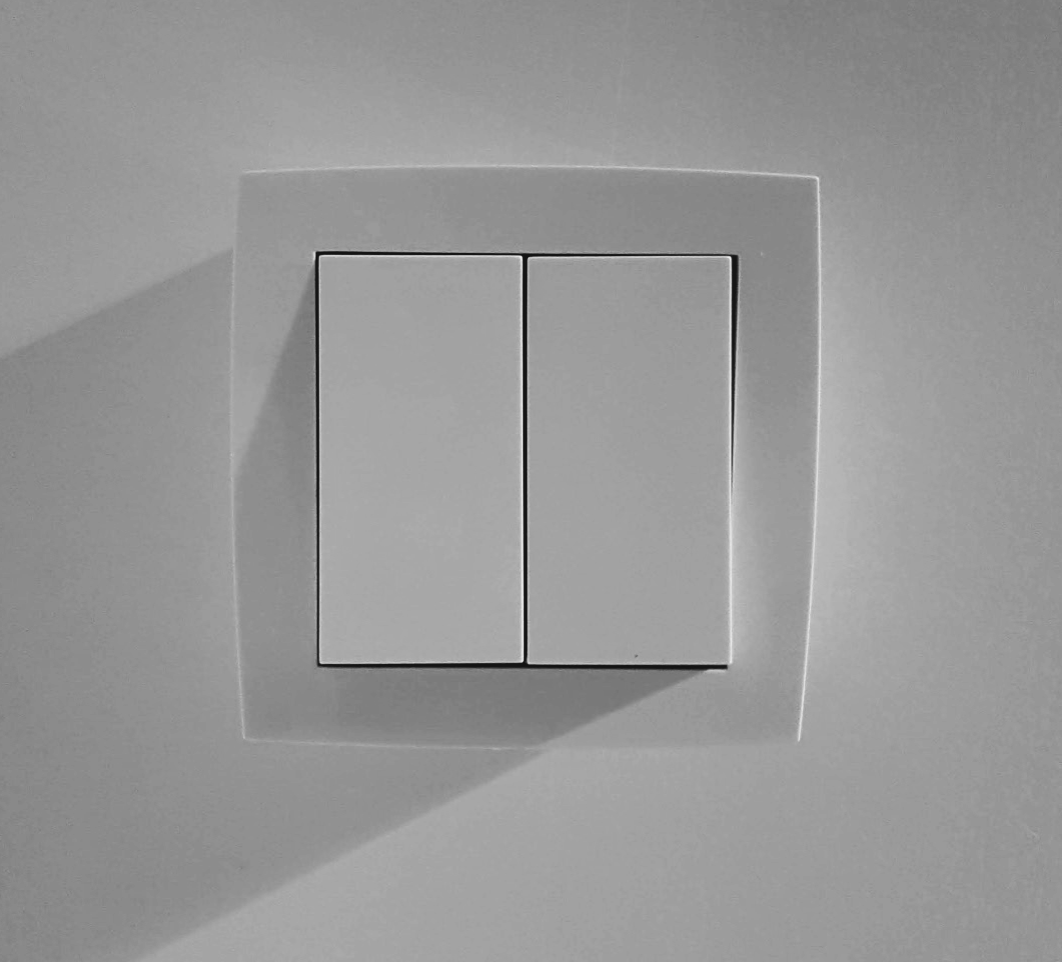
  • Double Smart: A Physical Smart-Home Switch for Hue and OpenHAB

    Double Smart: A Physical Smart-Home Switch for Hue and OpenHAB

    Easy

    That was easy one – just combining what I learned from the MCW (MCW – Most Complicated Watch . A little ESP8266 doing the WIFI to a Raspberry running OpenHab to controll the my Hue-Lights.

    Why is it so cool?

    Because it controls 2 switches, and the ESP only has one reset-line for wake up. So, think – how can use a  “binary” signal (as the reset) to inform the ESP about 2 switches = 4 situations. Doesn’t work.

    Again the PIC-8 was my friend, its checking the status of the switch and wakes up the ESP8266 when something changes. That’s possible, because the PIC8 can have for each input an interrupt enabled, on “state change”. This gives a lot of options, e.g. we could even check for more input/output.

    With this constellation the ESP8266 is always in deep sleep, so the batteries last pretty long (4-6 month, as far as I remember).

    Ah..yes. the ESP stores the latest WIFI information (channel) in the RTC memory and therefore connects really quick to the WIFI, pretty fast.

    WARNING: The source-code for the ESP is ugly, just to get it running. Maybe some Tasmoa like configuration to set-up would be a nice exercise.

    Ey, and I am still happy, when I press the switch. Because its in daily use 🙂

    SourceCode:

    MyCode@Github DoubleSmart – ESP8266

    MyCode@Github DoubleSmart – PIC8