In this short post I summarize my development environment using Platformio & Clion. I have adjusted platformio.ini file to include libraries and files needed – so you can start. EdgeImpulse provides a similar setting that fits when you are working with the Arduino IDE.
Background
I am using Platformio as development platform for embedded projects and CLION as my IDE. Both are integrated and together they provide a consistent way for programming, compiling and deployment – independent from the MCU/CPU used. I try to use the Arduino Libraries- as to a certain degree the provide platform independence. In addition many libraries are available for Arduino. To facilitate the Machine Learning I rely on Edgeimpulse – an cloud platform that supports the e2e machine learning cycle – so in a nutshell:
Platformio – Platform for embedded development
Clion – Integrated Development Environment with Platformio Integration
EdgeImpulse – Development platform for machine learning on edge devices
The magic salt in the soup: EdgeImpulse
EdgeImpulse takes away the two most complicated parts: The model design/training and the feature extraction. Its a science on its own to run a continuous inversion process on an small MCU (e.g ESP32) that includes recording the voice, running a Fourier transformation, applying a MEL transformation and finally to feed the features into the model. As the feature extraction during training (running on the cloud or on a desktop PC) and later during inversion (running on the ESP) must follow the exact same rules from logic AND timing persective- this adds additional complexity for embedded ML projects. Syntiant has partnered with EdgeImpulse – so the feature extraction and inversion process has been tailored for the NDP 101 – there is no need to deep dive into its architecutre.
So..what do I get and how do I build actually something?
Once training is completed (Detailed description from EdgeImpulse) EdgeImpulse gives you two options to download the software on your device: You can directly download a binary image and test your model, or – and here its getting really interesting – to download source code that contains:
Feature Extraction SW (DSP…)
Trained Model
Model Inversion (feed feature into model and run the inversion)
Library to integrate the “model decision=inversion result” into the c-code
Example program using all above based on Arduino framework – actually showing its working
For NDP101 it also contains the libraries to directly communicate to the NDP101 via SPI commands (load model, run model…..). I am still exploring the different commands and options
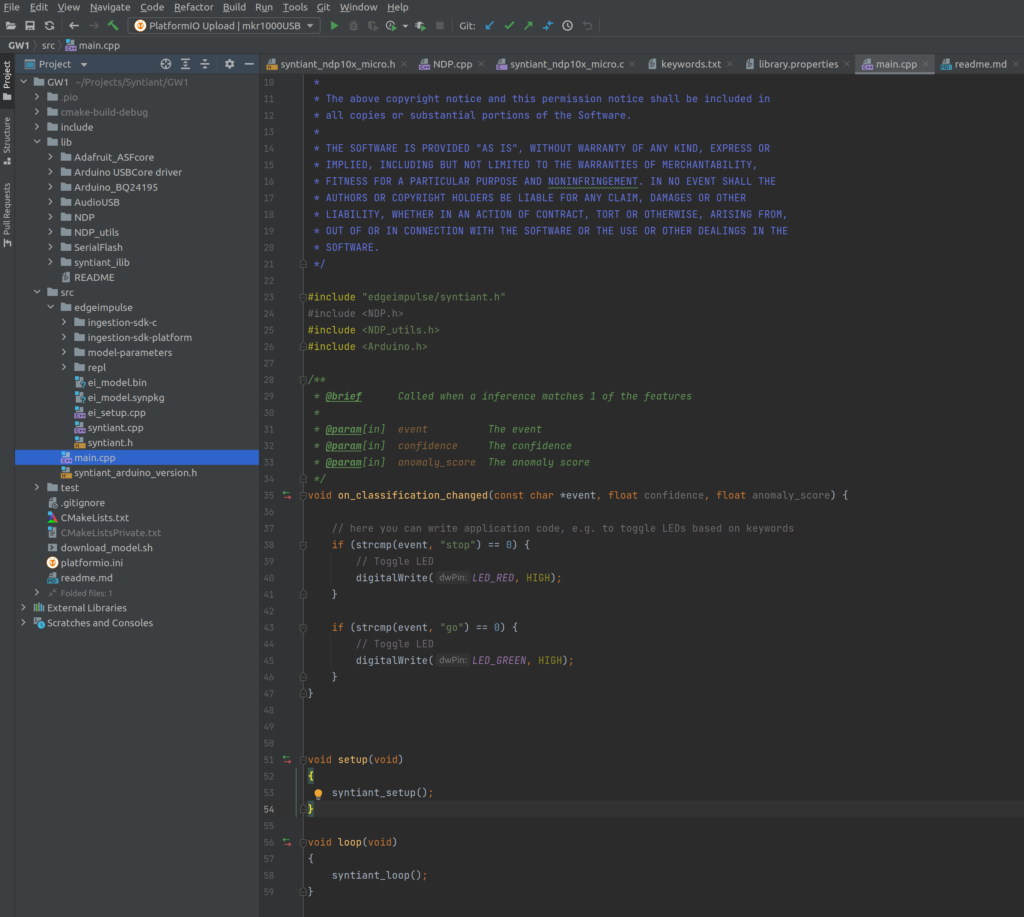
To build this I have downloaded the Syntiant/EdgeImpulse repository and adjusted the file structure to the Platformio build system, in addition I have adjusted the platformio.ini file to include needed libraries.
Please note that you will need to patch one of the libraries, the baseline for my work and also instructions how to patch the local libraries can be found here.
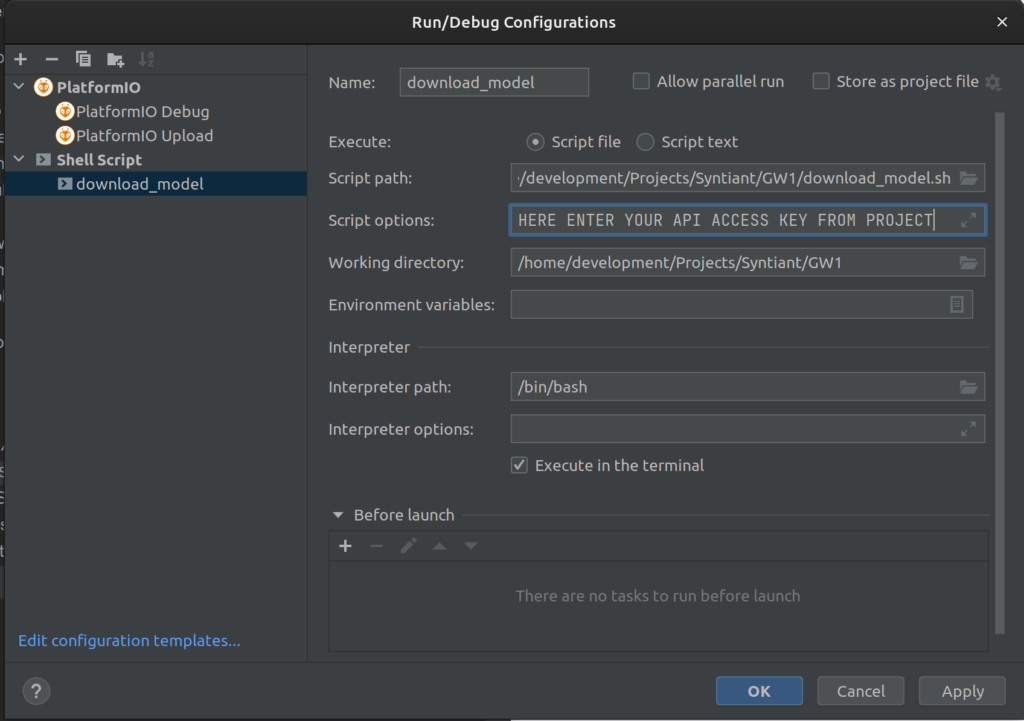
A nice goody is the script download_model.sh – that connects to EdgeImpulse downloads a *build* model and puts the files in the right folders (./src/edgeimpulse) – so you can build your binary fresh from the model and upload to the board. You have to add a run-configuratio in CLION, so you can start the script directly. The API code for authorization on EdgeImpulse needs to be added to the paramerters.
This is, how it looks like – when all is set-up. Enjoy developing.
NDP 101 – fresh from Digitkey – what do I want to now?
I will integrate the Syntiant TinyML NDP101 board with my latest project: GoodWatch – a super smart voice controlled watch.
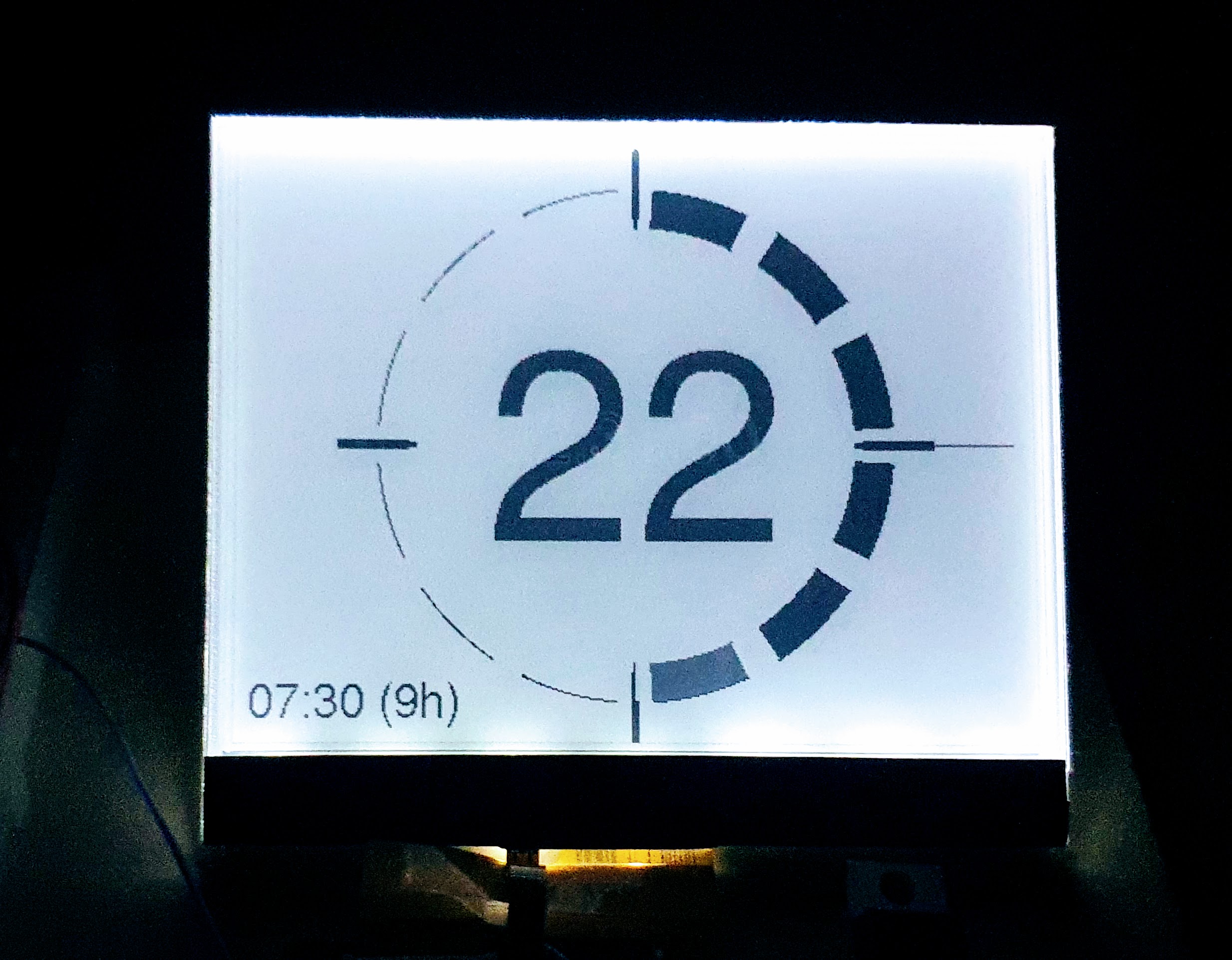
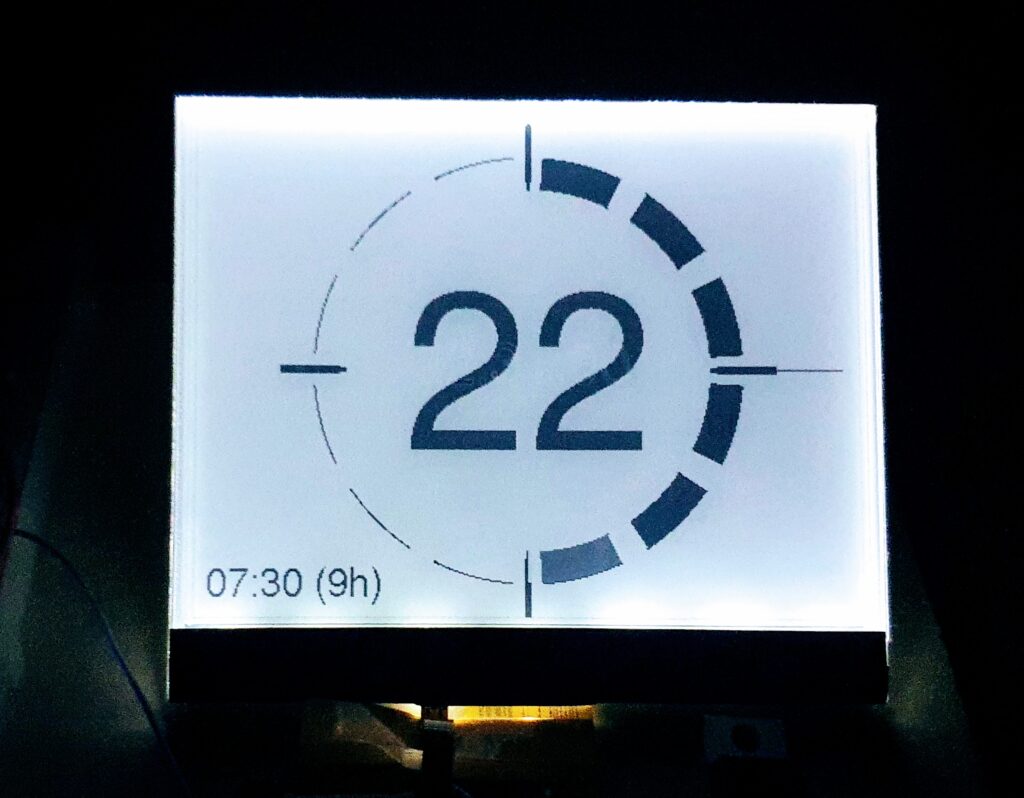
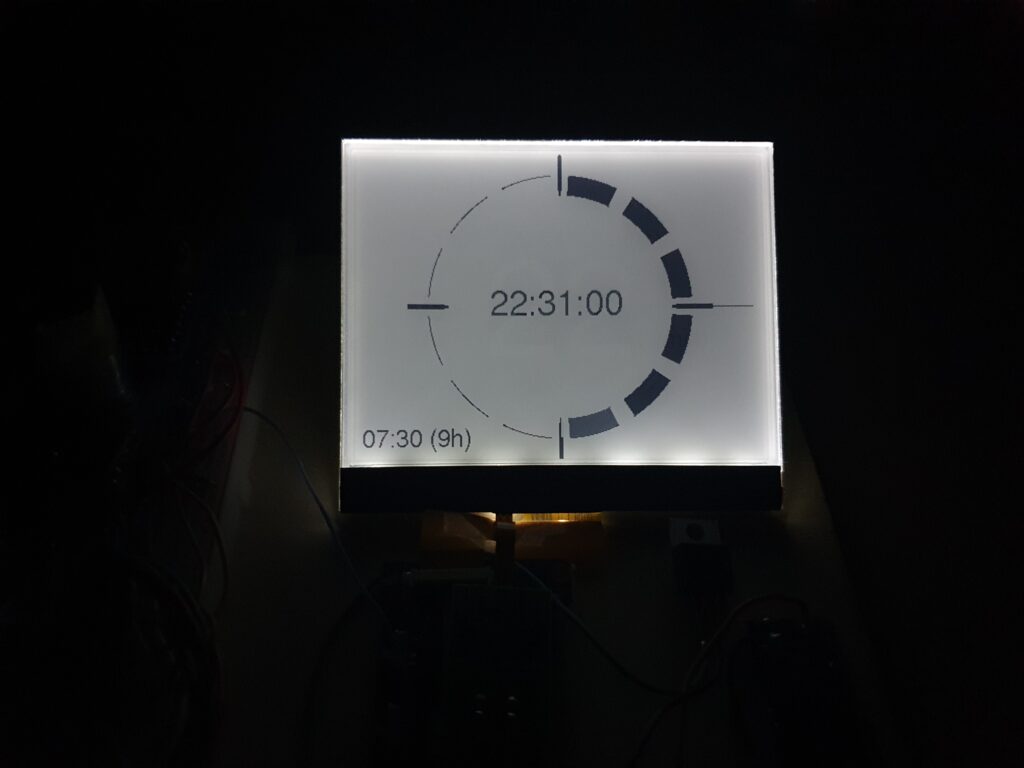
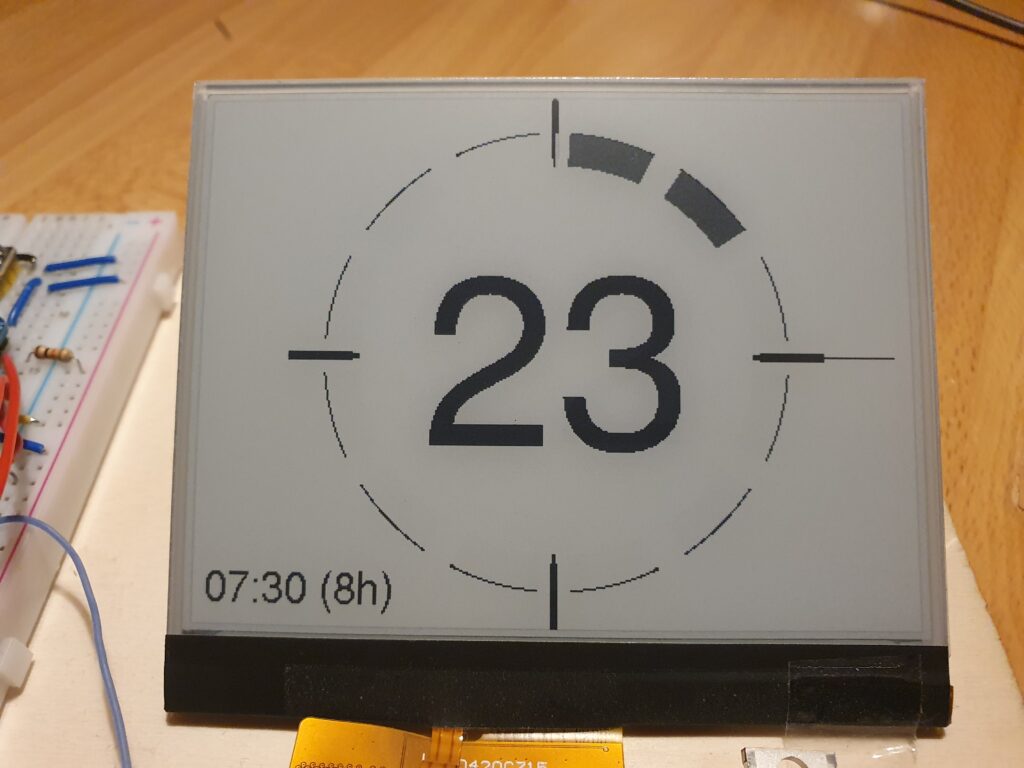
Currently for GoodWatch I am using an ESP32 as MCU for speech recognition. It is working with 10 numbers and two keywords (yes, no). But – to get good results for so many keywords and to get a quick response – I needed to trick a bit: Its only listening to my words. If you want to learn more on ML for Edge-Device, have a look at: Overview of ML on Edge – Devices .You can see how far I got with an ESP32 here:Goodwatch: An eInk Alarm Clock That Tries to Understand Me
With this project I have two objectives:
Wake up the alarm clock with a key word to set-up the Alarm, get it on 100% voice controlled operation
Enable speech recognition not only for my voice and reach a highly reliable speech recognition (otherwise setting up the old clock will be faster 🙂
Some facts on the TinyML Development Board
Board Overview
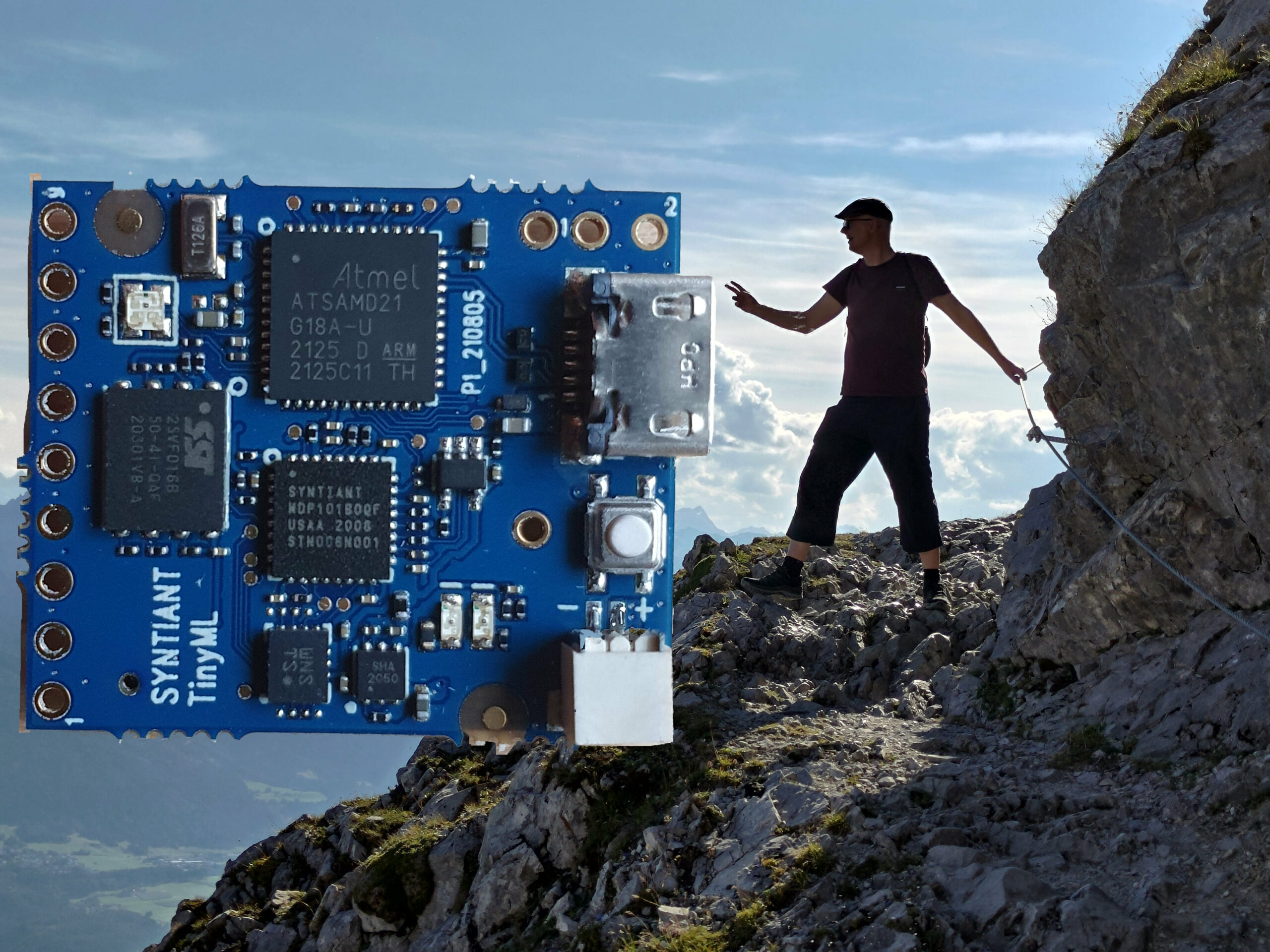
I have ordered the development “Syntiant TinyML”, it is a combination of the NDP101 processor combined with a Cortex-M0+ 32bitARM MCU, a SPH0641LM4H microphone, a LIPO power connector and USB plug- so ready to go, in more detail:
• Neural Decision Processor: NDP101
• Host processor: SAMD21 Cortex-M0+ 32bit low power ARM MCU, including:
    ◦ 256KB flash memory
    ◦ 32KB host processor SRAM
• Board power supply: 5V micro-USB or 3.7V LiPo battery
• 5 Digital I/Os compatible with Arduino MKR series boards
• 1 UART interface (included in the digital I/O Pins)
• 1 I2C interface (included in the digital I/O Pins)
• 2MB on-board serial flash
• 48MHz system clock
• One user defined RGB LED
• uSD card slot (uSD card not included)
• BMI160 6 axis motion sensor
• SPH0641LM4H microphone
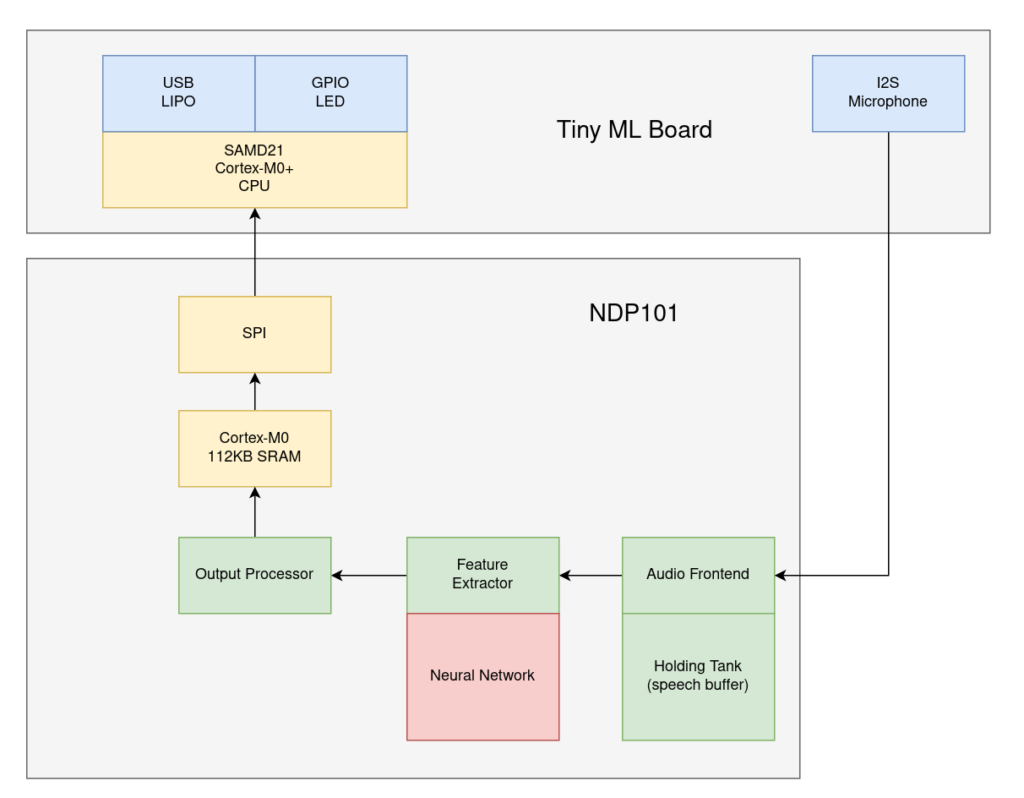
The board has two components – a normal low power ARM MCU with USB connection (for communication, control, loading the models…) and a SPI connection to the heard of the system – the NDP101 MCU.
About the NDP1010 MCU: Its main component is a neural network with fixed structure: 3 Dense Layers of 256 neurons and 3 Dropout layers, the input layer must always have 1600 features.
Data recorded from the microphone is directly processed by the Audio Frontent (16 bit) , the “Holding Tank” works as a rolling buffer of up to 3 seconds of speech. The feature extractor performs a pretty much standard MEL (log-mel LMFB) transformation before using the neural network. You can read more about his here.
I guess, the small MCU is used to manage the communication via SPI to the outside world.
This is an ongoing project, I have no clue if it will work out or how long it will take. I will keep posting on the progress – starting the next days with the development set-up and the first steps.
Goodwatch – The eInk Alarm Clock that listens to my voice – cloudfree and running on battery for months!
I built already the MCW – an eInk alarm clock running on an Arduino Pro Mini – and got fascinated by the great look and power-saving of eInk papers. One issue I could not solve really efficient was alarm programming. Always many buttons… so I want to have my clock understanding me – my words in German: Numbers zero to nine and the words “yes=ja” and “no=nein”.
One easy option would be to build in a microphone and let the watch connect to Googles SpeechToText API – getting the text back – and set-up the alarm. But really, who wants to have a direct connection from his sleeping room into the cloud. I could also just use Alexa – not my style.
Watch it – 30 sec video showing speech recognition working on an ESP32
Hardware…Hardware…Hardware……
The key to success – is picking the right hardware – that was a good lessons learned from my last project. Here is my pick:
eInk Display
Good Display – E-ink epd display 4.2 inch e-ink raspberry GDEW042T2 The eInk display supports partial refresh and communication via I2C bus – important not to use to many IO pins from the ESP32.
DESPI-C02 – a little board to connect the e-Paper with the ESP32 (no connection for power to the FrontLight Panel) and DESPI-C03 (with connection). Caution: The DESPI-C03 allows also to plugin the both FFC cables for the display and the front-light. If you think you can power-both at the same time, you kill your display
eInk FrontLight
If you want to read the time and night – you need light. With eInk that is a bit complicated, you need a special front-light. Its basically a piece of glass with LEDs at the edge. I was thinking to build it by myself. But I think buying it, was a much better idea. Still getting the result I wanted was a bit more complicated:
Good Display – FrontLight Pannel <- these are the trick and I think it just looks cool at night The FrontLight must be an exact fit to the display. I had quite some emails with Good Display to select this combination and I was very surprised by their great customer service. At the end it came direct from China 🙂
FFC Adapter RM 2.54 to connect the FrontLight Pannel with the power support (see above)
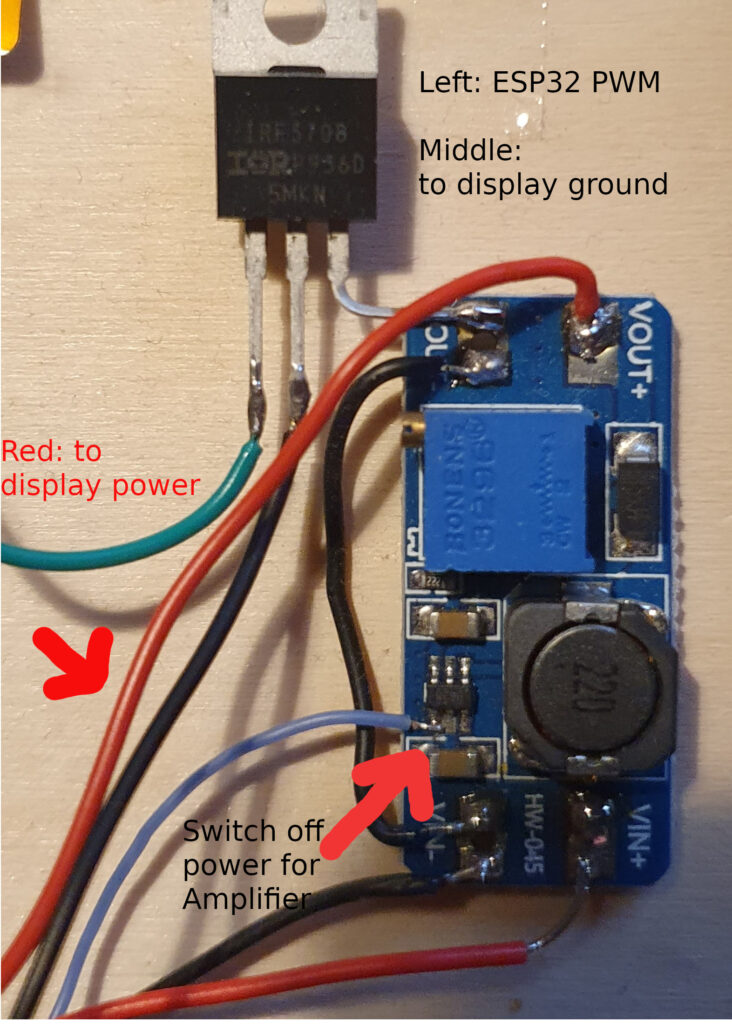
HW-045 DC-DC boost voltage regulator: The FrontLigh Pannel has 7 LEDs of 200 Ohm in series , if they need 15mA to shine – you need 21V. Uups – one more device needed, a power booster.
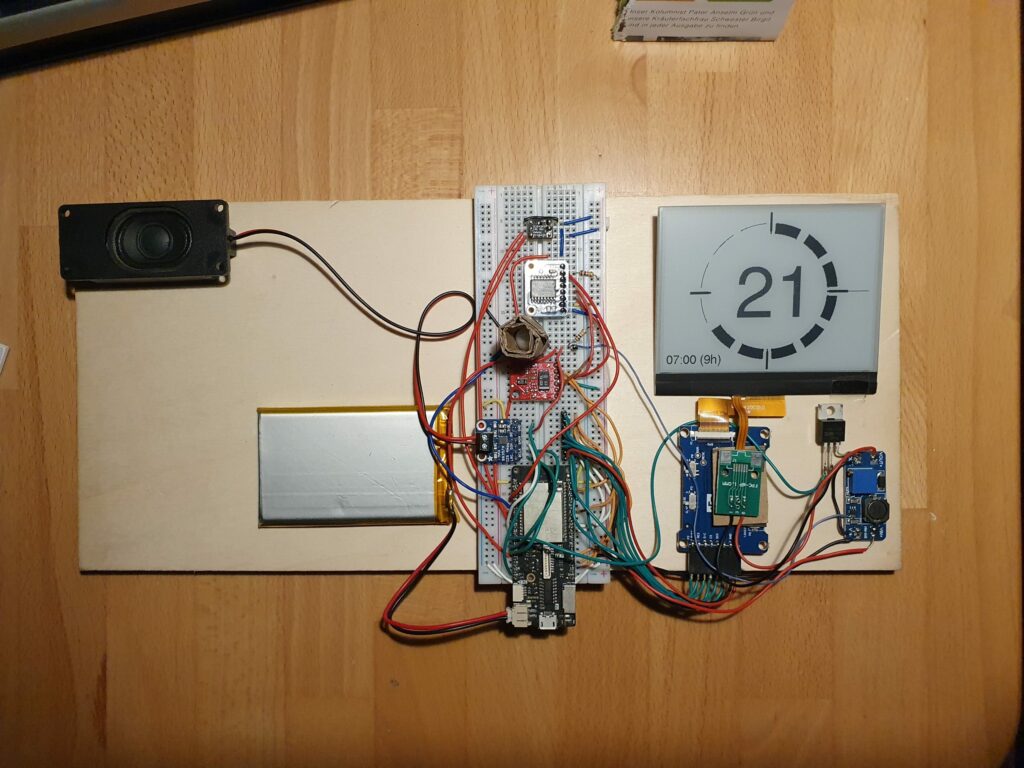
IRF3708 Transistor N-MOSFET 30V 62A 87W TO220AB – dimming the front-light, of course it needs to adjust to outside light condition. A first idea to use PWM as input for the voltage regulator was a bit naive, so the ESP32 is using the MOSFET to PWM the output of the voltage regulator before powering the display. To keep it running on battery for a long time, each part of hardware needs to be in low power consumption mode when the ESP32 is on sleep. For the amplifier I found the following solution, watch the tiny blue cable – that pulls the amplifier into deep sleep mode also:
MAX98357A
Power Consumption
Additional Hardware and Sensor
Here comes the rest, I had to do several rounds until I found the best pick – but I am really happy with below selection:
ESP32 as https://www.wemos.cc/en/latest/d32/d32_pro.html. (320kb RAM, 4MP PSRAM, 16MB Flash). Two very important things, my one had 16MB Flash (program code, SPIFF), what is great to have when you want to work with Machine Learning and do some more fancy stuff, build in LIPO charger and 4MB PSRAM (that is also needed by the sound library and for ML)
Adafruit DS3231 – Precision Clock: An alarm clock needs time and alarms, both can be done the DS3231- supported by a little battery, so time and alarms can survive a short power outage. I finally picked the more expensive version from Adafruit, as two much cheaper versions from the internet just kept running to fast – approx 10s per day – no option 🙂 The DS3231 triggers and interrupt every 5min to show the time and of course when there is an alarm.
CS43434 I2S Digital Microphone – there are several different microphones on the market, I tried them all. At least for that one, I can say its compatible with the ESP32 I2S bus and really records in good quality. My one I got over Tindie.
PIR HC-SR602 Infrarot sensor: You can see in the video that I disable the alarm with a movement of my hand over the clock, that is a PIR sensor. Amazing – super, super low power consumption and so sensitive. The PIR sensor triggers and interrupt on the ESP32 for wake-up.
Adafruit I2S 3W Class D Amplifier Breakout – MAX98357A: It needs to play a nice sound when waking up, and the ESP32 has enough computing power to even decode MP3 files or stream from a radio station. Also this section is on hardware – https://github.com/schreibfaul1/ESP32-audioI2S to get sound into the alarm clock with 5 lines of code.
APDS-9960 – Digital Proximity, Ambient Light, RGB and Gesture Sensor: I wanted to use gestures to wake-up the alarm clock and decide between different operating modes. The APDS-9960 is really smart, it detects different hand-moves and measures distance. In addition it can check the light strength and color. I spent a lot of time, but its still consuming a lot of power also in low-energy mode. The only way to use this efficient: Let the PIR sensor (see above) run always – and then start the measurement. Unfortunately this causes a delay in processing – here we come to my next project: Wake up with my voice.
Software
Initially I have been using Arduino Platform to build this project. This platform includes a pre-compiled set of the ESP IDF. The ESP-IDF is Espressif’s official IoT Development Framework for the ESP32. As a consequence any settings used to compile the ESP IDF are fixed and can not be changed.
Boot-Speed is King
When waking up the Goodwatch, I want to see quick reaction – but noticed a 1-2 second break before the ESP32 got active. The ESP is using this time to validate the Flash and RAM. As the Wemos D1 Pro has 4MP PSRAM and 16MB Flash – this takes a while.With a change in the compiler-options, this check could be disabled.
Arduino as a Component
The trick is to install Arduino as a component to the main framework used for compilation is the ESP IDF and it includes the Arduino libraries as a subfolder. This provides access to an utility “menueconfig”, that generates a config file, e.g. sdkconfig.lolin_d32_pro.The problem is, that Arduino and ESP-IDF use different build-tool. After a lot of research I managed to get this working. Speed is KING again, I would say less then 500ms to react on eInk is good.The source code can be found here. I have put some comments in the platformio.ini on the build.It’s all on Github: https://github.com/happychriss/GoodWatch_espidf
Thinking in Circles…
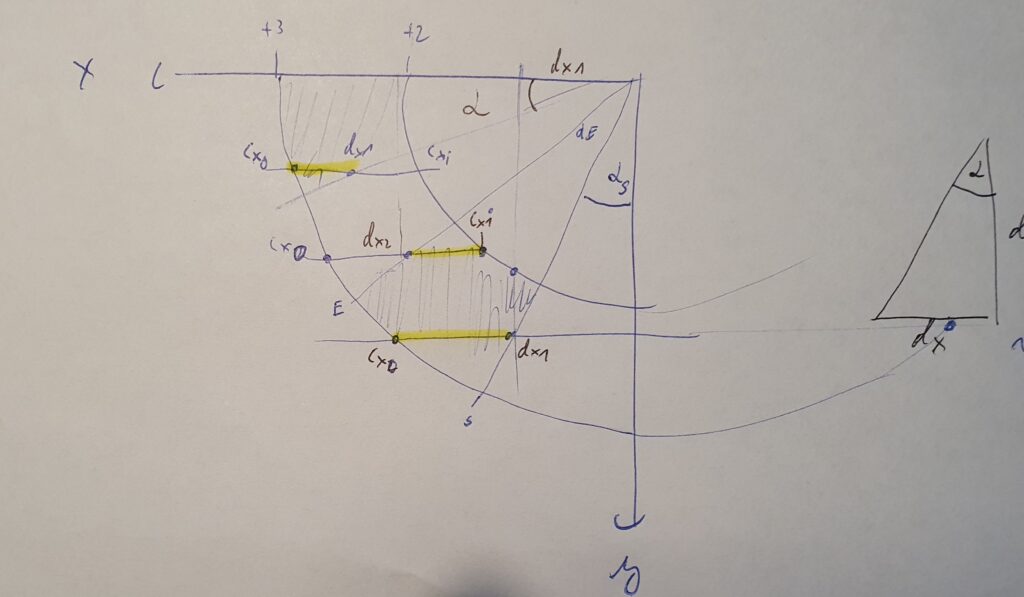
I had some fun on painting the circle-arcs – that brought me back some memories from school with my friends “sinus” and “cosinus”. I am sure there is much more elegant solution – but at one point of time, I was just happy to see the circles. In total I think I found a quite efficient way. Look as this “naughty” peace of code to paint an arc – and the painting:
void DrawArcCircle_Q3(GxEPD2_GFX &my_display, st_pwin *pwin, int x0, int y0, double start_angle, double end_angle, int ri, int ro) {

    start_angle = (270 - start_angle) * (M_PI / 180);
    end_angle = (270 - end_angle) * (M_PI / 180);
    double tan_start_angel = tan(start_angle);
    double tan_end_angel = tan(end_angle);

    int ri2 = ri * ri;
    int ro2 = ro * ro;
    for (int cy = 0; cy <= ro; cy++) {
        int cx_i;
        if (abs(ri) < abs(cy)) {
            cx_i = -1;
        } else {
            cx_i = (int) (sqrt(ri2 - cy * cy) + 0.5);
        }
        int cx_o = (int) (sqrt(ro2 - cy * cy) + 0.5);
        int cyy = cy + y0;

        int dx_1 = cy / tan_end_angel;
        int dx_2 = cy / tan_start_angel;

        if (dx_1 < cx_o) { cx_o = dx_1; };
        if (dx_2 > cx_i) { cx_i = dx_2; };

        if (cx_i <= cx_o) {
            gfx_line(my_display, pwin, x0 - cx_i, cyy, x0 - cx_o, cyy);
        }

    }
}
Time takes Time – and calculating with days and months – even more
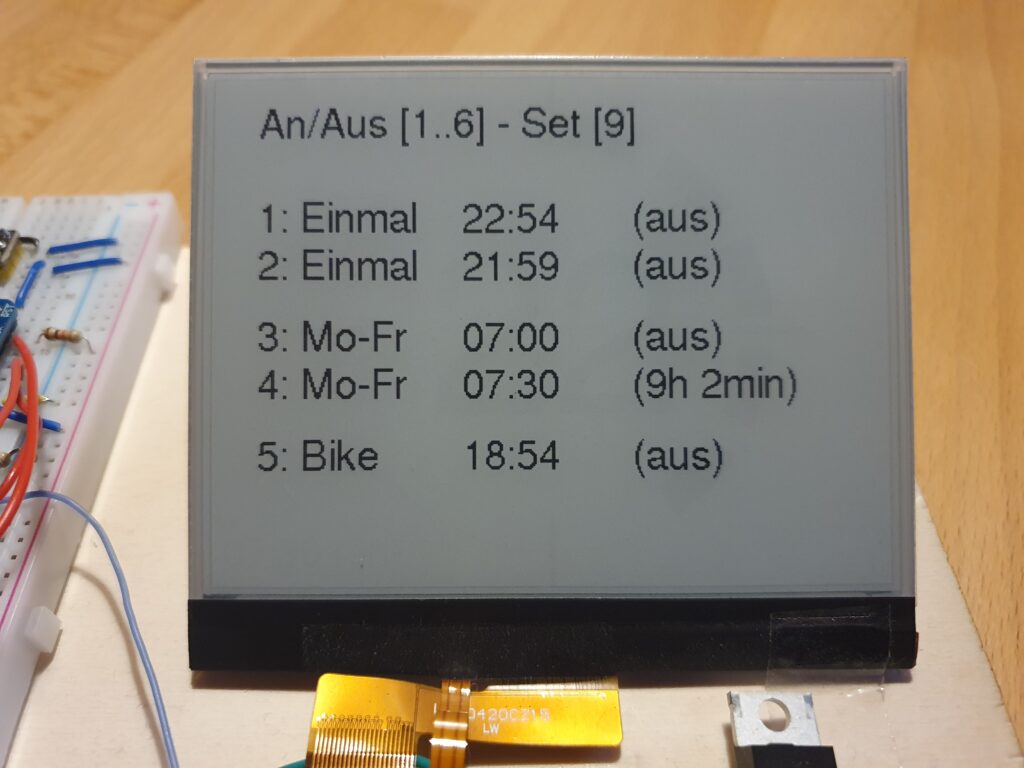
Another simple topic – that got me some time to get it right: Calculating with time. My alarm watch has 5 different wake-up alarms, the DS3231 can manage 2 alarms and create an interrupt signal to wake-up the ESP32. One alarm is gone for a wake-up every 5 minutes to paint a new arc. The other one needs to be updated on time – so, you need to sort the alarms to find out the next possible. Now you have alarms on weekdays and on weekend, repeating alarms and one-time alarms – you get the message…..I am not proud of my code here – but sorting was easy at the end.
The alarm times need to be stored on the ESP32 and should survive a power-outage (similar to the time of the clock). The ESP32 has FLASH memory available, perfect – all what I needed. After fiddling around with CRC values to check if the data in the flash is valid and addresses..I learned about an ESP32 feature called “NVS” on the ESP Documentation. – where it got really easy. It even checks, if the flash is consistent.
This would have been the most complicated, but thanks to: https://github.com/ZinggJM/GxEPD2 it was really easy. It was a bit of work to find this library and to get the concept. There is also a support-forum and the author is really helpfull. THANK YOU.
Its worth to note that the display is connected to the ESP32 via a simple adapter DESPI-C02 or DESPI-C023 using an FCC cable, from here its connected to the ESP. Most reasons for error is the wiring and correct association of the PINS – and I mixed up MISO and MOSI — took my so long 🙂
In this article I will describe for a non technical person what it takes to train a 8€ device (I used the ESP32 with an I2S 43434 i2s-MEMS-Microphone) to listen to a voice, so it can understand 12 different words (numbers, yes , no). It covers the full cycle, to make it more fun I added “transfer learning” to avoid a problem called “Overfitting”, that is a common issue in many model. I will also share some key-findings on Machine-Learning (ML) and what I learned.
At the end you may have a better feeling, what ML means..and hopefully why its fun playing around with it.
And not to forget: You may realize that this is *NOT* artificially intelligent, but just a smart algorithm that is trying to solve a mathematical problem. When its done well, it understand the numbers 🙂
You can check-out the results of my exercise here:
Motivation – Democratization of Artificial Intelligence / Machine Learning
Working in Data & Analytics means, you are exposed to Machine Learning: its everywhere. During a Hackaton on ML I had the opportunity to get lean a lot on data analytics platforms as Dataiku, DataRobot, Domino, Matlab – that help you over the full cycle from data transformation, feature generation, model development, deployment and operationalization. We finally did the Hackaton with Dataiku (hey, I am now certified Dataiku Core Designer). Its eye opening once you understand how easy it is to use ML into your daily business, from outlier detection (find strange numbers) to time series forecasting (predict sales).
New tools and platforms, from Google (Tensorflow), Dataiku basically results in a democratization of ML, they remove the burden to understand the mathematics and seamless integrate into the existing IT landscape.
With a non – coding environment its also empowering business and makes it available to everybody….
I don’t recall how I stumbled over Edgeimpulse – can this be, that its really so easy to train a cheap microprocessor (like an ESP32 for 8€ to listen to my voice commands? Obviously that is possible and really easy, watch this Video, you will learn a lot. Edge Impulse was designed for software developers, engineers and domain experts to solve real problems using machine learning on edge devices without a PhD in machine learning.
So…what did I actually do?
Google Tensorflow is a free open-source library for machine learning, with focus on training and inference (when you actually run the network to do something useful). Normally (especially for training) you need a lot of computer power to train or run the model. BUT -there is a variant of TensorFlow – a light version called “TensorFlow Lite for Microcontroller” that is designed to run on embedded devices (like the ESP32) in a view kilobytes of memory. This is actually a revolution, so ML can move from the cloud into any device!
Lets have a look how it goes and see if we can get it running with my voice!
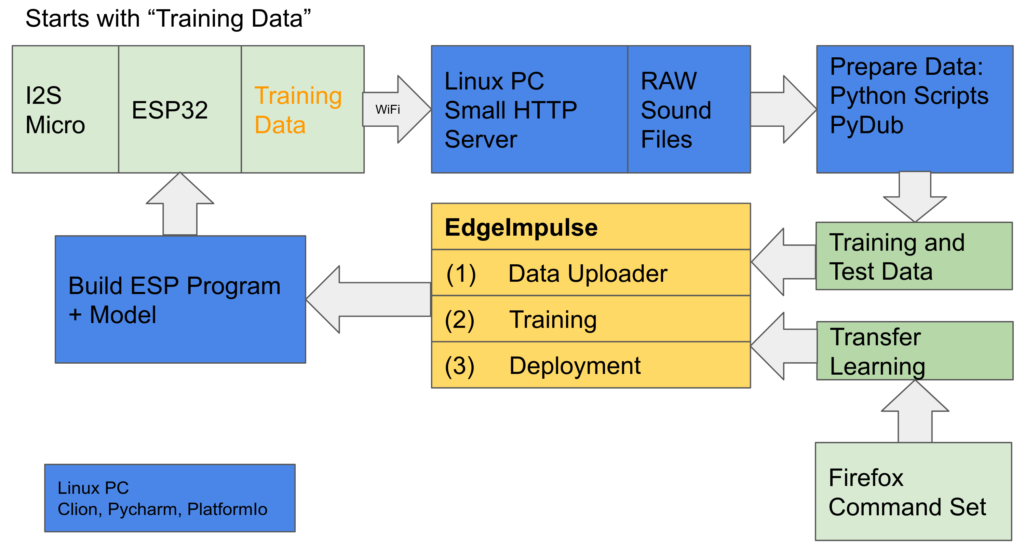
Following the standard flow of machine learning, here is the high level overview of my process (can be shorter, but I want to have full control over it – and learn)
Record training data and sent it to the local Linux PC – raw sound files with 1min of myself repeating “one, one, one…” 🙂
Using Python scripts to clean up the data (specially split the file in equal long sound clips)
Extra Exercise (I will explain later): Use parameter of a Pre-Trained model (box: Transfer Learning)
Following is on EdgeImpulse (cloud):
Upload the training data
Feature Generation – Prepare the features (that is the data actually loaded “into the model”) from the training data
Train the model, and check the performance
Deploy (download) the trained model (as Arduino c-code) ready to run on ESP32 – what I think is really great feature of EdgeImpulse
Build the image/program in “C” and upload to the ESP
Enjoy it working..
Ok….honestly…it needs to be clear that this is a loop… and I went this circle many times.
1 – Get Training Data
Record training data (as more, as better) – in my scenario my voice (the numbers from zero to ten, yes and no) as .wav files with an ESP32 and I2S Microphone for recording (I2S is a 3 wire interface for sound). EdgeImpulse provides a data forwarder, that allows you to directly upload the data into the cloud, so it can be used for training.
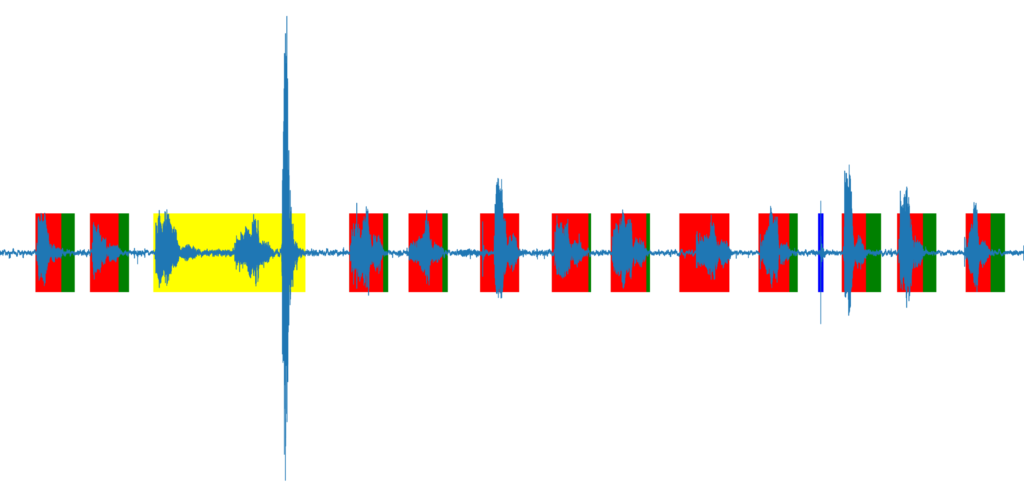
But I wanted to be able to process or adjust my voice data before uploading, so the approach was different, I recorded the voice on the ESP32, sent it via Wifi to my desktop PC. That enabled me to pre-process the data: I used Python and PyDub to split the file based on silent detection, so each snippet contains exact one number. Each sound snipped was adjusted to 700ms (0.7 seconds) of length – that is how long it takes me in average to speek a number. The script also filtered out to long, or to short snippets (yellow and blue) or added additional noise, if the snippet is to short (green). My samples where at 16000, 16bit signed PCM, little Endian.
Lesson 1: Trainingdata must be really correct and well labeled, the context of the data needs to be understood. It needs to cover a great variety. Don’t be so optimistic, what the model does not see during training – will be less likely to be recognized.
2 – Feature Generation
This was the hardest lesson – the most complex part is not to train the model, its to prepare the features. The feature is basically the data that is directly input into the model – as set of numeric values of a constant length and the label. The features that you generated must fit to the model, its a bit like pointing the algorithm already towards the solution – put the data on a golden-plate. For voice recognition its recommend to use a CNN (convolutional neural network) .
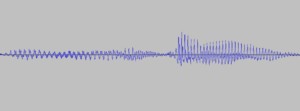
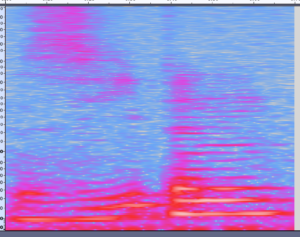
But this network wants to have an image as input – so how to get an image from a wave file (.wav) – well you make a image out of the wave file. As you see, I already did above – so I could use that pictures and load the binaries (color codes) of that picture into the model. The model would learn the characteristics of the picture and find the right number (…in theory). But remember the “golden plate” – there is a much better way to represent sound -that is called a MEL-Diagram.
You can Google it, but in a nutshell – you don’t look at the wave of your voice, but at the frequency (y-scale) of your voice over time (x-scale) using a Fourier Transformation. Its called MEL-Diagramm, because the frequency is scaled in aligned to the sensitivity of our ears. Comparing below pictures, maybe you can already sense the relation between both and that the 2nd one (MEL) is easier to interpret.
Wave file of “seven”MEL – Diagram
The tricky part of the feature generation is to find the right parameters, above picture has a high resolution, that means a lot of pixels. So – too many pixels for a small ESP32 edge device.
Solution: There are some parameters in the MEL function, that reduce the amount of frequency buckets (less points in y – axes) or increases the sampling frequency (less measurement points over time – less points on x-axes) . So you need to paly around with the Fourier transformation parameters and get a feeling (or trust the preset). This was done in Edge Impulse, you see a screenshot below.
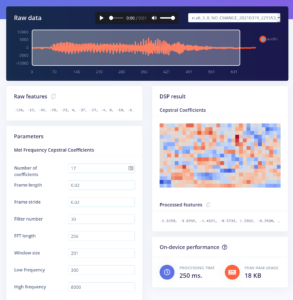
Edge Impulse – MFCC (Mel) Feature generation
Some mathematics – to show you how it goes: We are doing 16khz sampling, that means 16000 measurements (values) per second. That is to much for our ESP, so the frequency will be averaged in blocks of 20ms, that results in 32 values per 650ms (I took 30). For the Fourier Transformation we selected 17 coefficients (that means 17 values describe the frequency) , so every 20ms we get 17 values (it relates to a pixel in the y-axes in above picture). 17*30=510 – its that easy. Our model has to process 510 datapoints for each 650ms of sound. As you can see Feature-Design = Data Reduction, while preserving the essential information.
Each data point represents a float number, that is to difficult for an edge devices. Thanks to Tensorflow Light it is able to convert this float numbers into 8bit integer – something small devices can really well handle.
So..after all that work, we have many, many wave files, converted into features of 510 bytes, ready to load into our model for training
2. Model Design and Training
As mentioned for image processing a CNN (Convolutional Neural Network) is a good choice. Google for “cnn ml tutorial” for really good explanation. I give you my personal, non scientific, non approved version -its my personal view that helped me to understand:
The Model
A CNN network processes the image in steps (layers), each layer is extracting characteristics from that image and reduces the size of that image (nice explanation). At the end the size is reduced to a degree that is mapping your output-channels, so in my example it reduced from 510 values to 12 channels (zero to nine + yes and now).
Below you can see the network I used, its described in “KERAS” – a language to define and run ML models, lets see line by line:
What do this lines actually mean – not to dive into Keras, but I guess you still see the concept:
“Reshape” – you notice “17” – the number of frequency buckets, of course you need to tell the network the dimension of your image.
“Conv1d” – the first level for the extraction of characteristics
MaxPooling” – reduce the size of the image
“Conv1d” – again reduce the level of characteristics
Flatten and Dense:get the value down to the output of 12 labels
The Training
Each layer of this models has a lot of parameters (e.g. defined by the “14” and “25”) and filters (kernel_size, pool_size) that describe how the characteristics will be extracted.
So, on training you feed all our sample features into the mode and play around with the parameters until the forecast (last layer) gives you the right values. You need to play – around run the training “over and over” again until your model gets a good precision, e.g. it is able to predict 98% of your example data correctly.
Machine Learning (for the sake of understanding) this is more or less the same as solving a equation. When the forecast results is good enough, you have minimized the error of this equation by training or playing around with the model parameters.
The different layers of your model filter the characteristics of your input values feature down to the output layer ,where it shows the most likely result (to describe a CNN model, other model have a different principle – but still, its an equation).
I would not necessarily name this “Artificial Intelligence”. To be fair, there are other ways of machine learning, when you let different algorithm play against each other- so they improve themselves, or reinforcement learning, where “intelligent agents” are motivated to solve a problem by getting a reward. Finally all this can be inspired by biological evolution – so maybe in the future we will have “intelligence”.
Overfitting – the big training challenge
Training uses different types of data:
Training Data: This data is used to determine the parameters of the mode, by minimizing the error against the result
Validation Data: This data is used during training, to see how well the model performs and to do further tuning
Test Data: New data, that was never “seen” by the mode – to test its real world performance
Production Data (this is my invention): The data the model really gets when installed on the edge-device “real live data”. I needed to learn, that there is always a slight difference between the data, in reality the model performs always a bit worst than in the training.
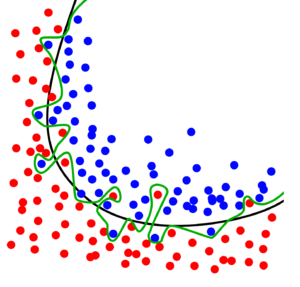
Imagine: If you have a model with 100 parameters to train, and you have 10 sets of training-data with 10 features. You model has 100 variables(parameters) to store 100 (10*10) training combination. In this scenario, you model must not necessary learn -it just needs to remember and assign 1 input combination = 1 output. Or below model that tries to split between blue and red, its getting a 100% fit for the training data, but you can imagine it will not run well on real production data.
Overfitting is a big risk, because you cant look into your model – and you can not be sure what characteristics the model is used to filter, just the color of this one pixel? Another risk is very similar – you think your model is using the right characteristics, but its looking at something completely different. (e.g. a model that should recognize faces and just detects glasses (due to not balanced training data). On my voice data I realized that it was considering the length of the sound snippet as important – so when you speak slowly, not working.
There are some methods to overcame this – but (imagine hundreds of data-sources for financial forecast you want to rely on) – how to really be sure your model is looking at the right things? I believe its like statistics, only trust your own or the model you know (at least the data it was trained with) 🙂
Overfitting – how to prevent?
Again, this part is not scientism – just some ideas I implemented on my solution. Its important to say, that you can just skip this when working with EdgeImpulse and just stick to the proposed values. But come on, that is to easy. To do below, I rebuild the model using python on my local PC (all code is listed below on GitHub)
Take a lot of training data (this is really the most simple and effective one)
Add noise and variance to your training data (e.g. shift some snippets, make them shorter, longer, for pictures you can swap, rotate, brighten….)
Check you size of your model and make it as small as possible (I worked with Hyperparameters) until my model got a good size, a small model with limited parameters also runs much faster on the edge device, and timing is everything
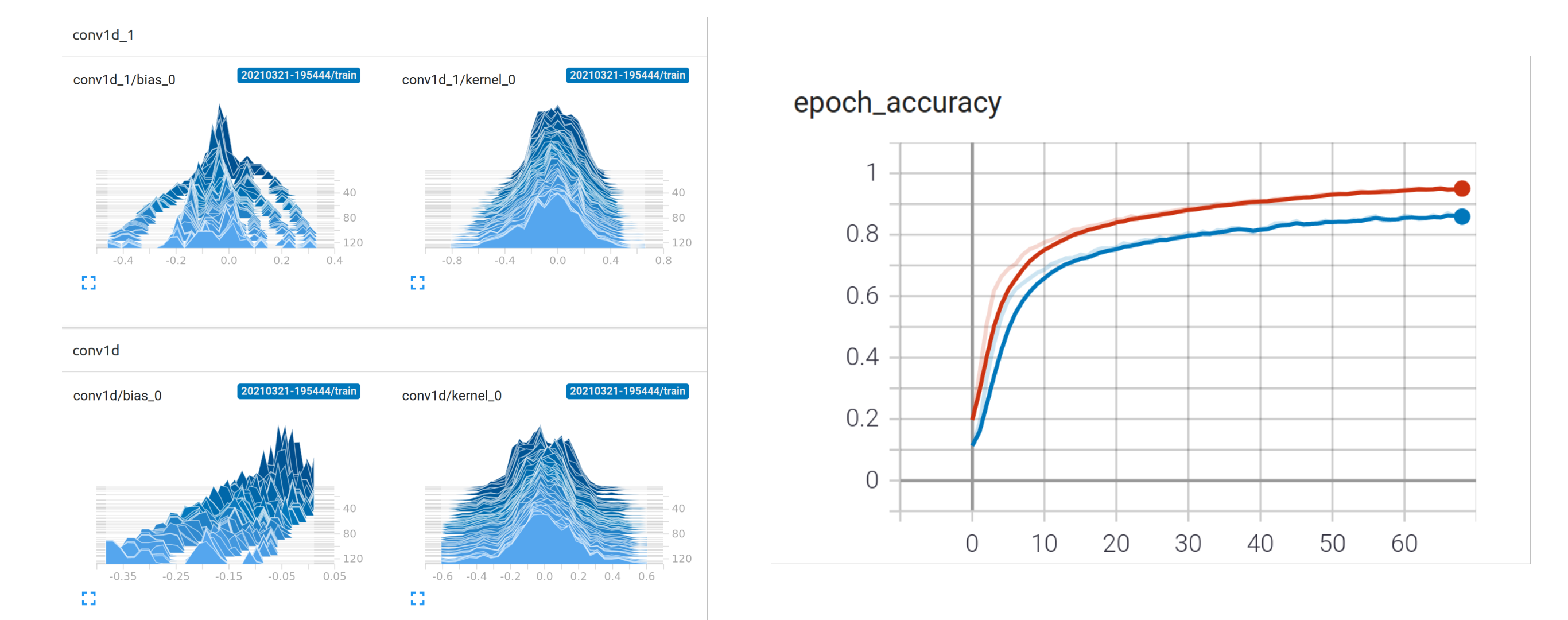
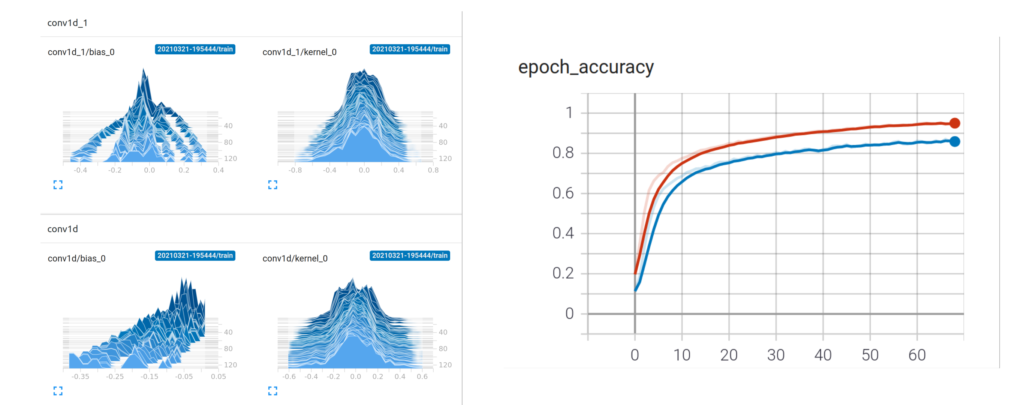
Last, but not least – look into the model using Tensorboard: Below the four small pics show the change of the model variables of the different layers (x/y axes) over time during training (epochs). Initially (at the back on z-axes) all training variable are evenly distributed (initialized with random values) – over time you see them spreading out and getting different values – the model is learning. On the “epoch_accuracy” you see how the model is getting better over time (1=100% correct)
Transfer Learning
Another kind of overfitting also may occur, if only train the system with my own voice – it my get used to characteristics of my voice I may not even dream of, breathing, making a break, having a cold – of course that would reduce the robustness of my model.
So my thinking was to initially train the model with a wider speech set (many numbers spoken by different people – I used the https://commonvoice.mozilla.org/en). After several rounds of training and once the parameters have been settled (meaning the parameters of the model are somewhere settled and the model is working ) I would transfer this pre-trained model and continue a 2nd round of training with my voice only. In this 2nd round I used a very small step rate – so the model only change in very small baby steps, keeping the core characteristics of the original training.
There are other way to do this, e.g. just mix my own voice recording with a more mixed speech set of several speakers and put them all in one common training round. I am assuming, that I would need a lot samples from my speech to have enough impact and get it “tuned” to my voice. So the advantage of the scenario “transfer learning” I used is, that in the 2nd round of training I can exactly control via the step-rate and training-round how much impact my “voice” has in compared with the wider sample. I think its called “transfer learning”, as I transfer the knowledge of one more generic model into a more specific model.
How to do it with EdgeImpulse
To do this with EdgeImpulse I trained the model-1 with “commonvoice” on my local laptop until I got reasonable results (don’t expect good performance from an ESP32 with such a limited neural network). Once ready, I took the trained model-1 (exported via Tensorflow in a specific “h5” format that includes all model parameters) and pasted this into the EdgeImpule model-2 as “starting weights”. The training and deployment follows the normal process.
# Done on the local PC with the trained model-1 from Commonvoice-Mozilla
rd= open(SOURCE_H5_MODEL,'rb').read()
rd_64 = base64.b64encode(rd)
h5_model_str=rd_64.decode("UTF-8")

# Done on EdgeImpulse on the classifier page (setting to "Expert Mode")to train model-2
import tensorflow as tf
import base64
import h5py
from tensorflow.keras.models import Sequential
from tensorflow.keras.layers import Dense, InputLayer, Dropout, Conv1D, Conv2D, Flatten, Reshape, MaxPooling1D, MaxPooling2D, BatchNormalization
from tensorflow.keras.optimizers import Adam
sys.path.append('./resources/libraries')
import ei_tensorflow.training

model_weights_str='iUhERg0KGgoAAAAAAAgIAAQAEAAAAAAAAAAAAAAAAAD//////////5iUAAAAAAA...... # <-------- here I pasted the content of the h5_model_str

# from utf-8 back to binary
model_weights_b64=model_weights_str.encode('utf-8')
model_weights=base64.b64decode(model_weights_b64)
f = open("model_v3.h5", "wb")
f. write(model_weights)
f.close()


# model architecture
model = Sequential()
model.add(Reshape((int(input_length / 17), 17), input_shape=(input_length, )))
model.add(Conv1D(14, kernel_size=3, activation='relu', padding='same',trainable=True))
model.add(MaxPooling1D(pool_size=2, strides=2, padding='same'))
model.add(Dropout(0.25))
model.add(Conv1D(25, kernel_size=3, activation='relu', padding='same',trainable=True))
model.add(MaxPooling1D(pool_size=2, strides=2, padding='same'))
model.add(Dropout(0.25))
model.add(Flatten())
model.add(Dense(classes, activation='softmax', name='y_pred'))
model.load_weights('model_v3.h5') # here the parameter of model-1 are loaded as initializing values for model-2
Some words to conclude
Honestly – that was a tough exercise to make the ESP32 understanding in total 12 words – especially as in the German language many numbers sound really similar “eins, zwei, drei” or “null, neun, nein” . And the only way I managed to do this, was to really restrict the learning to my voice, its really listening only to me (also kind of cool). Also, it needs to be silent – I did not build in an “unknown noise” dataset to improve classifying “unknown” sound.
A lot of experimentation was needed to determine to optimal model dimension (number of layers, neurons). In addition the timing is extremely important – how long is the snipped recorded? Is it long, I can speak very slowly, but the ESP32 has to process more data – and gets time-out.
An absolute amazing goody from EdgeImpulse is the source code of the “inferencing SDK”: DSP Python Scripts by EdgeImpulse as Python script. This allows training you your local PC by using Python and to transfer the model to ESP32 – having the same feature extracting running with C. Features build in Python looks exactly as on the ESP32 (I checked it).
I do not feel like publishing my Python scripts collection – its really a bit messy and got bigger over time. But you can see the result in action with my voice controlled eInk alarm clock: Goodwatch
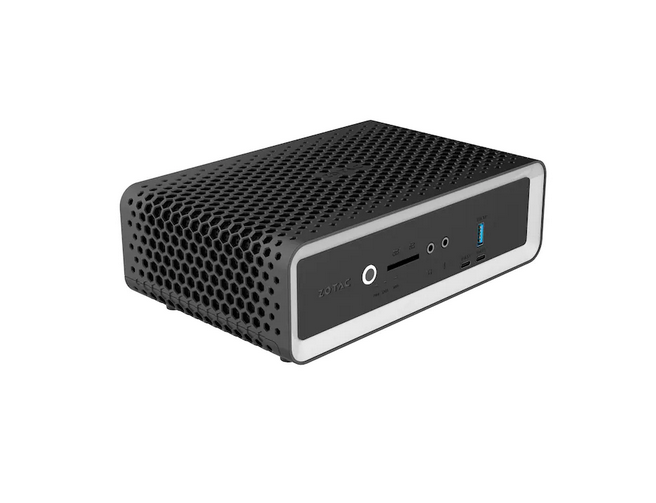
This will be my new “HomeServer” running https://44-2.de/docbox/ and Openhabian..and more. Its a passive cooled mini PC with Intel i3-8130U, for my needs its equipped with 8GB RAM and a 8GB (2x4GB) Crucial DDR4-2400 CL17 SO-DI RAM and a Samsung SSD 860 EVO Series 1TB.
Installing the Hardware
https://www.youtube.com/watch?v=SizIpEPl378
Installing Ubuntu 20.04 LTS on ZOTAC ZBOX + The Bacis
Very simple and straight forward
Create Bootable USB Stick with Etcher
Connect with Keyboard , HDMI Monitor and Ethernet (optional)
PlugIn USB Stick in the front USB
Power on the box + press F8 on the keyboard (every 1-2 seconds)
Follow https://linuxconfig.org/ubuntu-20-04-connect-to-wifi-from-command-line to set-up the interface using netplan, my config file for WiFi located in //etc/netplan see below. To use the local name service (e.g. by your router, e.g. AVM Fritzbox) you need to add the section “search”.
Some other error messages came from multipath tool, used on server to manage LVM devices – not needed, we only have one SSD, so I removed it with sudo apt-get remove multipath-tools
# //etc/netplan config code for wifi interface (check the name of the interface, here its wlp3s0)
network:
   ethernets:
     enp1s0:
       dhcp4: true
   version: 2
   wifis:
       wlp3s0:
         optional: true
         access-points:
           "YOUR SSID":
               password: "YOUR PWD"
         dhcp4: no
         addresses: [YOUR IP/24]
         gateway4: 192.168.1.1
         nameservers:
           search: [fritz.box]
           addresses: [192.168.1.1]
I can just stick on a wall or desk, without additional wiring, so its battery driven
Can be enabled with a simple-touch, so it needs to wake-up from sleep
Connects to WiFi and is very flexible, so it needs to have an ESP8266
!!!!! The final solution will have a small battery having the same size as the button — of course 🙂 !!!!
Why this was a little challenge?
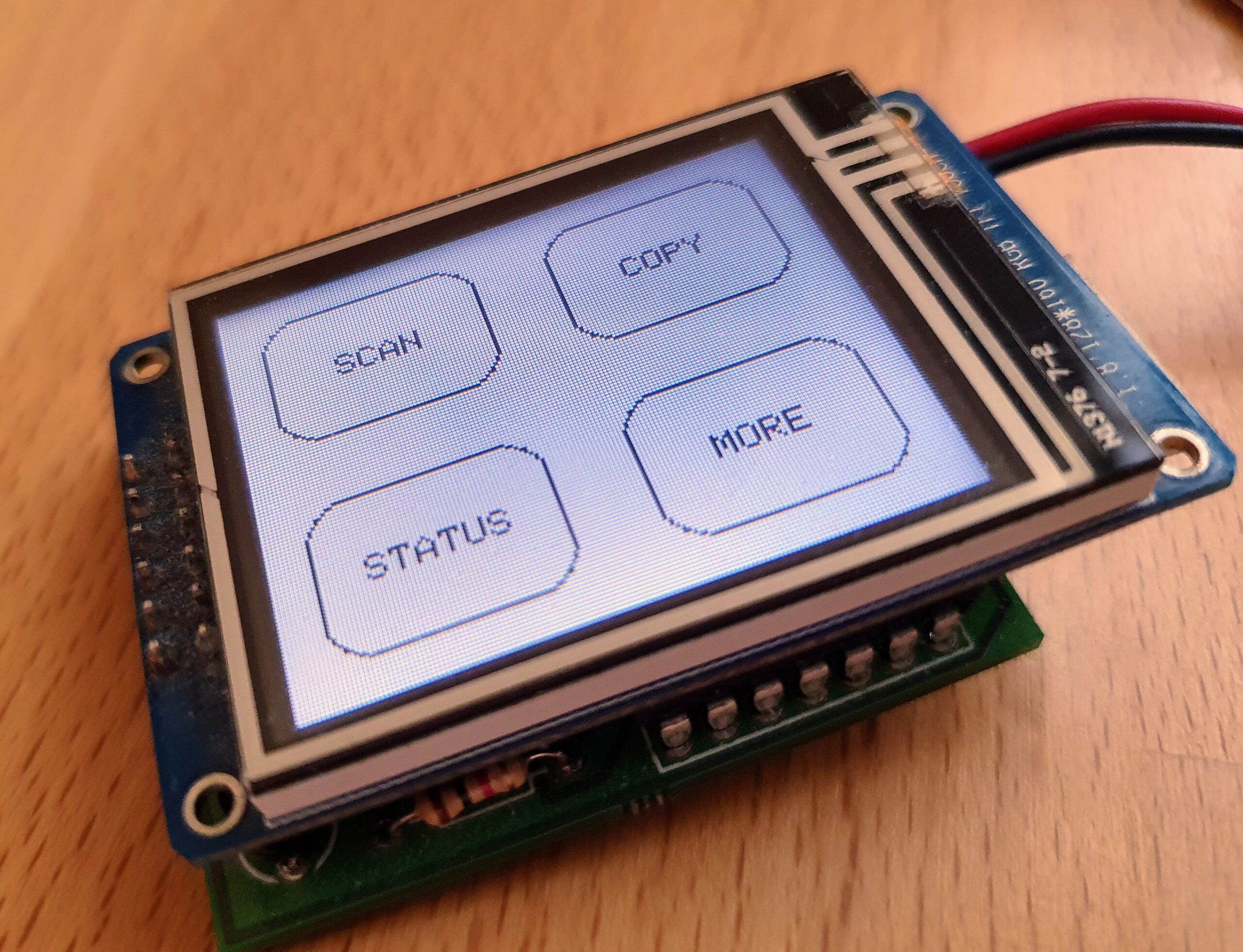
Well…I already got the display running, check out this Post. But it consumes a lot of power when used, so it needs to SLEEP, when nobody is using the display. Now it can stick on a wall, it just waits. Once you need it, you touch the display, it wakes up and it is there – after some time it will fail again into deep sleep. It should last there for some month.
It is easy to put the ESP8266 into deep sleep – -but how to wake it up?
Unfortunately I didn’t find a logic in the display, that would support a “wake-up” signal for the ESP8266. So the approach is to have the ESP8266 always sleeping and use a PIC Low Power Microcontroller to regularly give short time power to the display to check its touch controller. If not touch is reported, the PIC switches off the power and goes back to sleep. If a touch was detected, the PIC will wake-up the ESP8266, give power to the display and enable the backlight. All is back running.
Energy saving !
My initial idea was to use the ESP8266 to regularly wake-up and check the display. Unfortunately the ESP8266 is not able to keep status of its IO (digital IN/OUT) during deep sleep (took me quite some time to find this out), so when in deep sleep -it would leak power to the display (actually even to disable the backlight was not possible)…and *no power saving*.
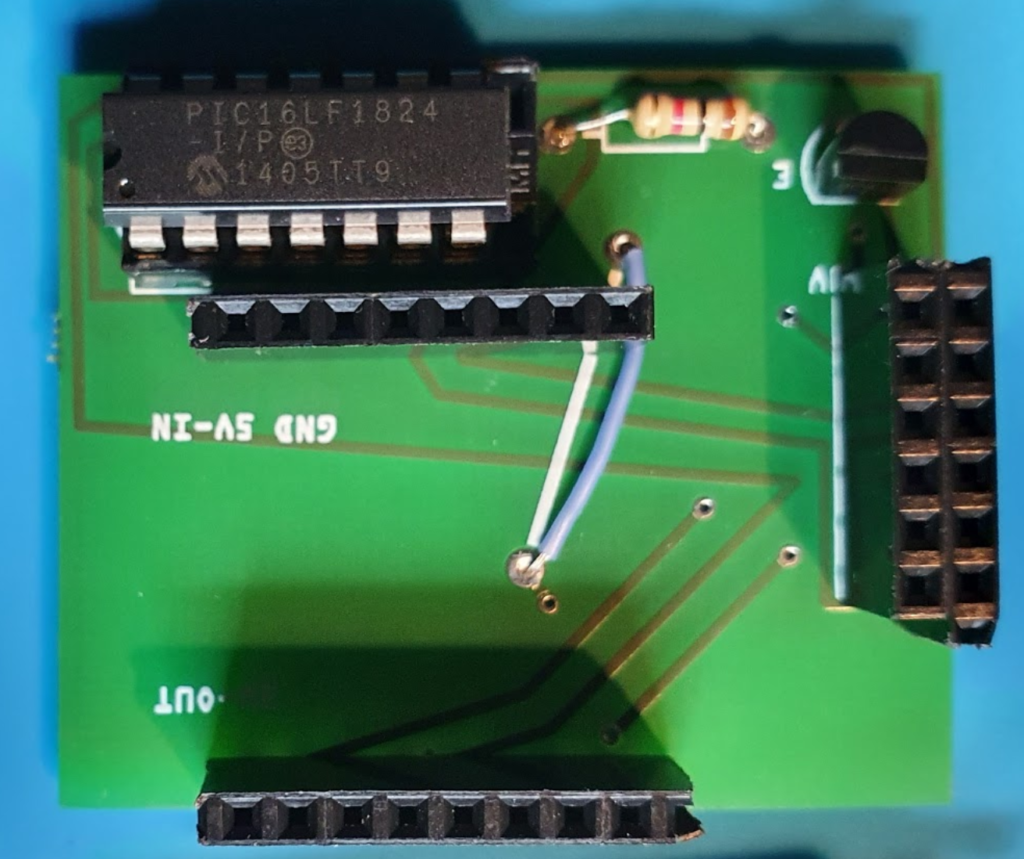
PIC 16LF1824 Low Power Microcontroller
Here comes the PIC into the game:
PIC is sleeping
To enable the display, its connected to a transistor that is “grounding” the display to close the power loop.
Once this is done, it will pull-down the backlight (so it keeps disabled) and it will check the “touch IRQ” pin of the display.
Only when detecting a touch it will pull down the RST to ground, so the ESP8266 is waking up. The nice thing of a PIC, it keeps the IO status during sleep, it doest need any other hardware to run and it can be programmed easily.
I am posting this extract, to show how easy the PIC can be used for this kind of tasks:
 while (1)
    {
        WDTCONbits.SWDTEN = 0b1;
        SLEEP(); // sleep for watchdog sleep time 1.3 sec
        WDTCONbits.SWDTEN = 0b0;

        pen_pressed=false;

        //Enable the display (without backlight) to measure if touched
        IO_RC4_TFT_BKL_OUT_SetLow();
        IO_RC3_TFT_PWR_OUT_SetHigh();

        __delay_ms(40); //time needs the TFT to boot

        PEN_value=IO_RC5_TFT_PEN_IN_GetValue()  ;

        // Pen is pressed *** Wake up display
        if (PEN_value==0) {

            pen_pressed=true;

            IO_RC0_ESP_RST_OUT_SetLow();
            __delay_ms(10);
            IO_RC0_ESP_RST_OUT_SetHigh();

            // enable TFT backlight
            __delay_ms(600); //give the ESP time to wake up
            IO_RC4_TFT_BKL_OUT_SetHigh();
        }

        // check, if the ESP allows me to sleep again
        if (pen_pressed) {
            do {
                __delay_ms(500);
                SLEEP_value=IO_RC1_ESP_SLEEP_IN_GetValue() ;
            }
            while (SLEEP_value!=0);
        }

        // Go back to sleep
        IO_RC2_TST_OUT_SetLow();
        IO_RC3_TFT_PWR_OUT_SetLow();
        IO_RC4_TFT_BKL_OUT_SetLow() ;

    }
}
ESP8266 Programming
On wake up from the PIC, the ESP will take over control of the display and connect via WiFi to the SmartHome Server / DocBox Server – to register. Nothing special about this. But I wanted to be able to set-up a system to display menus and sub-menues, so I came with the following approach using AdafruitGFX-Button library and “button-press-handler” as shown below -after defining the buttons, each button is assigned to a “handler” (https://github.com/happychriss/TouchSwitch/blob/master/src/tft_helper.cpp) that will be called when the button is pressed. If each “sub-menue” is placed in its own c-file, the result is a very modular and structured.
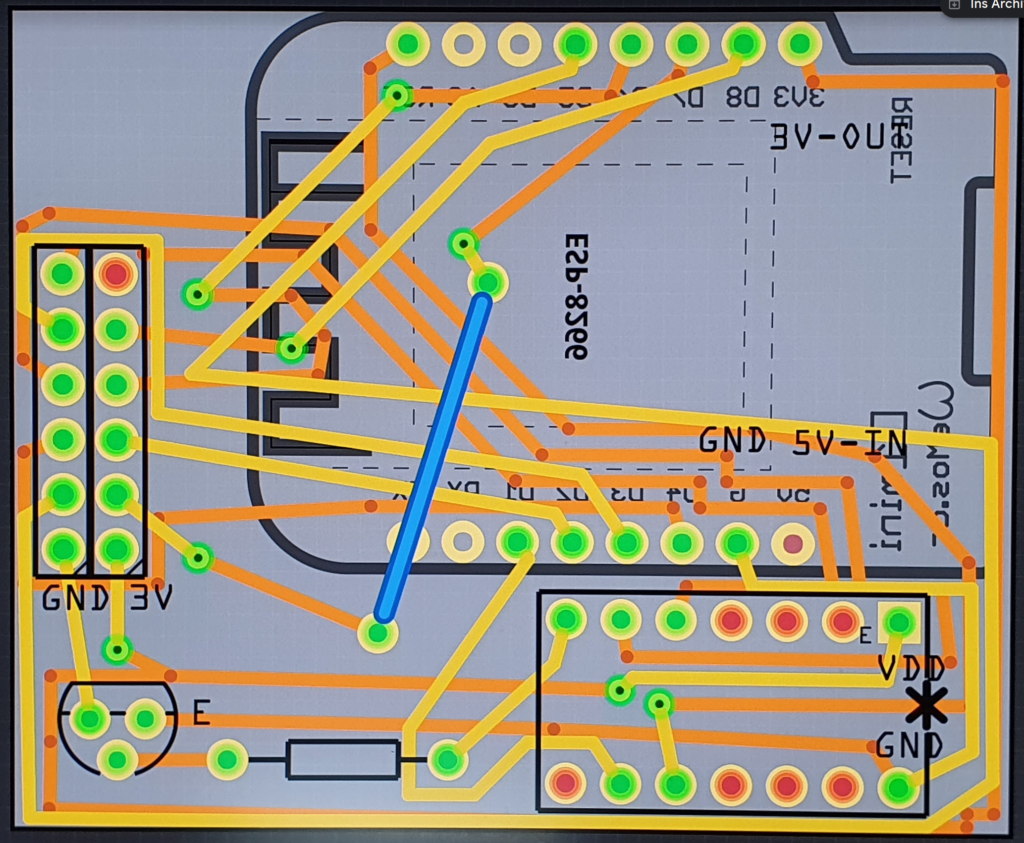
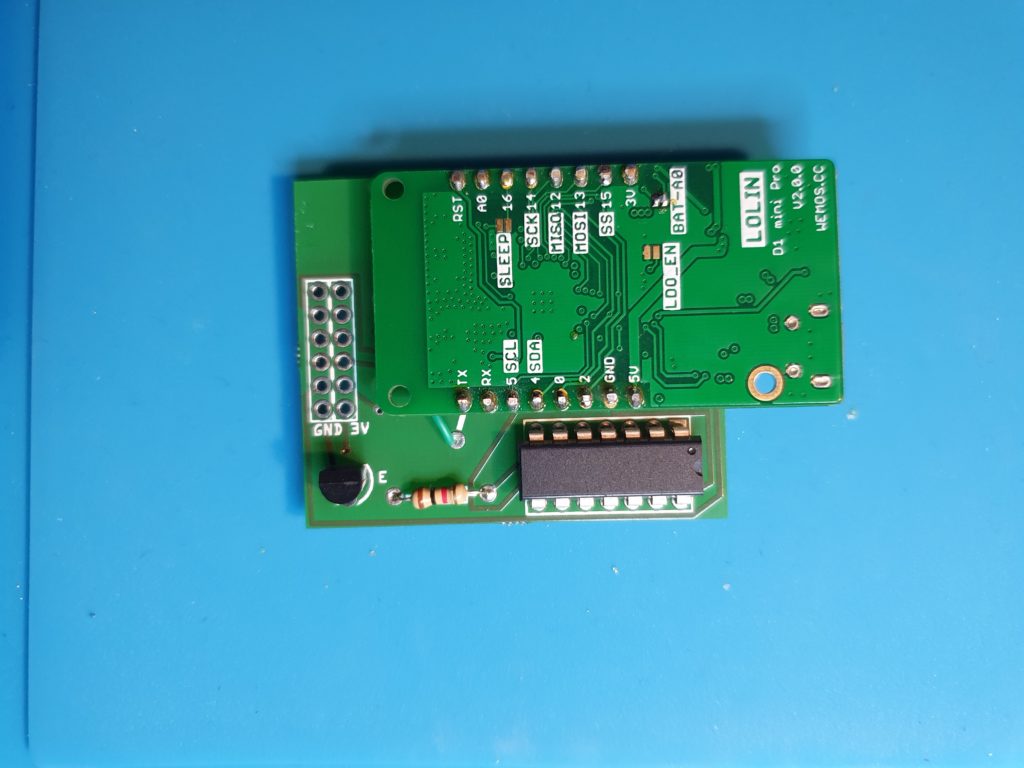
Finally I realized that this will be a bit of wiring, so I did my 2nd PCB using Fritzing to layout the PCB and directly ordered it via Aisler, a German company for quick prototyping. I was very positively surprised by the cheap price and the quick delivery. Its so much easier to design the PCB then doing all the wiring.
All build together – still TINY
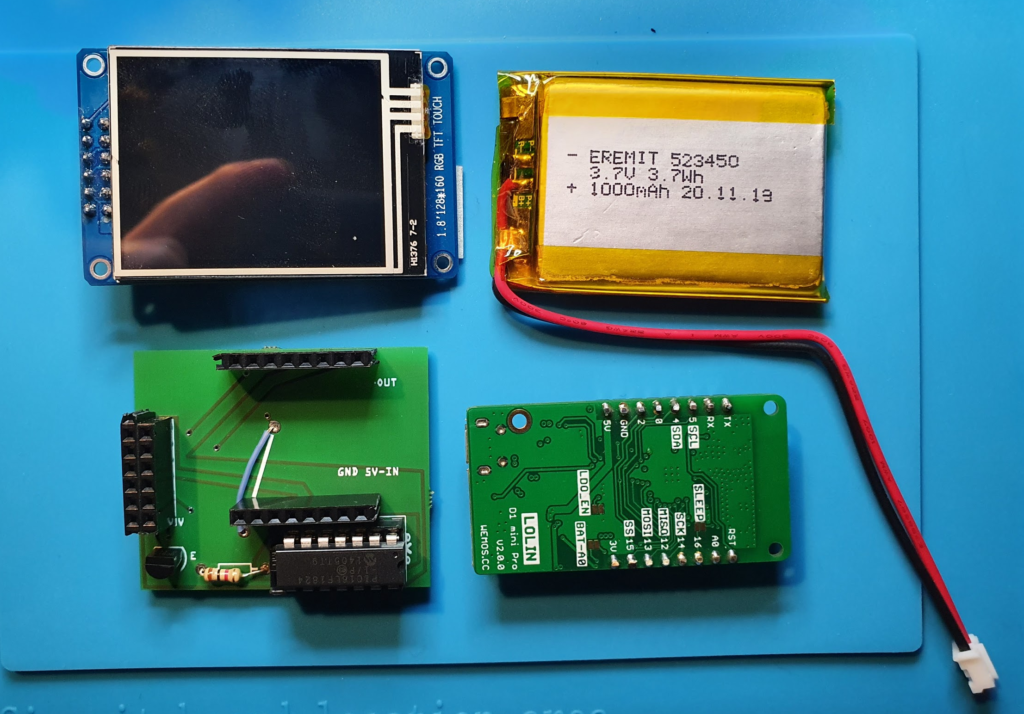
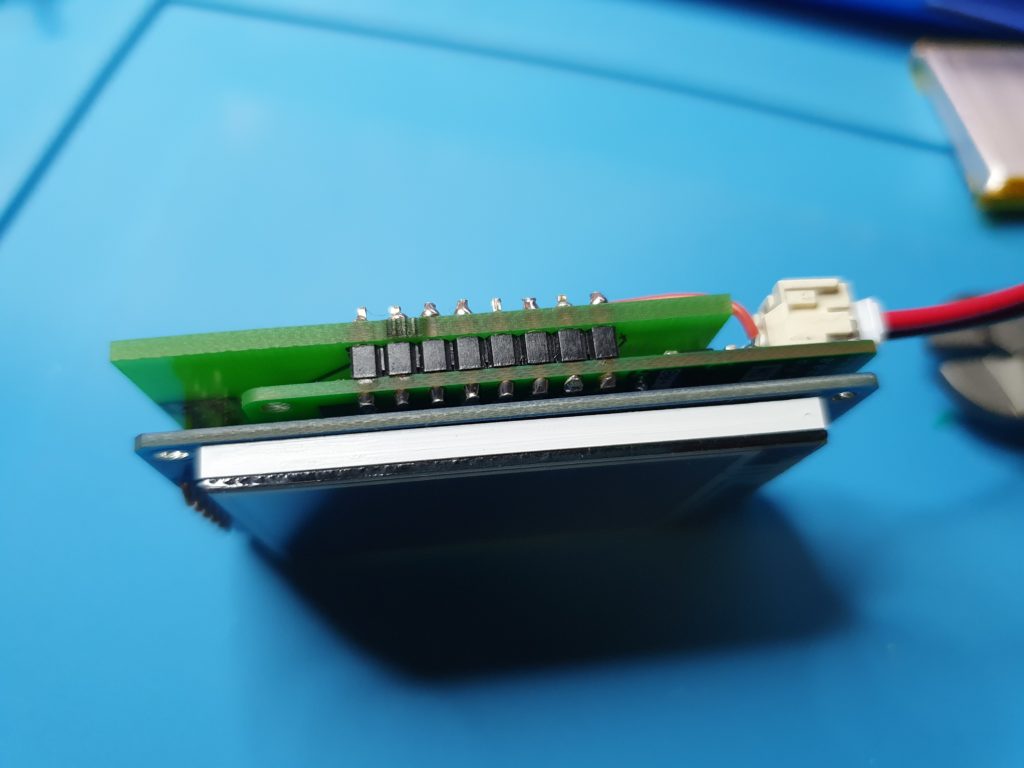
In total the system has the following components: TFT Display, ESP8266, PIC and battery – and should still be slime. I played a lot with different layouts – that was the result. Finally (of course) the battery needs to be added. When choosing the ESP, I choosed the Wemos Mini, that comes with an integrated LiPo and LiPo charger.
It all started with an article in my favourite computer magazine Heise – WLAN Plug with Tasmota. So I could control some 220V devices, like a floor lamp with my OpenHAB Super-Cheap – Smart Home Solution Smart Home.
Some 220V devices don’t need a plug, I want to control them with a tiny switch and not a big plug on the wall, here I found this- 4€ each from China…will this work?
After one month of waiting, 3 arrived. Looked actually quite good!
Its actually amazing, what you get for 4€, and ESP8266 micro computer with WiFi and all the hardware to control 220V / 10 A = 2200W)
But: Its firmware is from China, you need to register an account somewhere and the little switch will connect to it and send your data somewhere – I cannot control.
Wo we need to exchange the firmware on the switch, the brand “Sonoff” is well known for an “easy to way” to do this
The firmware solution of my choice is Tasmota, an OpenSource SW that connects the device only into the internal WiFi network and provide a user-interface to configure the device. So we need to do 2 things to get it running:
Flash new Firmware flashed on the switch
Integrate the switch into OpenHAB (smart home open source SW)
Flashsoftware to reprogram the device with the image from 1): tasmotizer
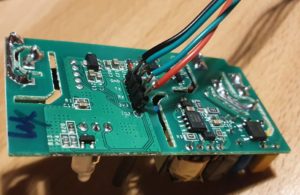
A wire to to connect your PC via an FTDI (serial2USB converter) with the switch, the FTDI and the switch have signs on it, so has the switch:
FTDI
Sonoff Smart Swtich
3V
3V
GND
GND
TXT
REC/RXI
REC/RXI
TXT
It takes 5min of soldering, when ready it should look similar to below:
Flashing
The switch needs to be connected with the PC via our nice cable, it just works by putting it in and a bit of adjusting.
To get the switch in the “programming mode” the reset-button on the switch must be pressed *before* connecting the switch via USB cable to the PC. Once connected, you can release the reset-button (its the long black stick).
Then start flashing with tasmotizer by selecting the firmware and the USB interface:
After re-power the switch, it opens an access-point and you can be configured via connecting to its WiFi (some AP with “tasmota” in the name) , so it will later connect to your own WiFi. But much more elegant, you can use tasmotizer via the button “send config” to update the WiFi directly, you will need to enter the credentials (SSID and PWD from your home network).
All your credentials and data remain will remain in your network now. On the router I also disabled the internect-connection for the IP address of the switch in my home network – just to be save 🙂
Configure the Switch – Tasmota is great
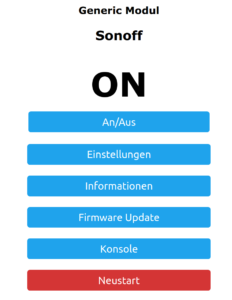
When all works, the switch will connect to your home WiFi, you can find its IP address in your Router and you can open its main config page via a web-browser. You will see the new firmware from “Tasmota” active, that gives you full control over the device.
Its an amazing software, full Opensource, not cloud connection or internet needed. It stays in you home 🙂
The basic tasmota configuration is already correct, nothing to do, maybe in the settings section, you may enter a backup WiFi address – if you want.
Connecting to OpenHAB
The Switch Side
The concept is, that the switch will use the MQTT protocol to communicate with OpenHab, once configured the switch will listen for a message via this protocol and do its job – ON/OFF.
To configure MQTT you need configure your OpenHab server IP and the credentials of the MQTT network, that you have configured in OpenHab. The trick is the “topic”, that is the “address” that the switch will listen towards – any message with this topic will be processed by the switch. For my network I gave each switch its own topic, like “sonoff1”, “sonoff2” – so I can control them separately. OpenHab has a binding that keeps the link to this protocol and its easy to configure.
The OpenHab Side
After installing the MQTT Binding in OpenHab, I did the following configuration, important to have the topic “sonoff1” correctly everywhere:
I am using Amazon-Dash buttons in my home automation project, got them from eBay for some euro. So I can switch-off all lights and heating from my bed, dim the lights in the living-room when watching TVs. And all for nearly no money. The buttons a made for 1000 clicks, so I thought I would be save.
But I didnt realize the “power of Amazon” and under-estimated the SW and HW that is build into this little button.
My plan – how to use the “Dash-Button” in Home Automation!
Amazon did everything to make the button not useable – except for ordering from Amazon 🙂
But smart people found a solution: You set-up the button once with the Amazon App (to let him connect to your WiFi network by providing SSID and PWD) .
When the button is pressed, it wakes up and needs to re-connect to the configured WiFi , this connection event can be monitored with a simple script to install on RPI HomeServer with Openhabian: https://github.com/Nekmo/amazon-dash
Finally you need to configure the buttons (name, mac-address) to be controlled in a config-file That’s it – you can access the button from OpenHABian like any Hue device.
Ohnn…not really…..its important you make it impossible for the button to “CALL HOME” to Amazon (e.g. with a FritzBox you disable internet for fixed IP address of the button).
The big disappointment!
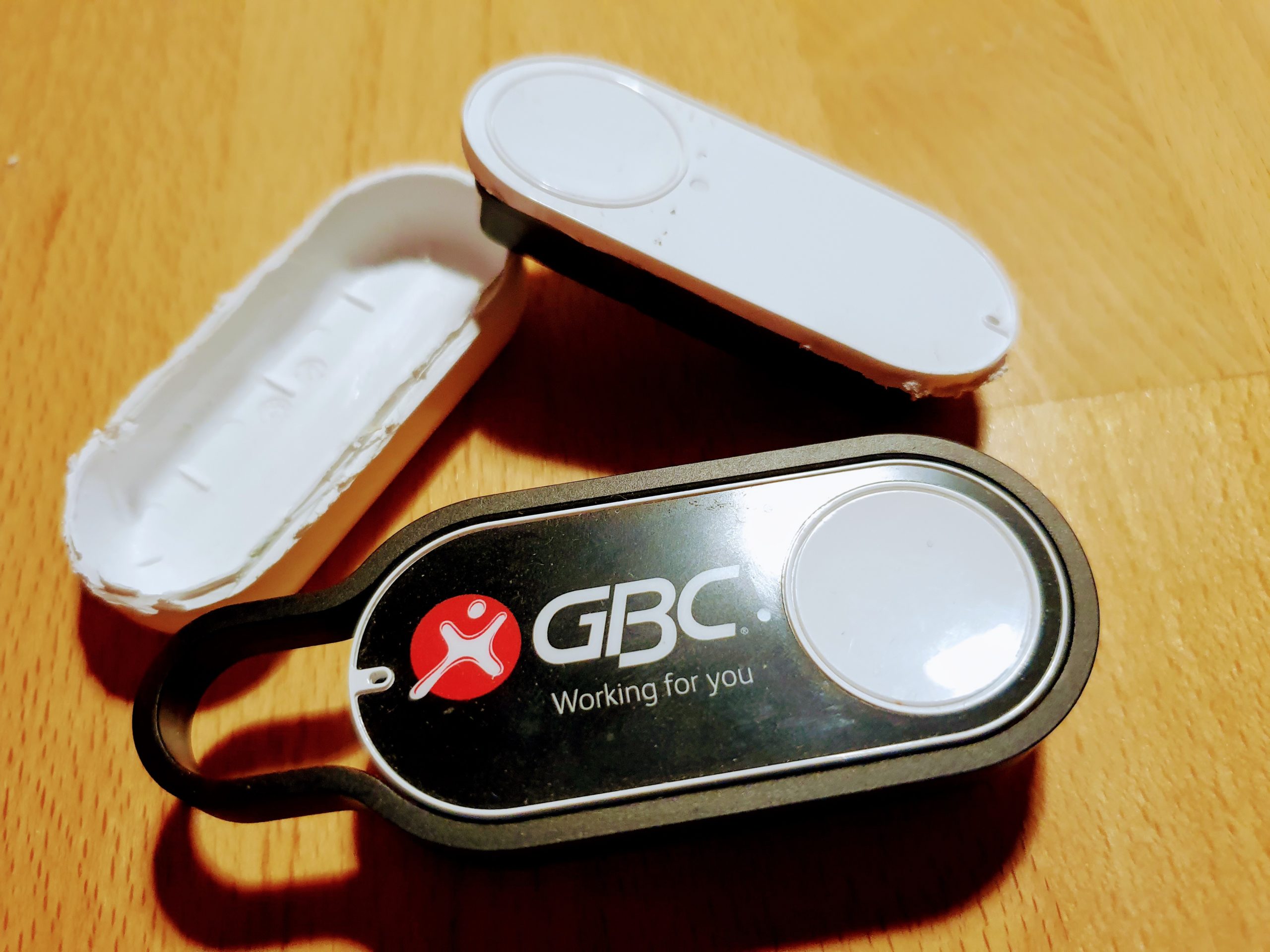
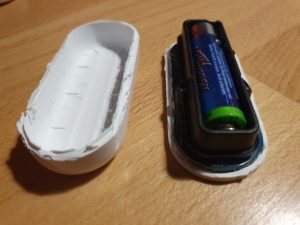
One day, one button stopped working.It seems that the battery is empty. Ok, no problem – took me a while to open the case – and I replaced the battery.
Nope..not working...of course the button forgot anything about WiFi and PWD. So I wanted to use the Amazon-App to save this settings.
Nope..not working..Amazon has changed the App, no menue-item any-more for Dash-Buttons. So, how to teach the button about the WiFi?
My “Dash-Button” is a little WebServer with Access Point!
During Reset the button opens it own WiFi AP, so you can access him via: http://192.168.0.1 from a browser of the device in this local WiFi. It tells you e.g. the firmware version. The button also allows to set-up the WiFi SSID and PWD with http://192.168.0.1/?amzn_ssid=SSID&amzn_pw=PASSWORD.
My “Dash-Button” can update its firmware and validates certificates!
Nope..not working.. this tiny buttons has a firmware, and when connected to the internet, it automatically updates the firmware (could you imagine, this little thing..). As of a recent version of firmware, that button wants to connect to an Amazon Server and is validating its certificate before he is saving the WiFi information. Amazon has disabled the server, because of the certificate validation you can not “fake” an Amazon server. No way to convince the button to save the SSID and PWD 🙁
So…is there a way to get an older version of firmware or maybe a firmware hack?
My “Dash-Button” has a microphone !
In case WiFi is not working, the Dash-Button can be configured using *sound*, so it has a little microphone and it will load its setting from the mobile via audio. Some really smart people found a memory leak in this interfaces and managed to use this leak to implement a new version of the firmware that would skip the certificate validation. I found this on github: https://github.com/znuh/dashbutton
Trying it, it first looked great – the button reacted on the sound, but:
Nope..not working.. I found out, that my button had a recent version of the firmware and that Amazon has fixed this bug in the new version.
My “Dash-Button” gets a *Packet of Death* from Amazon!
I also learned that (at the moment) any Dash-Button now would connect to the internet, it will receive a special command to completely disable itself by going into an endless-loop.
Conclusion – The POWER OF AMAZON
I spent a full evening with my Dash-Button, a bit disappointing that I couldn’t get it back to live, but a very interesting learning experience.
How much effort and brain-power Amazon put into this button with a functionality that is completely invisible to the user – who only things he buys a button. And that has even a microphone. And also how much power does Amazon have, the company just decided that the buttons should not be used any-more, updates the firmware, sends a packet of death and disables the certificate server. Now you have just a peace of dead electronic to through away.
Makes me thinking….how much sensors and computing power is in a mobile phone or an robotic vacuum cleaners. And how much power do we have about this devices – if we even cant control a simple button 🙂
After a long time the MCW was standing outside in the cruel world – now I found its time for a real home – lets build it a home with 3D Printing.
I have used Tinkercad before, for my calendar (check out this picture)
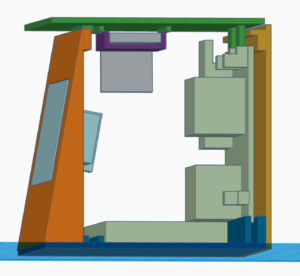
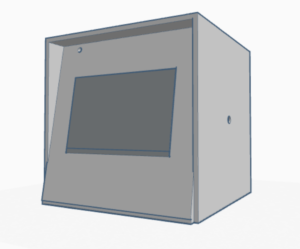
Now, the MCW Watch-Case is more complicated, because – when I build the watch and the PCB – I did not think about the case. Hence -the case had to be build around the watch.
To get this done, I first measured all components of the MCW, starting from the e-Ink Display, the PCP, battery..everything. And build the case around it:
Actually, for me that was the only way to visualize the full result. I want to glue the different parts together, and fill in all components from the top. Not sure, if I considered everything 🙂
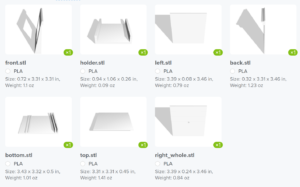
Its important that you should export each part separately from Tinkercad and upload as STL file to the order – after export into STL its not possible to get the files separated.
My order now is in Treatstock, 17€ including shipping – cant wait for the result:
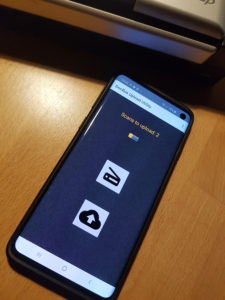
The Mobile-App is used to take pictures from documents that I want to keep or archive, especially when I am away and I don’t have access to my scanner. Back at home, I upload these documents directly to my DocBox. So my Mobile App does:
Scan (take a photo) and edit the picture
Store Picture on the phone until back at home
Back at home – upload all saved pictures to the DocBox server
Only upload data to DocBox, when we are in a verified Wi-Fi network and when a DocBox server is available.
Allow maintenance of a list of allowed Wi-Fi network and DocBox server via setting
Do *not* upload anything to Google, Facebook and do *not* store my data anywhere else!!!
Doesn’t sound to complicated…maybe a rainy Sunday?
How did I do it?
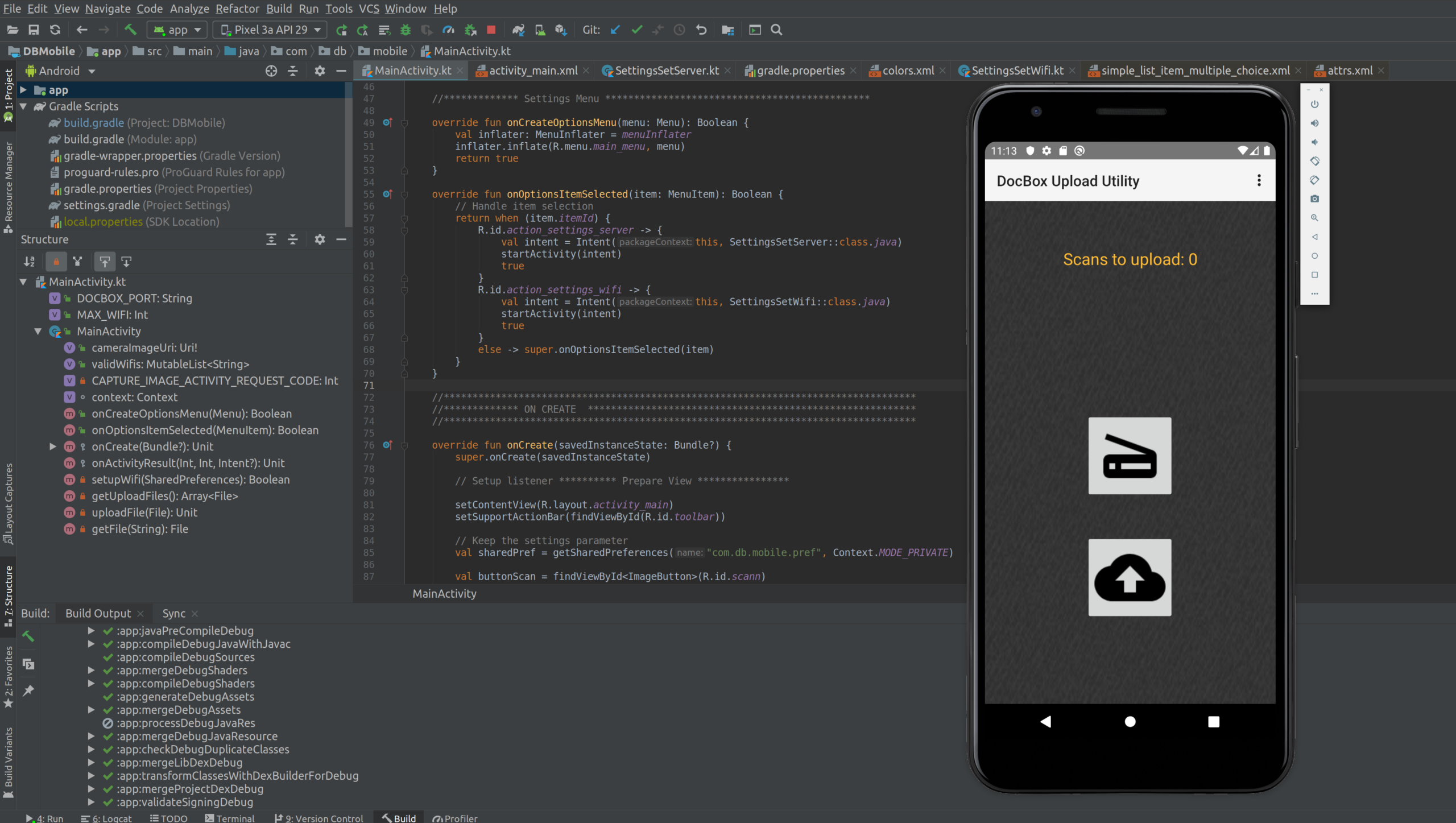
Its best to start by using the IDE/ tool-chain called “Android Studio”, that can be downloaded here.
Android Studio is provided by Google and is developed by JetBrains. Its an Integrated Development Environment and handles everything (Coding, Code-Completion, Refactoring, Debugging, Testing, Resource Management). Once you installed it, you can start with an empty template app or example app.
To try the mobile app you just have developed, you can use a simulator that’s running on your PC (you can even select the model of phone you want to simulate) or you connect a normal mobile phone with USB-Debugging enabled. Voila….
You can choose between 2 different programming languages, JAVA or Kotlin. Kotlin is a “new programming language” developed by JetBrains. Its object oriented, cross-plattform and statically typed. Personally I think that programs written in Kotlin are much better readable. At the end the Kotlin program is also compiled to run in to a JVM, not much of a difference to Java. So I learned Kotlin.
To give you some impression, I picked one simple activity – see below some Kotlin code (its for Android 10) – it does a lot:
It creates the setting screen for the servers IP address in the “onCreate” activity
It gets all the ID of the graphical elements, so you can access them from the program
It opens a preference key-value database to store the IP address permanently on the phone (only accessible from the app)
It set’s up a listener, that is waiting for a button, when this button is clicked it:
It calls the DocBox server and checks if it is available
Finally it update the correct IP address in the database and returns to the main menue
I think, the APIs provided by Google, together with the Kotlin language do a great job to allow clear and structured coding:
class SettingsSetServer : AppCompatActivity() {
    internal val context: Context = this

    override fun onCreate(savedInstanceState: Bundle?) {
        super.onCreate(savedInstanceState)
        setContentView(R.layout.activity_settings_set_server)

        setSupportActionBar(toolbar)
        supportActionBar?.setDisplayHomeAsUpEnabled(true)

        val ipAddress = findViewById<edittext>(R.id.ip_address)
        val serverStatus = findViewById<textview>(R.id.server_status)
        serverStatus.text=""

        // Read current IP address from Preferences and update on GUI
        val sharedPref = getSharedPreferences("com.db.mobile.pref", Context.MODE_PRIVATE)
        val oldIpAddress = sharedPref.getString("docboxserver","")

        ipAddress.setText(oldIpAddress)

        // **************************************************************************
        // Update IP address if changed with new IP address

        ipAddress.setOnClickListener {

            val newIpAddress =ipAddress.text
            var error=false

            runBlocking {
                try {
                    Fuel.get("http://$newIpAddress:$DOCBOX_PORT/cd_server_status_for_mobile").awaitStringResponse()
                } catch (exception: Exception) {
                    serverStatus.text="No connection to Server"
                    error=true
                }
            }

            // if no error, update new IP address in preferences
            if (!error) {
                with (sharedPref.edit()) {
                    putString("docboxserver", newIpAddress.toString())
                    commit()
                }
                finish()
            }
        }
    }
}</textview></edittext>
How did it go?
Lets start with the good news:
Kotlin was new to me, so I had to get used to the specialities of this language – but its very consistent – good exercise.
I have used other IDEs from JetBrains, so I knew the concept and had a quick start
To get the first app running takes only some minutes
Google is your friend, 90% of all questions have been already solved!
Here comes the bad:
You need to decide for which Android version the app should run, each version Google comes up with new features – but also depreciates old ones. Its a nightmare to find out -what you need to do. Upgrading and keep an app recent for sure is HARD WORK.
Android is separating programming logic and views and resources very strict. Its using Activities to control different screens. Each Activity has a live-cycle. Its core to understand this underlying principles. That takes time.
Many configuration files (manifest.xml, gradle) can be adjusted, and everything can be configured. It just should be correct.
All is multi-threading, threads communicate and impact each other – can be quite confusing at the beginning – for me that was the biggest challenger!
The 10% of the questions, that are not solved via Google-Search – are really a problem. You can get really, really stuck!
…..
Conclusion
In total it took me much longer then expected, I got into one problem where was no solution in the Internet – and that took time to solve. Also at the end the solution was so easy, just one line of code 🙁
I have my full respect for people writing apps for free, putting them in the play-store and keep them even up-to-date. THANK YOU!!!
But on the other hand – mobile app development is not a miracle – if someone starts charging you 100k€ for an app like mine – start thinking.
By the way, my DocBox-Mobile is not in GooglePlay – but you find it on GitHub: